
If you’ve spent any time managing a team, you already know the problem: too many apps, too many notifications, and not enough actual output. Workplace productivity tools promise to fix that, but most buying guides just hand you a list of logos and call it a day. That’s not enough to make a real decision.
This guide is different. Below, you’ll find the 20 tools worth your attention, but also the thinking behind picking them, building them into a working stack, and measuring whether they’re actually paying off. If you manage a team of five or five hundred, there’s something here you can use today.
Workplace productivity tools are software applications built to help individuals and teams get work done faster, with fewer errors, and with less back-and-forth. That covers a wide range of software: project trackers, chat apps, note-taking tools, scheduling assistants, and now, AI copilots that draft, summarize, and automate.
The 20 Best Workplace Productivity Tools
Below is a closer look at 20 of the best workplace productivity tools available in 2026. Each review highlights what the tool does, its standout features, potential drawbacks, pricing, and the type of team that will benefit most.
1. Teamwork
Overview:
Teamwork is a tool that helps people work together on projects. It is really useful for businesses that work with clients like agencies and consulting firms. Teamwork helps these businesses plan their projects, track how time they spend on things and keep an eye on their budget. It also makes it easy to send invoices to clients and work with them online. This means that people can use Teamwork to manage their work and make sure they are making money from one place. Teamwork is a way for businesses to stay organized and focused on their clients.
Best features:
- Built-in time tracking and billable hours
- Project budgeting and expense management
- Client permissions and external collaboration
- Workload and resource planning
- Project templates and reporting dashboards
Pros and cons:
Teamwork is really good at helping teams work together especially when it comes to tracking the work they do for clients and managing those projects.. Some organizations might find that they do not need all the features that Teamwork has to offer especially if they only need to manage projects inside the company. The way Teamwork looks and feels can be a bit confusing compared to other tools that just help you manage tasks. Teamwork has a lot of features that’re great for agencies so it is really good, for Teamwork to have these features.
Pricing:
Free plan available; paid plans start at approximately $10.99 per user/month.
Best for:
Marketing agencies, consulting firms, creative agencies, and service-based businesses.
2. ClickUp
Overview:
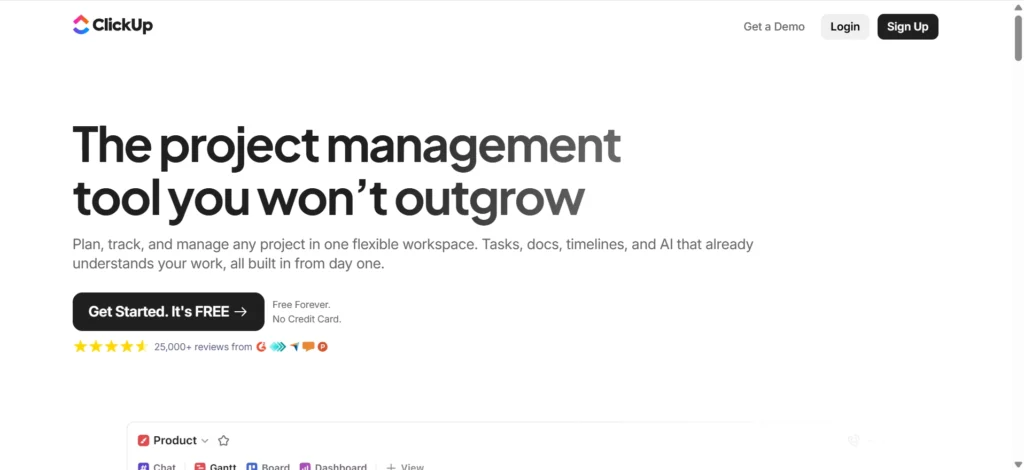
ClickUp is a tool that helps people get things done. It does a lot of things like managing projects, tracking tasks, storing documents and letting teams chat with each other. ClickUp also has goal setting and intelligence capabilities. The good thing about ClickUp is that it is very flexible. This means teams can use ClickUp by using many different tools. They can do all their work in one place with ClickUp.
Best features:
- Multiple project views including List, Board, Calendar, Timeline, and Gantt
- Custom workflows and task statuses
- Built-in ClickUp AI assistant
- Docs, goals, dashboards, and whiteboards
- Powerful workflow automation
Pros and cons:
ClickUp offers exceptional customization and can adapt to nearly any workflow. The downside is that the abundance of settings and features can create a learning curve, particularly for smaller teams or first-time users.
Pricing:
Free plan available; paid plans start around $7 per user/month.
Best for:
Businesses looking for a single platform to manage projects, documentation, collaboration, and workflows.
3. Asana
Overview:
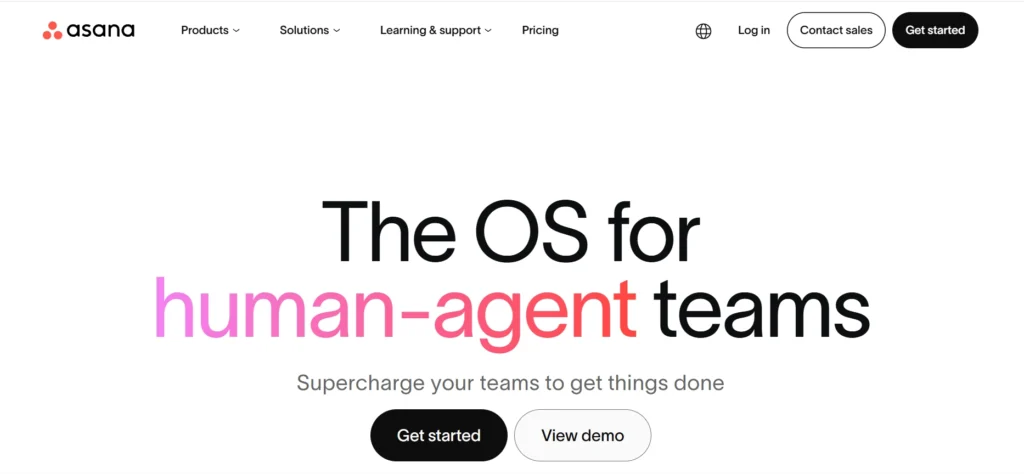
Asana is one of the most widely used work management platforms, helping teams organize projects, assign responsibilities, and monitor progress. Its intuitive interface makes it popular among marketing, operations, HR, and cross-functional teams.
Best features:
- Timeline and Gantt-style planning
- Workflow automation
- Goals and portfolio management
- Project templates
- Team workload visualization
Pros and cons:
Asana is really simple to figure out. At the moment Asana has a lot of advanced features that are great for organizations that are getting bigger. The reporting and portfolio management in Asana are very useful. They become more useful if you pay for a higher plan.. If you have a big team these higher plans can be expensive for your organization.
Pricing:
Free plan available; paid plans start at approximately $10.99 per user/month.
Best for:
Growing businesses and departments managing multiple projects simultaneously.
4. Trello
Overview:
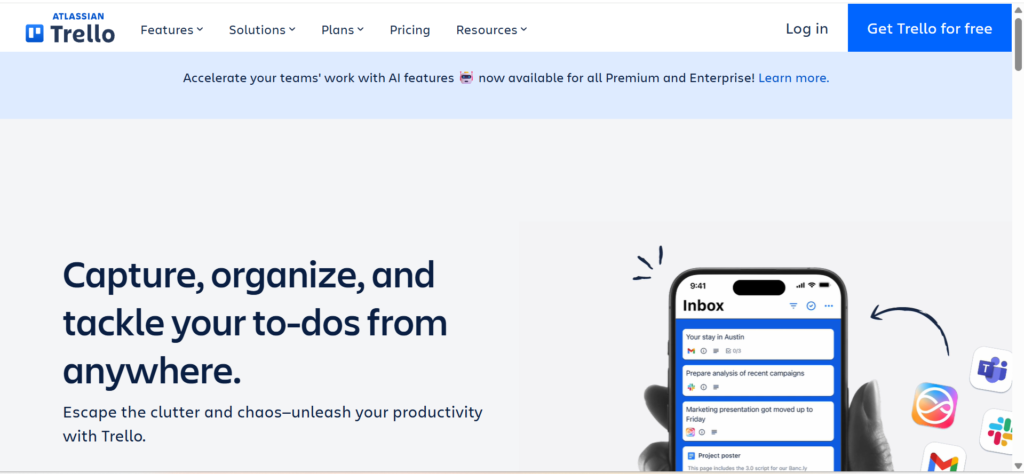
Trello is a simple, Kanban-style project management tool that helps teams organize work visually using boards, lists, and cards. Its straightforward interface makes it one of the easiest productivity tools to adopt.
Best features:
- Drag-and-drop Kanban boards
- Checklists and due dates
- Power-Ups for additional functionality
- Butler automation
- Mobile-friendly interface
Pros and cons:
Trello is extremely beginner-friendly and ideal for lightweight project management. However, large organizations managing complex dependencies may eventually outgrow its simplicity.
Pricing:
Free plan available; paid plans begin around $5 per user/month.
Best for:
Small businesses, startups, freelancers, and teams managing simple workflows.
5. Monday.com
Overview:
Monday.com is a system that helps businesses work in a way. It allows them to manage their projects and sales pipelines. They can also use it to manage their marketing campaigns and the things that the human resources team does. Monday.com helps with the work that needs to be done. It does all of this using boards that the businesses can customize to fit their needs. Monday.com is really good, at letting businesses make these boards their own.
Best features:
- Visual dashboards
- Automation recipes
- Custom workflows
- Workload management
- CRM and project templates
Pros and cons:
Its flexibility allows organizations to build solutions for nearly any department. However, costs increase as businesses add more users, advanced automations, and premium features.
Pricing:
Paid plans start around $9 per user/month.
Best for:
Companies seeking a scalable platform that supports multiple business functions.
6. Notion
Overview:
Notion is a tool that does a lot of things. It helps people take notes, make documents and keep track of projects. Notion also has a database and artificial intelligence. This makes it a great place for teams to work together. Many companies use Notion to store information and documents that everyone in the company needs to know. Notion is like a library, for companies where they can keep all their important documents and notes.
Best features:
- Collaborative documents
- Relational databases
- Thousands of templates
- Built-in AI assistant
- Wikis and knowledge management
Pros and cons:
Notion is incredibly flexible and can replace several separate documentation tools. However, building an organized workspace requires planning and ongoing maintenance.
Pricing:
Free personal plan; team plans begin around $8 per user/month.
Best for:
Knowledge management, internal documentation, and collaborative planning.
7. Slack
Overview:
Slack is one of the world’s most popular workplace messaging platforms, helping teams communicate through organized channels instead of lengthy email threads. It also integrates with thousands of business applications.
Best features:
- Organized channels
- Huddles and voice calls
- Powerful search
- Workflow Builder
- Extensive third-party integrations
Pros and cons:
Slack excels at real-time communication and app connectivity, but without proper notification settings it can become distracting and contribute to information overload.
Pricing:
Free plan available; paid plans begin around $7.25 per user/month.
Best for:
Organizations that rely on fast, collaborative communication.
8. Microsoft Teams
Overview:
Microsoft Teams combines messaging, video meetings, file sharing, and collaboration into a single platform tightly integrated with Microsoft 365. It’s particularly attractive for businesses already using Office applications.
Best features:
- Integrated meetings and chat
- Shared Office documents
- Meeting recordings
- Microsoft Copilot integration
- Enterprise-grade security
Pros and cons:
Teams work exceptionally well inside the Microsoft ecosystem. Companies using other productivity suites may not benefit as much from its deepest integrations.
Pricing:
Included with many Microsoft 365 subscriptions.
Best for:
Medium and large businesses using Microsoft 365.
9. Google Workspace
Overview:
Google Workspace bundles Gmail, Docs, Sheets, Slides, Meet, Calendar, and Drive into one cloud-based productivity suite that enables seamless real-time collaboration.
Best features:
- Real-time document collaboration
- Shared cloud storage
- Google Meet integration
- Gmail and Calendar synchronization
- Gemini AI features
Pros and cons:
Its simplicity and reliability make collaboration effortless, although users requiring advanced desktop publishing or spreadsheet capabilities may prefer Microsoft’s desktop applications.
Pricing:
Business plans start around $7.20 per user/month.
Best for:
Businesses that prioritize cloud collaboration and remote teamwork.
10. Zoom
Overview:
Zoom remains one of the leading platforms for virtual meetings, webinars, and online collaboration. It continues expanding beyond video conferencing with AI-powered meeting summaries and collaboration tools.
Best features:
- HD video meetings
- AI-generated meeting summaries
- Breakout rooms
- Webinar hosting
- Screen sharing and recordings
Pros and cons:
Zoom offers excellent call quality and enterprise reliability, but it focuses primarily on meetings rather than broader workplace productivity.
Pricing:
Free plan available; paid plans start around $13.33 per user/month.
Best for:
Client meetings, webinars, remote interviews, and virtual events.
11. ChatGPT
Overview:
ChatGPT is OpenAI’s conversational AI assistant that helps employees draft content, summarize information, brainstorm ideas, analyze data, write code, and automate knowledge work. It has become a valuable productivity companion across nearly every business function.
Best features:
- Natural language conversations
- Writing, editing, and brainstorming assistance
- Data analysis and coding support
- Custom GPTs for specialized workflows
- Deep research and document summarization
Pros and cons:
ChatGPT is highly versatile and can significantly reduce the time spent on repetitive knowledge work. However, users should always verify factual information and review AI-generated content before publishing or sharing it.
Pricing:
Free plan available; ChatGPT Plus starts around $20/month.
Best for:
Content creation, research, coding, customer support, and everyday productivity tasks.
12. Microsoft Copilot
Overview:
Microsoft Copilot brings AI directly into Word, Excel, Outlook, PowerPoint, and Teams, helping employees create documents, analyze spreadsheets, summarize meetings, and manage emails without leaving Microsoft 365.
Best features:
- AI-powered document creation
- Email drafting and summarization
- Spreadsheet analysis
- Meeting summaries
- Native Microsoft 365 integration
Pros and cons:
Copilot feels seamless because it works within familiar Microsoft applications. However, its full capabilities typically require eligible Microsoft 365 subscriptions and licensing.
Pricing:
Pricing varies depending on Microsoft 365 plan.
Best for:
Organizations already invested in the Microsoft ecosystem.
13. Gemini
Overview:
Gemini is Google’s AI assistant integrated across Gmail, Docs, Sheets, Slides, and other Workspace applications. It helps users draft content, summarize emails, generate ideas, and answer questions directly within Google’s productivity suite.
Best features:
- AI writing assistance
- Email and document summaries
- Workspace integration
- Research support
- Spreadsheet assistance
Pros and cons:
Gemini provides a smooth experience for Google Workspace users but delivers the greatest value when your organization already relies on Google’s ecosystem.
Pricing:
Included with selected Google Workspace plans and available through standalone subscriptions.
Best for:
Businesses using Google Workspace as their primary productivity platform.
14. NotebookLM
Overview:
NotebookLM is Google’s AI-powered research assistant that answers questions based only on the documents you upload. This approach reduces hallucinations and makes it particularly useful for internal knowledge management.
Best features:
- Source-grounded responses
- AI-generated audio overviews
- Document summarization
- Research organization
- Knowledge retrieval
Pros and cons:
NotebookLM excels at helping employees understand company documents and research material. Its usefulness depends entirely on the quality and completeness of the information uploaded.
Pricing:
Free to use.
Best for:
Research, onboarding, training materials, and internal documentation.
15. Zapier
Overview:
Zapier is a no-code automation platform that connects thousands of business applications, allowing teams to automate repetitive workflows without writing code.
Best features:
- Multi-step workflows
- Thousands of integrations
- Conditional logic
- AI-powered automation
- Easy workflow builder
Pros and cons:
Zapier is extremely accessible for beginners and can automate countless repetitive tasks. Businesses with heavy automation needs may see costs increase as workflow volume grows.
Pricing:
Free plan available; paid plans start around $19.99/month.
Best for:
Businesses automating repetitive administrative work.
16. Make
Overview:
Make is an advanced visual automation platform designed for users who need more complex workflows, branching logic, and detailed process automation than traditional no-code tools typically provide.
Best features:
- Visual workflow builder
- Advanced conditional logic
- API integrations
- Real-time automation
- Detailed execution control
Pros and cons:
Make offers significantly greater flexibility than many automation platforms, but its advanced capabilities require more time to learn and configure effectively.
Pricing:
Free plan available; paid plans begin around $9/month.
Best for:
Technical teams, operations professionals, and businesses managing sophisticated automation workflows.
17. Airtable
Overview:
Airtable combines the familiarity of spreadsheets with the power of relational databases, making it ideal for organizing complex business information without requiring database expertise.
Best features:
- Relational databases
- Multiple data views
- Automations
- Forms and interfaces
- Collaboration features
Pros and cons:
Airtable is far more powerful than traditional spreadsheets for structured information management, although building effective databases requires some planning.
Pricing:
Free plan available; paid plans start around $20 per user/month.
Best for:
Content management, operations, CRM tracking, inventory, and project databases.
18. Loom
Overview:
Loom enables employees to record and instantly share screen videos, making it easier to explain processes, provide feedback, onboard new team members, and reduce unnecessary meetings.
Best features:
- Instant screen recording
- AI-generated summaries
- Viewer analytics
- Easy sharing
- Video comments
Pros and cons:
Loom saves significant time by replacing repetitive meetings with quick video explanations. However, complex discussions may still require live collaboration.
Pricing:
Free plan available; paid plans start around $12.50 per user/month.
Best for:
Remote onboarding, training, customer support, and asynchronous communication.
19. Miro
Overview:
Miro is a collaborative online whiteboard that helps distributed teams brainstorm ideas, map processes, design user journeys, and facilitate interactive workshops.
Best features:
- Infinite whiteboards
- Collaboration templates
- Sticky notes and diagrams
- Mind mapping
- Integration with major project management platforms
Pros and cons:
Miro is excellent for creative collaboration and strategic planning sessions. Teams that rarely conduct workshops may not use its full capabilities.
Pricing:
Free plan available; paid plans start around $8 per user/month.
Best for:
Design teams, product managers, agile teams, and remote workshops.
20. Motion
Overview:
Motion is an AI-powered productivity assistant that combines calendars, task management, and intelligent scheduling to automatically organize your workday based on deadlines, priorities, and availability.
Best features:
- Automatic task scheduling
- AI calendar management
- Priority optimization
- Meeting scheduling
- Smart workload balancing
Pros and cons:
Motion can save hours of manual planning each week by dynamically organizing your schedule. It works best when tasks and deadlines are kept accurate and up to date.
Pricing:
Plans start around $19/month (billed annually).
Best for:
Busy professionals, executives, freelancers, and small teams managing multiple deadlines simultaneously.
How They Improve Workplace Efficiency
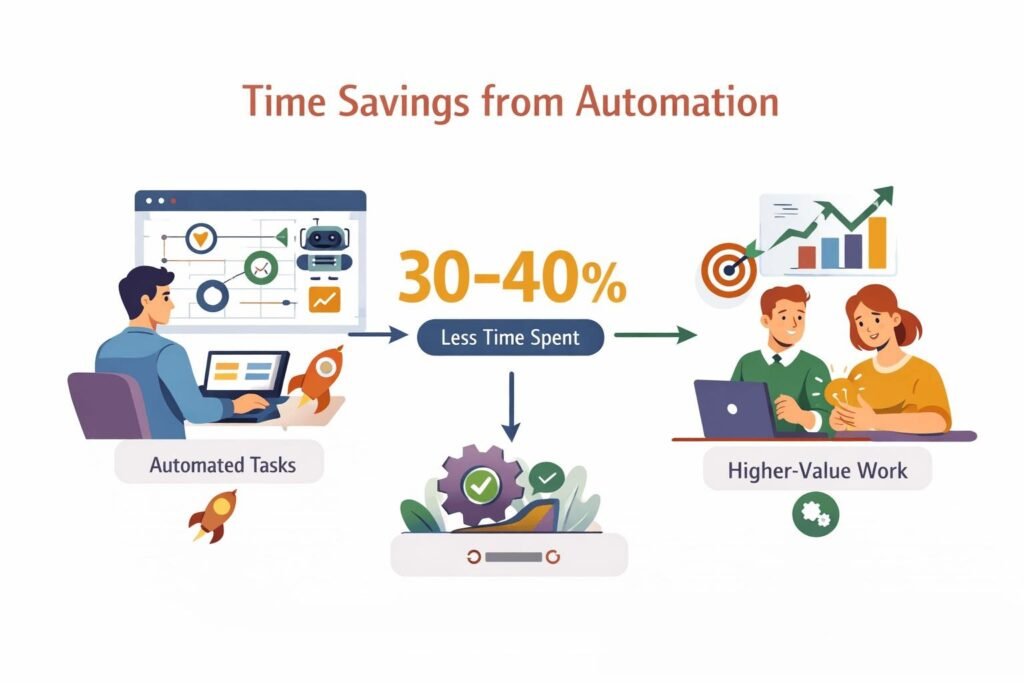
When you think about a typical workday, you probably spend time checking emails, updating spreadsheets, attending meetings, and following up with colleagues before you can focus on the work that actually matters. Workplace productivity tools help reduce these repetitive tasks so you can spend more time on meaningful work.
For example, instead of sending multiple emails to check a project’s progress, you can use a shared project management board where everyone can view updates, deadlines, and task status in real time.
Another great example is an AI-powered meeting assistant. Think of it as a virtual note-taker that automatically records conversations, creates meeting summaries, highlights action items, and shares notes with your team. Rather than assigning someone to type everything during a meeting, artificial intelligence handles the task accurately and in seconds.
Modern productivity platforms also automate routine workflows, organize files, schedule meetings, and improve team collaboration. As AI becomes a bigger part of the workplace, many organizations are adopting AI productivity tools to automate repetitive work, generate content, summarize documents, analyze data, and help employees make faster, more informed decisions.
Whether you’re working independently or as part of a large team, the right workplace productivity tools can save time, improve collaboration, and help you accomplish more with less effort.
For a broader look at how the concept of productivity software has evolved, Wikipedia’s overview of productivity software is a useful starting point.
Microsoft’s Work Trend Index has tracked a steady rise in the time employees spend on communication and coordination rather than focused work. Companies invest in these tools because the alternative, email chains, spreadsheets passed around as attachments, meetings that could’ve been a message, costs real time and money.
Benefits of Workplace Productivity Tools
1. Better Collaboration
When everyone works from the same document or board, you stop losing time to version confusion. Nobody’s asking “wait, which file is the latest one?”
2. Improved Time Management
Tools like Motion and Reclaim AI now build your calendar for you, blocking time for deep work based on your task list rather than leaving you to guess.
3. Reduced Manual Work
Automation platforms like Zapier and Make handle the repetitive stuff: moving a lead from a form into your CRM, or posting a Slack alert when a deal closes.
4. Enhanced Communication
Slack and Microsoft Teams replaced most internal email, and for good reason. A message in a channel is searchable later; an email buried in someone’s inbox usually isn’t.
5. Better Project Visibility
A manager checking Asana or ClickUp can see exactly where a project stands without asking anyone for a status update.
6. Increased Employee Engagement
People tend to stay more engaged when their tools work with them instead of against them. Nobody enjoys hunting through six apps to find one file.
7. Support for Hybrid and Remote Teams
Async tools, recorded video updates, shared docs, threaded discussions, let a distributed team work across time zones without everyone needing to be online at once.
Types of Workplace Productivity Tools
There are several categories worth knowing, since most companies end up using a mix rather than one all-in-one platform.
Project management software (Asana, Trello, Monday.com) organizes tasks, deadlines, and ownership.
Communication tools (Slack, Microsoft Teams, Zoom) handle real-time and async messaging.
Document collaboration platforms (Google Workspace, Notion) let multiple people edit the same file at once.
Knowledge management tools (Confluence, Obsidian, Coda) store institutional knowledge so it doesn’t live only in someone’s head.
Time tracking apps measure hours spent on tasks or clients.
Scheduling tools (Motion, Reclaim AI) automate calendar management.
Automation platforms (Zapier, Make, Power Automate) connect apps and remove manual steps.
AI productivity tools (ChatGPT, Claude, Gemini, Copilot) draft content, summarize meetings, and answer questions instantly.
Note-taking apps (Evernote, Notion) capture and organize information.
Cloud storage services (Google Drive, Dropbox, OneDrive) keep files accessible from anywhere.
Whiteboarding tools (Miro, FigJam) support visual brainstorming for remote teams.
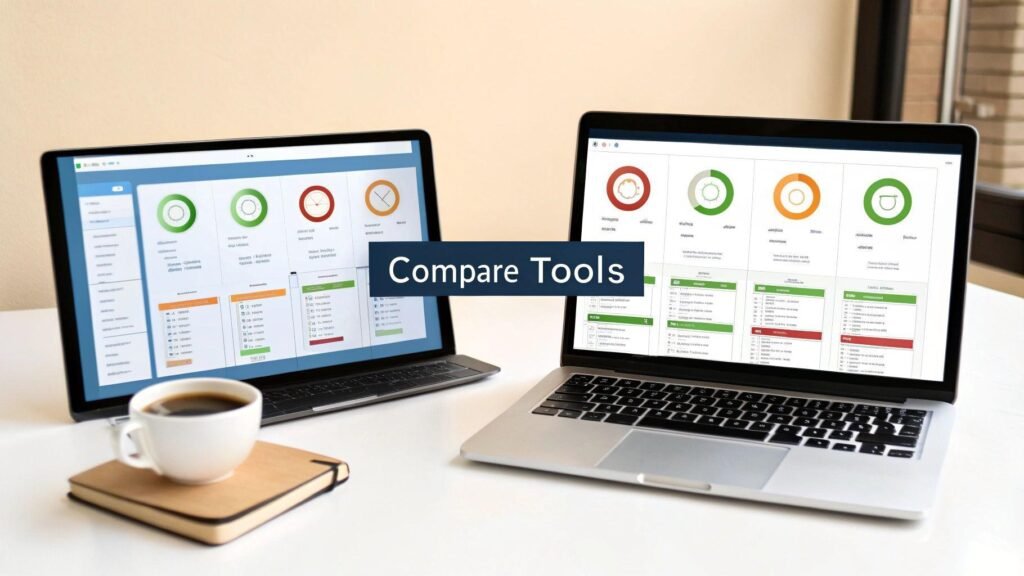
Comparison Table of the Best Workplace Productivity Tools
| Tool | Category | Best For | AI Features | Free Plan | Starting Price |
| Teamwork | Project Management | Agencies | Basic | Yes | $10.99/user/mo |
| ClickUp | All-in-one | Flexible teams | Yes | Yes | $7/user/mo |
| Asana | Project Management | Mid-size teams | Yes | Yes | $10.99/user/mo |
| Trello | Project Management | Small teams | Limited | Yes | $5/user/mo |
| Monday.com | Work OS | Cross-department | Yes | No | $9/user/mo |
| Notion | Docs/Wiki | Knowledge management | Yes | Yes | $8/user/mo |
| Slack | Communication | Team messaging | Yes | Yes | $7.25/user/mo |
| Microsoft Teams | Communication | Microsoft shops | Yes (Copilot) | Bundled | Varies |
| Google Workspace | Collaboration | Simple collaboration | Yes (Gemini) | No | $7.20/user/mo |
| Zoom | Video | Client calls | Yes | Yes | $13.33/user/mo |
| ChatGPT | AI Assistant | Content drafting | Yes | Yes | $20/mo |
| Microsoft Copilot | AI Assistant | Office workflows | Yes | Bundled | Varies |
| Gemini | AI Assistant | Workspace users | Yes | Yes | Varies |
| NotebookLM | AI Research | Document Q&A | Yes | Yes | Free |
| Zapier | Automation | App connections | Some | Yes | $19.99/mo |
| Make | Automation | Complex logic | Some | Yes | $9/mo |
| Airtable | Database | Structured tracking | Some | Yes | $20/user/mo |
| Loom | Video Messaging | Async updates | Yes | Yes | $12.50/user/mo |
| Miro | Whiteboarding | Visual brainstorming | Some | Yes | $8/user/mo |
| Motion | Scheduling | Auto-planning | Yes | No | $19/mo |
Pricing and features change often, so check each vendor’s site before you buy. For unfiltered opinions from people actually using these tools day to day, the discussions on r/productivity are worth a read before you commit to a plan.
How to Choose the Right Workplace Productivity Tool
1. Business Size
A five-person startup doesn’t need the same tool as a 500-person enterprise. Smaller teams usually do fine with a free plan on Trello or Notion; larger ones need admin controls and audit logs that only appear on enterprise tiers.
2. Team Structure
A distributed team leans harder on async tools like Loom and Notion. A team that’s mostly in one office can rely more on quick Slack messages and in-person check-ins.
3. Budget
Per-user pricing adds up fast. Ten people on a $15/user plan is $150 a month; on fifty people, that’s $750. Model the cost at your actual headcount before you commit.
4. Scalability
Ask whether the tool still works at twice your current team size. Some tools that feel great for ten people get clunky at a hundred.
5. Security
Check for SSO, two-factor authentication, and data encryption, especially if you handle client data or work in a regulated industry.
6. Integrations
A tool that doesn’t connect to your existing calendar, CRM, or storage creates more manual work than it saves.
7. AI Capabilities
AI features are moving fast. Look at whether the AI is genuinely useful for your workflow, or just a bullet point on a pricing page.
How to Build an Effective Workplace Productivity Stack
A “stack” just means the specific combination of tools your team actually uses together, day to day.
1. For Startups
Keep it lean: one communication tool (Slack), one project tracker (Trello or Notion), and one AI assistant (ChatGPT or Gemini). Adding more than that early on usually creates more confusion than value.
2. For SMBs
A growing business typically needs a dedicated project manager (Asana or ClickUp), a communication tool, cloud storage, and at least one automation platform to handle repetitive admin work.
3. For Enterprises
Larger organizations usually run a full stack: enterprise project management, Microsoft 365 or Google Workspace, dedicated security tooling, and AI governance policies covering how employees are allowed to use tools like Copilot or ChatGPT.
How AI Is Transforming Workplace Productivity
1. AI Writing
Tools like ChatGPT, Claude, and Copilot draft first versions of emails, reports, and proposals, which cuts drafting time significantly even when a human still edits the result.
2. AI Meetings
Otter.ai and Fireflies.ai transcribe and summarize calls automatically, so nobody has to take notes by hand.
3. AI Automation
Platforms like Zapier and Power Automate now use AI to suggest workflow steps rather than requiring you to build every automation manually.
4. AI Search
NotebookLM and Perplexity AI answer questions by searching your own documents or the open web, rather than making you dig through folders.
5. AI Knowledge Management
Notion AI and Coda can summarize long documents and answer questions about internal wikis instantly.
6. Responsible AI Use
Not every AI output should go out unchecked. Set basic rules: no client data pasted into public AI tools, and a human review step for anything customer-facing. A short written AI policy prevents most problems before they start.
Many operations and HR leaders share practical AI governance examples on LinkedIn, which can be a good source of real-world policy templates beyond what a vendor’s marketing page suggests.
Common Mistakes When Choosing Productivity Tools
1. Too Many Apps
Every new app adds another login, another notification source, and another place information can get lost. If a tool doesn’t clearly replace something, it’s probably just adding to the pile.
2. Poor Adoption
A tool nobody uses is a wasted subscription. Roll out new software with a short training session, not just a company-wide email announcement.
3. Ignoring Integrations
If your project tracker doesn’t talk to your calendar, someone ends up updating both by hand. That defeats the purpose.
4. No Employee Training
Even simple tools have features people never discover without a quick walkthrough.
5. Skipping ROI Measurement
If you never check whether a tool actually saved time, you won’t know if it’s worth renewing next year.
How to Measure Productivity Improvements
1. Key Productivity KPIs
Track task completion rate, average time-to-completion, and the number of tools an employee touches daily. A drop in the last one is usually a good sign.
2. Employee Adoption Metrics
Most tools show a usage dashboard. If adoption sits below 50% three months after rollout, something in the setup or training needs fixing.
3. ROI Calculation
A simple formula works: (hours saved per week × hourly wage × number of employees) minus the tool’s monthly cost. If that number is negative, reconsider the tool.
4. Workflow Efficiency
Compare how long a specific process took before and after adopting a tool, for example, how long it takes to onboard a new hire, from offer letter to first completed task.
Best Workplace Productivity Tools by Use Case
1. Small Businesses
Trello, Slack, and Google Workspace cover most needs without a heavy price tag.
2. Large Enterprises
Monday.com or ClickUp for project tracking, Microsoft 365 or Google Workspace for collaboration, and enterprise-grade security add-ons.
3. Remote Teams
Loom, Notion, and Slack support async work across time zones without forcing everyone online at once.
4. Hybrid Teams
Microsoft Teams or Zoom for meetings, paired with a shared project tracker so in-office and remote employees stay aligned.
5. Creative Teams
Miro and FigJam for visual collaboration, Loom for feedback on drafts.
6. Sales Teams
HubSpot or Salesforce for CRM productivity, paired with Motion or Reclaim AI for calendar management.
7. Marketing Teams
Asana or Airtable for content calendars, Notion for campaign documentation.
8. IT Teams
Jira for ticket tracking, Confluence for documentation, Power Automate for internal workflow automation.
Frequently Asked Questions
What are workplace productivity tools?
Software that helps individuals and teams complete work faster and with less friction, covering project management, communication, documentation, and AI assistance.
Which productivity tools are best for teams?
It depends on team size and structure, but Asana, Slack, and Notion cover most common needs for small to mid-size teams.
How do productivity tools improve workplace efficiency?
They cut down repetitive manual work, centralize communication, and give managers visibility into project status without extra check-ins.
Which AI tools improve workplace productivity?
ChatGPT, Claude, Microsoft Copilot, and NotebookLM are commonly used for drafting, summarizing, and research.
What productivity software do businesses use?
Most companies combine a project tracker (Asana, ClickUp), a communication tool (Slack, Teams), and a document platform (Google Workspace, Notion).
What is the best productivity app for employees?
There’s no single best app; it depends on the employee’s role. A salesperson benefits most from a CRM, while a designer benefits more from Miro.
Which productivity tool is best for remote teams?
Notion and Loom are popular choices since they support async, documented work rather than requiring everyone online at the same time.
Conclusion
Workplace productivity tools deliver the most value when they solve a real problem. Instead of choosing software with the longest feature list, focus on tools that address your team’s biggest challenges. Once you’ve selected a tool, make sure everyone understands how to use it and monitor whether it’s improving day-to-day work.
Most productivity platforms offer free trials, so test a few options before making a decision. This gives your team a chance to compare features, usability, and integrations without committing to a long-term subscription. At the same time, avoid introducing too many tools at once, as this can create confusion and reduce adoption.
For customer-facing departments, it’s also worth exploring strategies that improve sales team productivity. The right combination of CRM software, communication tools, and automation can help sales representatives spend more time selling and less time on administrative tasks.
Ultimately, success isn’t about having the most software. It’s about choosing tools that your team actually uses and that consistently improve collaboration, efficiency, and results. Review your toolkit every month to identify unused applications, gather employee feedback, and ensure each workplace productivity tool continues to deliver value.

Mehreen Mushtaq is a skilled content writer dedicated to creating high-quality, engaging, and SEO-focused blogs. She specializes in strategic keyword usage, search intent, and informative content that connects with readers while helping websites strengthen their visibility and rankings in search results.