

If you have tried to schedule a Webex meeting from Outlook and had trouble you are not the only one. Many people who work with computers and regular users still have the question: what are Webex Productivity Tools and are they worth installing?
This guide will explain what Webex Productivity Tools do, how to install them and how to set them up. It will also talk about the problems people usually have with them and importantly whether you should switch to something new. If you are in charge of Webex for your team or if you just want to get the Webex button to show up in Outlook again this guide should help you.
Webex Productivity Tools are a program that you add to your computer, made by Cisco that connects Webex meetings, with Microsoft Outlook and also with versions of Microsoft Office and messaging programs. When you install Webex Productivity Tools they add a Webex button or menu inside Outlook so you can schedule, start or join a Webex meeting without leaving your calendar.
These tools were made for a time when most people scheduled meetings using the Outlook program on their computer and when connecting your calendar directly to Webex was the way to invite someone to a meeting. For a time this was the main way that companies connected Webex to their email system and it was the default way to do it. Webex Productivity Tools were very useful then and many people used them to schedule Webex meetings from Outlook.
Key Features of Webex Productivity Tools
Webex Productivity Tools were designed to make scheduling and joining meetings faster by integrating Webex directly into Microsoft Outlook and other Microsoft Office applications. Instead of switching between your calendar and the Webex website, you could manage meetings from one place. Some of the key features include:
- One-Click Meeting Button: Schedule or start a Webex meeting directly from the Outlook ribbon with a single click.
- Outlook Scheduling Integration: Create Webex meetings within Outlook while automatically adding the meeting link, meeting number, password, dial-in details, and join instructions.
- Recurring Meeting Support: Schedule recurring meetings without having to recreate Webex settings for every session.
- Personal Room Meetings: Quickly schedule or start meetings using your dedicated Webex Personal Room, making it easy for participants to join through a consistent meeting link.
- Office Application Integration: Some earlier versions also included shortcuts in Microsoft Word, Excel, and PowerPoint, allowing users to start or schedule meetings while working on documents.
These features helped eliminate repetitive scheduling tasks and made meeting management more efficient for frequent Webex users.
How They Improve Meeting Scheduling
For professionals who schedule multiple meetings each day, such as executive assistants, project managers, sales teams, HR teams, and customer support managers, this automation can save several minutes per meeting while creating a more consistent scheduling experience. For organizations looking to improve sales team productivity, reducing time spent on repetitive scheduling tasks allows sales representatives to focus more on customer interactions, follow-ups, and closing deals instead of administrative work.
Without Webex Productivity Tools, users often had to create a calendar event, log in to the Webex website, generate a meeting, copy the meeting information, and paste it into the invitation manually. The Outlook integration streamlined this entire process.
When you schedule a meeting through the add-in, the software automatically generates the meeting invitation with all the necessary details, including the meeting link, meeting ID, password, audio dial-in numbers, and joining instructions. This reduces manual work, minimizes the risk of copying incorrect information, and ensures every attendee receives a complete invitation.
Who Should Use Them
If your company is just starting out or planning an upgrade, Webex Scheduler is the better long-term choice. Webex Productivity Tools are mainly intended for organizations that need to maintain compatibility with legacy systems while they transition to the newer Webex platform.
Today Webex Productivity Tools are mainly for companies that still use Webex systems or Microsoft Exchange on their own servers. These companies can keep using Webex Productivity Tools to work with their existing setup.
However, companies that use Microsoft 365 with Exchange Online usually do better with the new Webex Scheduler add-in. Cisco recommends Webex Scheduler because it uses Microsoft’s Office Add-in framework, receives regular updates, works with the latest Outlook versions, and supports cloud-based environments more effectively. If your organization also relies on software development workflows, combining modern collaboration tools with the best code review tools can help development teams streamline communication and improve code quality throughout the development lifecycle.
Are Webex Productivity Tools Still Supported?
Short answer: not for most modern environments. Cisco has been steering customers away from Productivity Tools for several release cycles now, in favor of the Webex Scheduler add-in and the unified Webex App.
Product Lifecycle
Productivity Tools were designed during the era when Webex ran as a set of separate desktop clients, one for meetings, one for messaging, one for scheduling. As Cisco consolidated these into the single Webex App, Productivity Tools became the legacy option rather than the default install.
Deprecation Timeline
Cisco’s Webex site administration and end-of-life documentation is the correct place to look. It’s better to check it instead of depending on summaries from others. This is because the exact dates when support ends can be different depending on the type of Webex site and the version of the software. As a rule if your Webex site was made after Cisco launched the new Webex App experience the Productivity Tools might not be available, for you or might not be suggested.
Current Cisco Recommendations
Cisco recommends Webex Scheduler for Outlook integration going forward, alongside the Webex App as the primary client for meetings, messaging, and calling. If you’re setting up a new Webex deployment today, there’s little reason to start with Productivity Tools at all.
Webex Productivity Tools vs Webex Scheduler
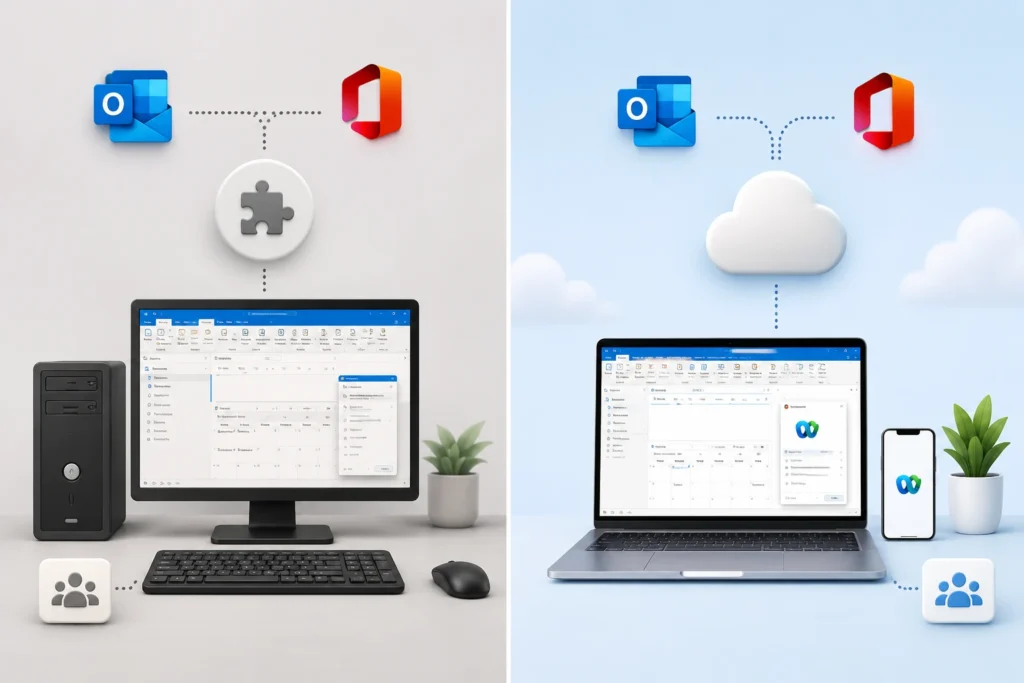
This is one of the common points of confusion so lets make sure to explain the difference clearly.
Webex Scheduler is a lightweight Outlook add-in created for Microsoft 365 and Exchange Online. It does not need a desktop installation. It is set up using Microsoft’s add-in management. This means that IT teams can send it to every mailbox without having to deal with each computer. Productivity Tools are different. Productivity Tools is an application. Productivity Tools are installed on each user’s computer.
Feature Comparison Table
| Feature | Productivity Tools | Webex Scheduler |
| Deployment | Per-device install | Centralized, via Microsoft 365 admin center |
| Outlook Web App support | No | Yes |
| Mac and Windows parity | Partial | Full |
| Requires local admin rights | Often yes | No |
| Works with Exchange Online | Limited | Yes |
| Cisco’s current recommendation | Legacy | Active |
Which One Should You Use?
If your organization is on Microsoft 365 or Exchange Online, use Webex Scheduler. If you’re on an older on-premises Exchange setup that Scheduler doesn’t support yet, Productivity Tools may still be your only option — treat it as a stopgap rather than a long-term plan.
Webex Productivity Tools vs Webex App
These solve different problems, so the comparison isn’t quite apples to apples.
1. Differences
Productivity Tools is purely a scheduling add-in for Outlook. The Webex App is the full client — meetings, messaging, calling, and file sharing in one interface. You could run Productivity Tools without ever opening the Webex App, though most organizations now run both together or replace Productivity Tools entirely with the App’s built-in scheduling.
2. Pros and Cons
Productivity Tools is quick to learn if your team already lives in Outlook, but it adds another piece of software to manage, patch, and troubleshoot. The Webex App consolidates everything into one client, which is easier for IT to support, though it does ask users to change habits if they’ve relied on Outlook for years.
3. Migration Considerations
Before switching, check whether your team’s workflows depend on Outlook-specific features like categories, rules, or shared calendars that interact with Webex invites. Test the Webex App or Webex Scheduler with a small pilot group first, rather than rolling it out to the whole company at once.
System Requirements
Compatibility is where a lot of installation problems start, so it’s worth checking this before you download anything.
1. Windows Compatibility
Productivity Tools historically supported Windows 10 and earlier Windows Server releases running compatible Outlook versions. Windows 11 support has been inconsistent across releases, which is one more reason Cisco points newer deployments toward Webex Scheduler instead.
2. macOS Compatibility
Mac support for Productivity Tools was always more limited than Windows, with fewer Outlook integration features available. If you’re on a Mac, Webex Scheduler or the Webex App’s native scheduling generally gives a smoother experience.
3. Microsoft Outlook Compatibility
Supported Outlook versions have shifted over time. Check the release notes for the specific Productivity Tools version you’re installing rather than assuming an older guide still applies — Cisco updates these compatibility lists as Outlook itself changes.
4. Microsoft 365 Support
This is the big one. Productivity Tools was built before Microsoft 365’s cloud-first add-in model existed, so it doesn’t integrate as cleanly with Exchange Online or Outlook on the web. If your mailbox lives in Microsoft 365, Webex Scheduler is the integration Cisco actually built for that environment.
How to Install Webex Productivity Tools
If you’ve confirmed Productivity Tools is still the right fit for your environment, here’s the general installation flow.
1. Download
Get the installer from your organization’s Webex site admin page or directly from Cisco, using credentials tied to your Webex account. Avoid downloading from third-party mirrors — Cisco’s own site is the only source you can trust for a clean installer.
2. Installation Steps
Run the installer with administrator rights, accept the license terms, and choose whether to install Outlook integration, instant messaging integration, or both. Restart Outlook once installation finishes so the add-in loads properly.
3. Initial Configuration
On first launch, the tool asks for your Webex site URL and login credentials. Enter your organization’s specific Webex site name (not just “webex.com”) so it connects to the right account.
4. Sign In
Sign in with your Webex username and password, or through single sign-on if your company uses it. Once signed in, you should see a new Webex tab appear in the Outlook ribbon.
How to Enable Webex Productivity Tools in Outlook
Installing the software and getting it to actually show up in Outlook are sometimes two different problems.
1. Outlook Ribbon
If the Webex tab doesn’t appear after installation, check Outlook’s ribbon customization settings to confirm the add-in wasn’t hidden. Restarting Outlook after install usually fixes this on its own.
2. COM Add-ins
Webex Productivity Tools integrates with Outlook through a COM add-in, the same mechanism Outlook uses for many third-party plugins. If Outlook disables the add-in due to a slow load time or a crash, you’ll need to re-enable it manually through Outlook’s add-in manager (File > Options > Add-ins > COM Add-ins > Go).
3. Microsoft 365 Configuration
Because Microsoft 365 environments are increasingly moving add-in management to the cloud, some admin policies can block traditional COM add-ins like Productivity Tools from loading at all. If your Outlook button disappears specifically on a Microsoft 365 account, this policy conflict is a likely cause, and another reason many admins move those users to Webex Scheduler instead.
How to Schedule Webex Meetings from Outlook
Once the add-in is working, scheduling is straightforward.
One-Time Meetings
Open a new calendar event, click the Webex tab, and select “Schedule Meeting.” This auto-fills the invite with your meeting link, number, and dial-in information, while you still edit the time, attendees, and subject like any normal Outlook invite.
Recurring Meetings
Use Outlook’s normal recurrence settings when creating the invite, and the Webex meeting details carry across every occurrence. This works well for standing team meetings or weekly client check-ins.
Personal Room Meetings
If you’d rather use your Webex Personal Room instead of a one-time meeting link, there’s usually a toggle in the scheduling form for that. Personal Room meetings keep the same link every time, which some users prefer for recurring internal meetings.
Common Problems and Troubleshooting
Here are the issues that come up most often, based on the kinds of tickets IT teams and Webex admins report repeatedly.
1. Missing Webex Button
Usually caused by the COM add-in being disabled, a Microsoft 365 policy blocking it, or an Outlook update that broke compatibility. Check the add-in manager first, then confirm your Outlook and Productivity Tools versions actually match each other.
2. Add-in Disabled
Outlook automatically disables add-ins that slow down startup too much. Re-enable it through Add-ins > COM Add-ins, and if it keeps getting disabled, that’s usually a sign the installed version doesn’t match your Outlook build.
3. Login Errors
Double-check you’re entering your organization’s specific Webex site URL, not a generic one. If single sign-on is enabled for your company, make sure you’re using the SSO login flow rather than a direct username and password.
4. Calendar Sync Issues
These often trace back to Exchange or Microsoft 365 permission settings rather than Webex itself. If meetings show up in Webex but not in Outlook (or the reverse), check calendar sharing permissions and confirm the mailbox has the right access rights.
5. Installation Errors
Most installation failures come down to missing administrator rights or a leftover previous installation that wasn’t fully removed. Uninstall any old version completely, restart the machine, and try the fresh installer again.
6. Meeting Scheduling Errors
If the scheduling form throws an error, it’s often a session timeout — sign out and back in through the Webex tab. Persistent errors are worth cross-checking against your Webex site’s admin settings, since some scheduling permissions are controlled at the account level.
For real-world troubleshooting threads where admins compare notes on specific error codes, the r/webex community on Reddit is worth searching — plenty of IT professionals post their exact fixes there.
Enterprise Deployment Best Practices

If you’re rolling this out (or phasing it out) across a whole organization, a few practices make life easier.
1. Silent Installation
Productivity Tools supports silent, unattended installation through standard MSI command-line switches, which lets IT push it without end users clicking through an installer manually. Combine this with a standard image or deployment script so every machine ends up on the same version.
2. Group Policy Deployment
For Windows environments, Group Policy Objects can push the installer and configuration settings organization-wide, keeping version numbers consistent across the fleet. Consistent versioning matters here because Outlook compatibility mismatches are one of the top causes of the “missing button” problem.
3. Cisco Control Hub
Cisco Control Hub is where Webex site admins manage site-wide settings, user accounts, and, depending on plan, some client deployment policies. It’s the right place to check before assuming a problem is local to one user’s machine.
4. Security Recommendations
Keep Productivity Tools patched to the latest supported version, since older builds may not receive security fixes once Cisco moves a release out of active support. If your organization handles sensitive meeting content, review Webex’s data handling documentation alongside your own Microsoft 365 conditional access policies.
Migration to the New Webex Experience
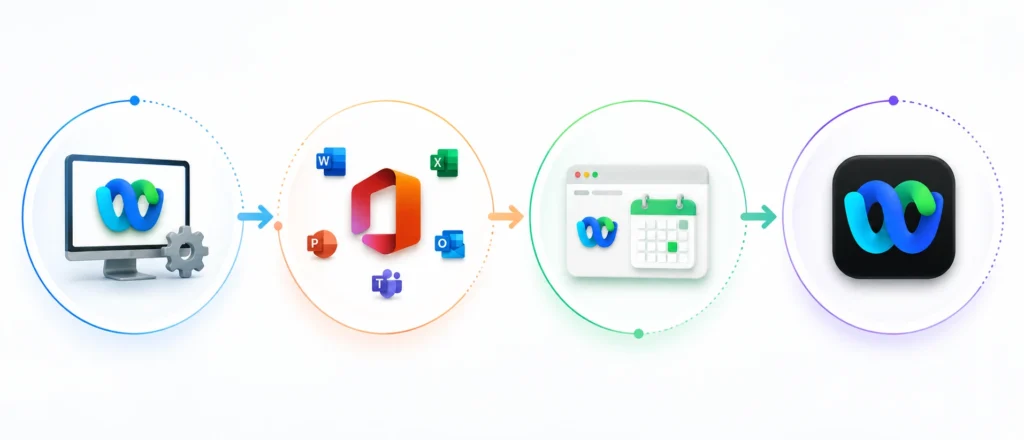
At some point, most organizations running Productivity Tools end up migrating, either to Webex Scheduler for Outlook integration, the Webex App as a full client, or both.
1. Migration Checklist
Start by auditing which users still rely on Productivity Tools and why. Confirm your Microsoft 365 or Exchange environment meets Webex Scheduler’s requirements, pilot the switch with a small group, and only then schedule a full rollout with clear communication about what’s changing.
2. Webex Scheduler Setup
Webex Scheduler is deployed through the Microsoft 365 admin center as a centrally managed add-in, so most of the setup work happens once, at the admin level, rather than per device. Users typically just sign in with their Webex account the first time they use it.
3. Outlook Migration
Uninstall Productivity Tools from each machine once Webex Scheduler is confirmed working, to avoid the two add-ins conflicting with each other. Running both at once is a common source of duplicate buttons or scheduling confusion.
4. User Training Tips
A short internal guide with screenshots of the new scheduling button goes a long way — most user confusion isn’t about capability, it’s about not knowing where the button moved. If your company has an internal wiki or a Microsoft 365 announcement channel, that’s the natural place to post it.
Best Practices for Using Webex Productivity Tools
Whether you’re on Productivity Tools for the long haul or just until migration, a few habits help.
1. Calendar Management
Keep your Webex meeting invites separate from purely internal blocks on your calendar, so external attendees only see what they need to. This also keeps dial-in details from cluttering calendars that don’t need them.
2. Scheduling Efficiency
Set up a default Personal Room link for recurring one-on-ones instead of generating a new meeting link every time. It saves a step and gives regular attendees a link they can bookmark.
3. Meeting Templates
If you run similar meetings often, client demos, interviews, team standups, save a template invite with the agenda and Webex details pre-filled, then duplicate it for future sessions.
4. Security Tips
Enable a meeting password and lock your Personal Room by default, especially for anything involving client or HR-sensitive conversations. Cisco’s own Webex trust and security documentation covers these settings in more depth if you want the full list of options.
Frequently Asked Questions
What are Webex Productivity Tools?
They’re a desktop add-in that connects Webex Meetings with Microsoft Outlook, letting you schedule and join meetings without leaving your calendar app.
Is Webex Productivity Tools discontinued?
It’s not universally discontinued, but Cisco has shifted its recommendation toward Webex Scheduler and the Webex App for most modern deployments. Check your specific Webex site’s admin notices for the exact status.
What replaced Cisco Webex Productivity Tools?
Webex Scheduler for Outlook integration, and the unified Webex App for meetings, messaging, and calling.
How do I install Webex Productivity Tools?
Download the installer from your Webex site admin page, run it with administrator rights, and sign in with your Webex site URL and credentials once installation completes.
Does Webex Productivity Tools work with Microsoft 365?
Integration is limited compared to Webex Scheduler, which was built specifically for Microsoft 365 and Exchange Online.
Why is the Webex button missing in Outlook?
Usually a disabled COM add-in, a Microsoft 365 policy blocking it, or a version mismatch between Outlook and Productivity Tools.
How do I enable Webex Productivity Tools?
Go to Outlook’s Add-ins manager (File > Options > Add-ins > COM Add-ins > Go) and confirm the Webex add-in is checked and enabled.
Conclusin
If you are starting to set up Webex integration from the beginning today skip the Productivity Tools. Go directly to Webex Scheduler or the Webex App especially if your company uses Microsoft 365. If you are already using Productivity Tools and it is working well there is no need to remove it but it is important to think about moving to the new tools before Cisco reduces support even more.
For IT teams handling this for a number of people the main challenge is not the installation. The main challenge is the audit. Find out which users still use Webex Productivity Tools, why they use it and what could go wrong if they switch to the tools. This is what makes the difference between a migration and a lot of support problems.
For deployment specifics and current version compatibility, Cisco’s own Webex Help Center remains the most reliable reference, since these details change between releases. It’s also worth searching discussions on LinkedIn’s Cisco Webex community posts for how other IT leads have handled their own migration timelines, and checking the Wikipedia entry on Webex for background on how the platform evolved into its current form.

Mehreen Mushtaq is a skilled content writer dedicated to creating high-quality, engaging, and SEO-focused blogs. She specializes in strategic keyword usage, search intent, and informative content that connects with readers while helping websites strengthen their visibility and rankings in search results.