
Most teams don’t struggle with a lack of tools. They struggle with too many of them. A task lives in one app, an approval sits in an inbox, and the survey results are in a spreadsheet nobody opened.
Microsoft Teams can fix a lot of that, because it already holds your chats, meetings and files. The right Microsoft Teams productivity apps bring task boards, automation, analytics, forms and recognition into the same window. You stop jumping between tabs, and work moves faster. Explore these Microsoft Teams tools for business to discover additional ways to improve collaboration, manage tasks and streamline daily operations.
This guide covers 10 apps worth considering in 2026: Empuls, Jira Cloud, Trello, Zapier, Power BI, GitHub, Polly, Jotform, Signeasy and Typeform. For each one, you’ll see what it does, how it connects to Teams, where it falls short and what it costs. The best pick depends on how your team actually works, so read the use-case section before you install anything.
What Are Microsoft Teams Productivity Apps?
Microsoft Teams productivity apps are add-ons that extend Teams so people can manage tasks, automate steps, share data, collect feedback and sign documents without leaving the chat window. They can be built by Microsoft or by outside vendors.
Microsoft Teams is mainly a communication hub: chat, calls, meetings and file sharing. Out of the box it also includes basics like Planner for tasks and a files tab. Third-party apps add depth that the core product doesn’t try to cover, such as sprint tracking, e-signatures or advanced reporting.
A simple way to think about it: built-in features handle everyday collaboration. Apps handle specialist jobs. If your team keeps copying information from Teams into another tool, that job is probably a good candidate for an app.
One point matters when you evaluate vendors. Some apps are published directly in the Teams store. Others connect through an automation tool such as Zapier or Power Automate. Both can work, but they behave differently, and I’ll flag which is which for each app below.
How Do Productivity Apps Work Inside Microsoft Teams?
Apps show up in Teams in a few standard ways. Most products use more than one.
- Tabs and embedded apps: A tab pins a board, report or dashboard to the top of a channel or chat, so everyone sees the same live view.
- Bots and AI assistants: You type or click inside a chat, and the bot creates a task, looks up a record or posts an answer.
- Messaging extensions: These let you pull content from an app into a message, or turn a message into a task or ticket.
- Meeting apps: Polls, whiteboards and notes can run inside a live meeting.
- Notifications and workflow integrations: An app posts an alert to a channel when something changes, such as a new pull request or a signed contract.
Microsoft documents these building blocks for developers, but as a user you just see them as buttons, tabs and chat commands.
Benefits of Using Productivity Apps in Microsoft Teams
The gains are practical, not magical. Here’s what teams usually notice first.
- Less app switching. Every jump to another tab breaks your focus. Keeping key tools inside Teams cuts those jumps.
- Better collaboration. Comments, approvals and decisions happen next to the conversation that led to them.
- Automated repetitive tasks. Routine steps, like posting a form response to a channel, run on their own.
- Improved project visibility. A pinned board or dashboard shows status without a status meeting.
- Faster communication. Alerts reach people where they already are, so replies come sooner.
- Centralized information. Links, files and records live in one place instead of five. Businesses can also explore these workplace productivity tools to improve team coordination, manage workflows and reduce repetitive work.
The flip side is clutter. Each app you add can create more notifications and more things to maintain. I cover how to avoid that later in this guide.
10 Best Microsoft Teams Productivity Apps in 2026
1. Empuls – Best for Employee Engagement and Recognition
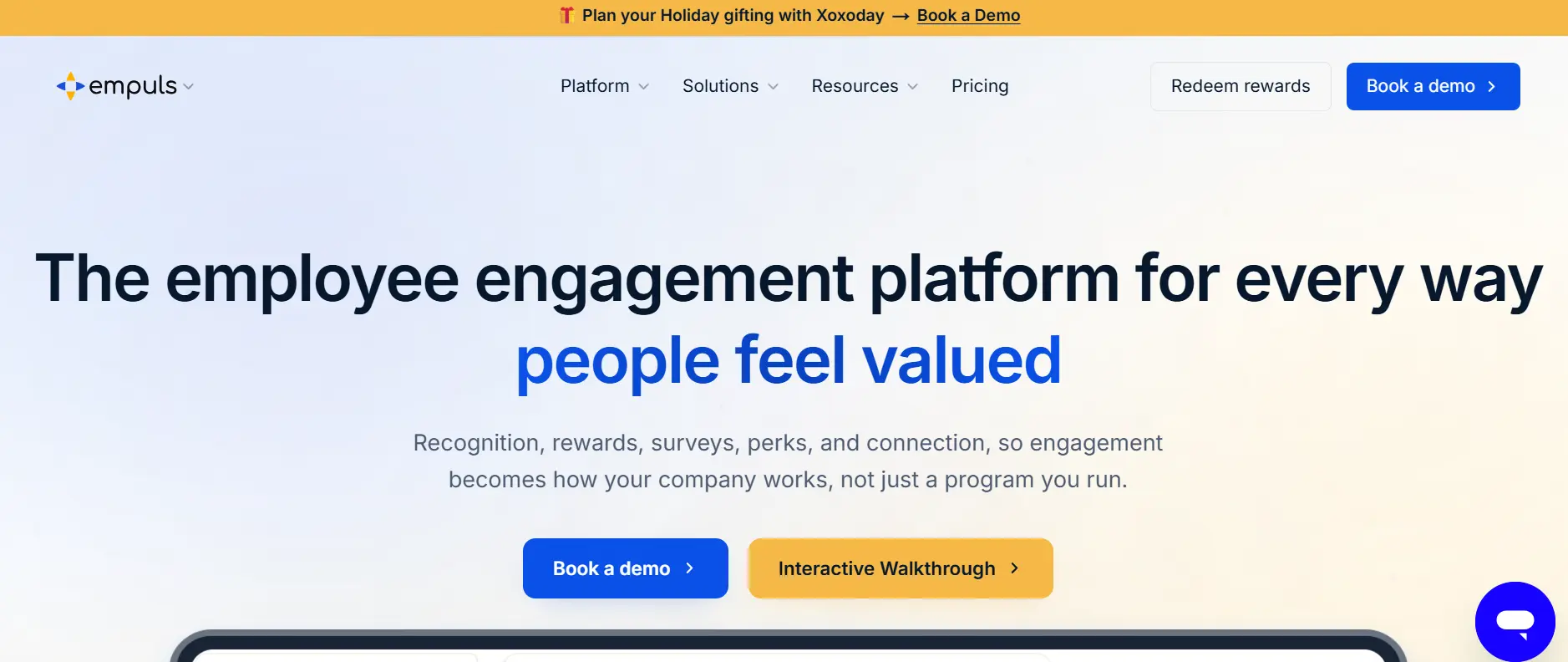
What it is. Empuls, from Xoxoday, is an employee engagement platform covering recognition, rewards, surveys and feedback. It isn’t a task tool. Its value for productivity is indirect: people who feel noticed tend to stay engaged, and HR can run programs without chasing people across channels.
How it works with Teams. Empuls has a listing on Microsoft’s marketplace, and the listing notes you need an Empuls account to use the app. Employees can give recognition, answer surveys and redeem rewards from inside Teams. Empuls’ help documentation also describes notifications for recognition activity and payout updates, and says setup involves your Empuls account manager and your Teams admin.
A practical workflow. A manager posts a quick thank-you to a colleague after a release. The recognition shows up in Teams, the employee can see points or rewards, and HR later sees participation data in one place. A monthly pulse survey can run the same way.
Pros
- Recognition and surveys happen where people already chat.
- White-label branding is available, according to the vendor.
- Covers rewards, not only kudos messages.
Cons
- You need a full Empuls account, so it’s a platform decision, not a quick install.
- Not designed for tasks or project tracking.
- Third-party listings quote very different starting prices.
Pricing and availability. Empuls is subscription-based and quote-driven. Review sites list entry prices anywhere from about $1 to $3 per user per month, which tells you the number depends on plan and headcount. Ask for a written quote for your team size.
2. Jira Cloud – Best for Project and Issue Management
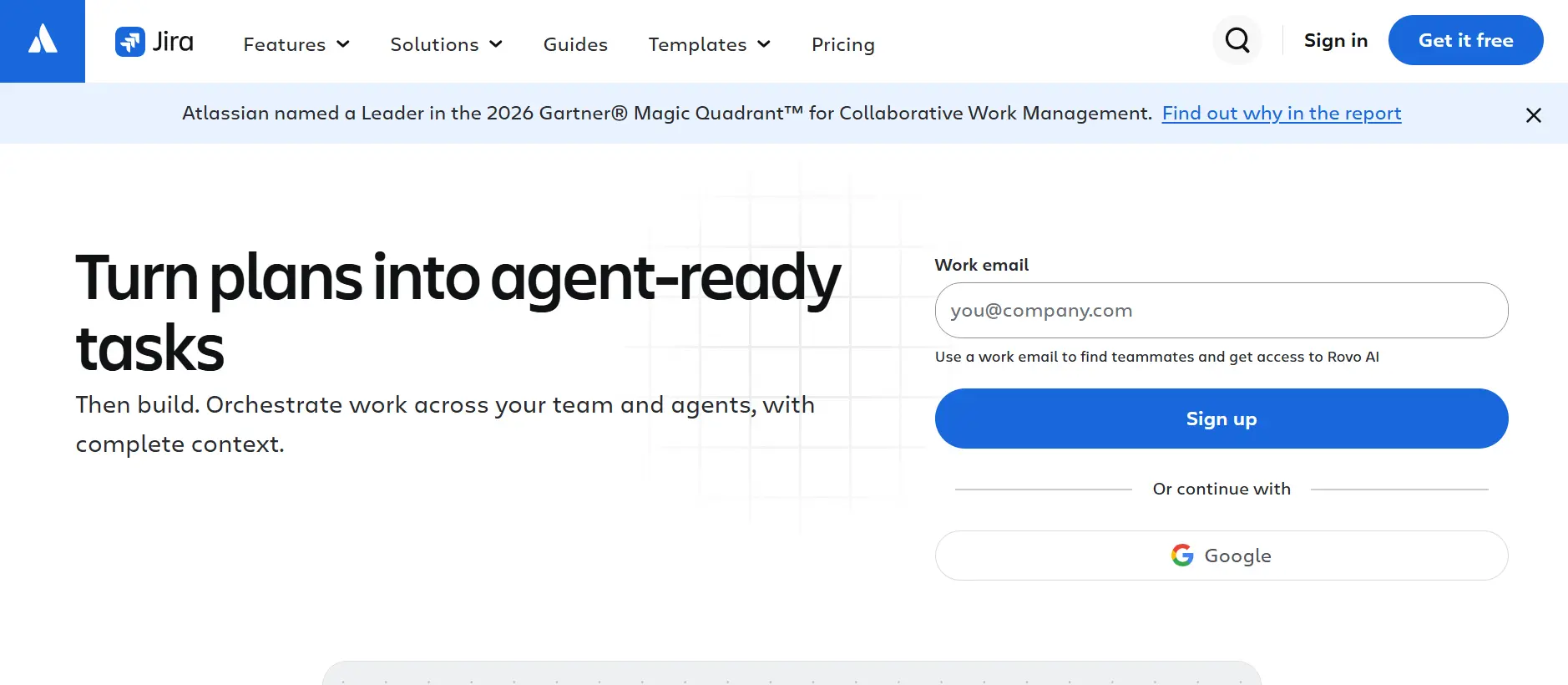
What it is. Jira (background on Wikipedia) is Atlassian’s issue and project tracker. Software teams use it for sprints, backlogs and bug tracking, and IT teams use it to manage requests.
How it works with Teams. Atlassian publishes a Jira Cloud app for Teams. In general, it lets people preview Jira links in chat, get notifications in channels and create or update issues without opening Jira. Check the current feature list in the Teams store, since Atlassian updates it.
A practical workflow. A tester reports a bug in a channel. Someone turns the message into a Jira issue, assigns it and the channel gets an update when its status changes. The conversation and the ticket stay linked.
Best for. Engineering, QA and IT support teams that already run work in Jira.
Pros
- Deep workflow, reporting and permission controls.
- Notifications keep the whole channel informed.
- Free plan for small teams.
Cons
- It has a learning curve for non-technical staff.
- Marketplace add-ons can raise costs quickly, because many bill for every licensed user.
Pricing and availability. Jira Cloud has a free plan for up to 10 users. Paid Standard and Premium plans are per user and get cheaper per seat as you grow. Recent 2026 price guides put Standard at roughly $8 to $10 per user per month and Premium at roughly $15 to $18, depending on billing cycle, so check Atlassian’s pricing calculator.
3. Trello – Best for Visual Task Management
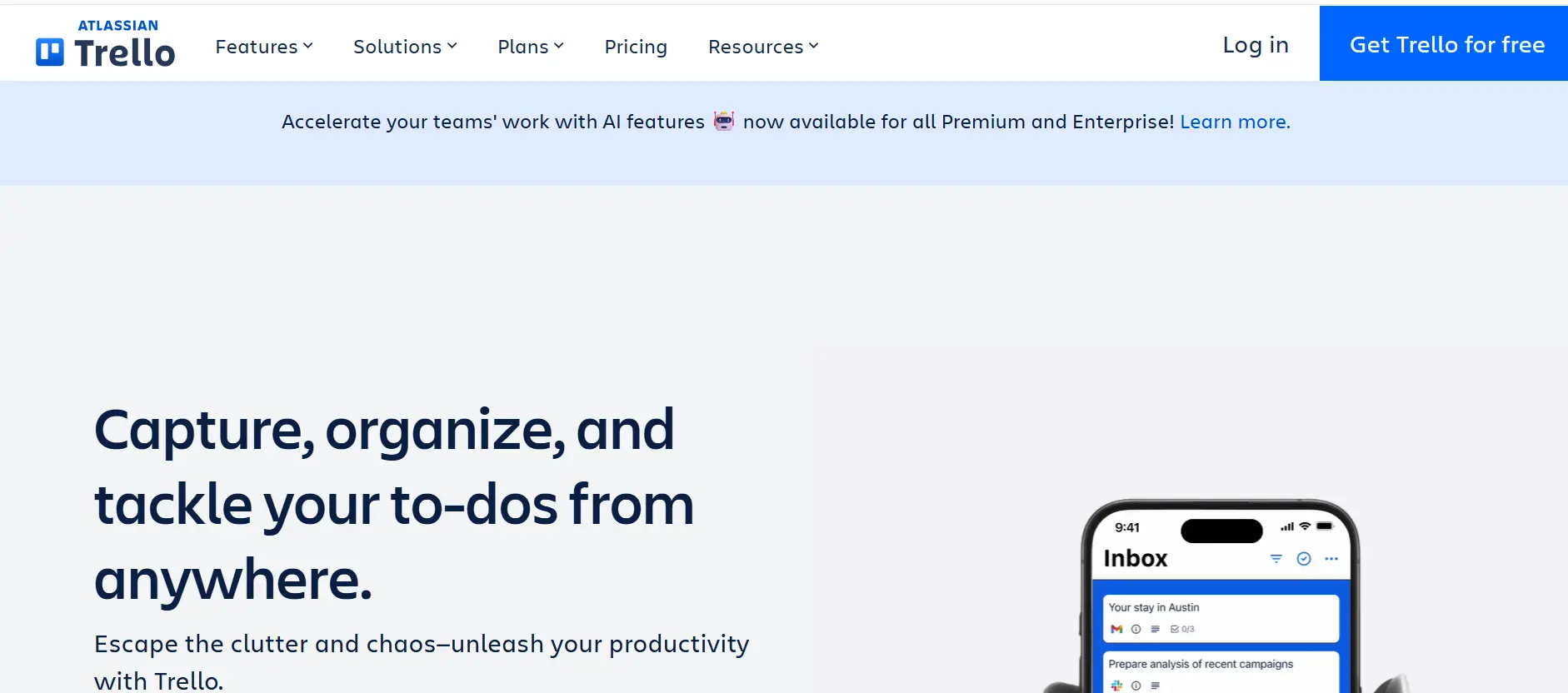
What it is. Trello (Wikipedia) organizes work into boards, lists and cards. You drag a card from “To do” to “Done,” and everyone sees the change.
How it works with Teams. The Trello app for Teams lets you add a board as a tab in a channel, and share cards in conversations. Card updates can also appear as notifications, depending on how you configure it. Confirm which Trello features your Teams version supports before you roll it out.
A practical workflow. Picture a 12-person marketing team planning a campaign. They pin one Trello board to their channel, assign cards to writers and designers, and discuss feedback in the same thread.
Best for. Marketing, operations, HR onboarding and any team that likes a simple visual flow.
Pros
- Easy to learn, so adoption is fast.
- Flexible boards for almost any process.
- Free plan available.
Cons
- Complex dependencies and heavy reporting are limited compared with Jira.
- Large boards get crowded.
Pricing and availability. Trello offers a free plan and paid Standard, Premium and Enterprise tiers per user. Published comparisons have listed Standard at about $5 and Enterprise at about $17.50 per user per month on annual billing. Verify on Atlassian’s Trello pricing page.
4. Zapier – Best for Workflow Automation
What it is. Zapier connects thousands of web apps so that an event in one triggers an action in another. You build these “Zaps” without code.
How it works with Teams. This one is automation-based. Zapier’s own pages note that some Teams actions, such as sending a bot message to a channel, require installing the Zapier app from the Teams store. In practice, you install the app, connect your accounts, then build Zaps in Zapier’s editor.
Examples of automated workflows.
- A new Typeform or Jotform response posts a message to a Teams channel.
- A new CRM deal triggers an alert to the sales channel.
- A support ticket marked urgent creates a Teams message for the on-call team.
Best for. Business operations teams that connect many tools and don’t have developers to spare.
Pros
- Huge app library.
- Fast to prototype.
- Free plan for light use.
Cons
- Costs rise as you run more tasks.
- Complex automations take practice and need maintenance when a connected app changes.
- If your company is all-in on Microsoft, Power Automate may cover many of the same jobs.
Pricing and availability. Zapier has a free plan and paid plans that scale with task volume. Entry paid plans have been listed at about $20 per month on annual billing, but task limits matter more than the headline price. Check Zapier’s pricing page.
5. GitHub – Best for Software Development Collaboration
What it is. GitHub (Wikipedia) hosts code repositories and supports reviews through pull requests and issues.
How it works with Teams. GitHub offers an official app for Teams. Developers can subscribe a channel to a repository and get updates on issues, pull requests and reviews. Check the app’s current commands in the Teams store, because they can change.
A practical workflow. A pull request opens, the channel is notified, a reviewer approves it from the link and the team sees the merge without leaving chat. Short feedback loops matter in engineering.
Best for. Engineering teams that already live in GitHub.
Pros
- Keeps code activity visible to the whole team.
- Reduces missed review requests.
- Free plan for individuals and small teams.
Cons
- Notifications get noisy without filters.
- Only useful if your code is on GitHub.
Pricing and availability. GitHub has a free tier. Paid Team and Enterprise plans are per user, with Team listed at a few dollars a month and Enterprise around $21 in recent comparisons. Confirm on GitHub’s pricing page.
6. Polly – Best for Team Surveys and Feedback
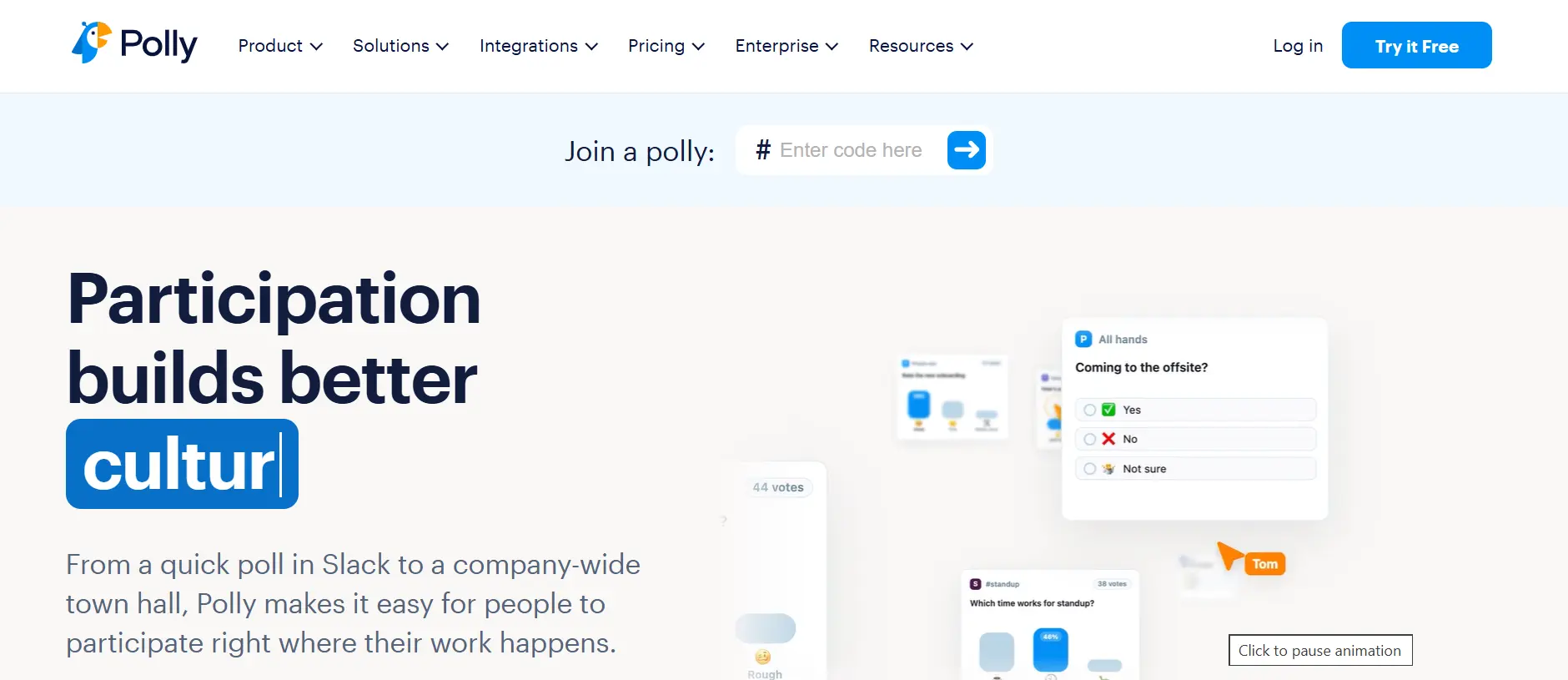
What it is. Polly is a polling and survey app built for chat tools. You ask a question, people vote, and results are updated live.
How it works with Teams. Polly has a dedicated Teams app. You can add it as a channel tab or use it conversationally in chat, and it supports polls, quizzes, Q&A and stand-up check-ins. Vendor help pages note that response limits depend on your plan, and that people who answer a poll don’t need a paid license. Only senders do.
A practical workflow. An HR partner posted a two-question pulse poll on Friday afternoon: “How was the workload this week?” Results appear within the hour, and the manager can spot a trend before it becomes a resignation.
Best for. HR, people managers and team leads who want fast feedback without building a full survey.
Pros
- Very quick to set up and answer.
- Works in channels, chats and meetings.
- Free plan available.
Cons
- Not meant for long, complex research surveys.
- Free plans have tight limits, and paid plans are charged per sender.
Pricing and availability. Polly offers a free plan and a 14-day trial of paid plans. Review sites have listed the Teams Pro plan at about $24 per month and Standard at about $49, but plan names and limits have shifted, so check Polly’s Teams pricing page.
7. Jotform – Best for Forms and Data Collection
What it is. Jotform is an online form builder. Teams use it for requests, registrations, applications, feedback and intake processes.
How it works with Teams. Jotform lists a Microsoft Teams integration that sends submissions to a channel as they arrive. Before you commit, check whether you’ll be using a Teams-store app or a connector built on Power Automate or Zapier. The setup steps and permissions differ.
A practical workflow. An office manager builds an equipment request form. Each submission posts to the IT channel, where the team claims it with a reaction. No one has to check an inbox.
Best for. HR onboarding, operations requests and customer support intake.
Pros
- Large template library.
- Good for turning paper processes into digital ones.
- Free plan available.
Cons
- Free plans cap forms and submissions.
- Notifications alone don’t make a workflow. Someone still has to own the follow-up.
Pricing and availability. Jotform has a free Starter plan and paid monthly plans that raise submission, storage and form limits. Prices change, so use Jotform’s pricing page as your source.
8. Signeasy – Best for Digital Signatures and Document Approvals
What it is. Signeasy is an e-signature tool for sending, signing and tracking documents. It keeps an audit trail so signed files hold up in review.
How it works with Teams. This is a clear case of an official app. Signeasy’s listing on Microsoft AppSource describes a bot and tab, plus the ability to sign or send documents for signature from Teams, including in shared channels. You need an active Signeasy account, and an admin may have to enable the app for your tenant. The vendor says it also works from Teams on mobile.
A practical workflow. HR sends an offer letter for signature from the recruiting channel. The recruiter sees the status change in real time and the signed file goes straight into the shared folder.
Best for. HR, sales and legal teams with frequent approvals.
Pros
- Signing happens where the request was made.
- Real-time status tracking.
- Official AppSource listing.
Cons
- Requires a paid Signeasy account after the trial.
- Teams with complex contract workflows may want a larger contract-management suite.
Pricing and availability. Signeasy’s site lists a Personal plan from $10 per month and Business from $20 per user per month, with a 14-day free trial for the Teams integration. Higher tiers add features like bulk sending. Verify the current plan on Signeasy’s pricing page.
9. Typeform – Best for Interactive Forms and Surveys
What it is. Typeform builds forms that ask one question at a time. That conversational layout often feels friendlier than a long form, which can help response rates.
How it works with Teams. Typeform has a native integration that posts new responses to a Teams channel. Its help article lists two limits worth knowing: it sends to channels only, not to personal or group chats, and your form must be published first. For richer workflows, you can connect it through Zapier or Power Automate, which is automation-based rather than native.
A practical workflow. A customer-experience team runs a short satisfaction survey after every support call. Low scores post to a Teams channel, and a team lead follows up the same day.
Best for. Marketing, customer experience and employee-feedback teams.
Pros
- Polished, respondent-friendly design.
- Responses reach the channel automatically.
- Easy to connect with other tools.
Cons
- Channel-only notifications limit private follow-up.
- Free tier is small, and costs rise with response volume.
Pricing and availability. Typeform has a limited free plan and paid plans that start in the tens of dollars per month. Check Typeform’s pricing page for current response caps.
10. Power BI – Best for Business Analytics and Reporting
What it is. Power BI (Wikipedia) is Microsoft’s business analytics tool. It turns data from spreadsheets, databases and other sources into interactive dashboards.
How it works with Teams. Because both come from Microsoft, the fit is tight. You can bring Power BI reports into a Teams tab, chat about a specific chart and let people filter data without leaving the conversation. Viewers generally need the right access to the underlying report, so plan licensing early.
A practical workflow. A sales director pins the weekly pipeline dashboard to the leadership channel. During the Monday meeting, the team opens the same live report instead of screenshots in a slide.
Best for. Managers, finance and analytics teams that need shared, trusted numbers.
Pros
- Strong integration with the Microsoft 365 stack.
- Interactive charts instead of static exports.
- Good for recurring reviews.
Cons
- Building good data models takes skill.
- Sharing and licensing rules can confuse new admins.
Pricing and availability. Power BI Desktop is free to build reports. Sharing generally requires paid per-user or capacity licensing, and Microsoft has adjusted list prices over time. Check Microsoft’s current Power BI pricing page.
Comparison of the 10 Best Microsoft Teams Productivity Apps
Use this table to narrow your shortlist. Prices are indicative and drawn from vendor pages and recent comparison sites. Confirm before purchase.
| App | Best for | Category | Teams integration | Key features | Free plan | Pricing (indicative) | Ideal team |
| Empuls | Recognition and engagement | Employee engagement | Native app (Microsoft marketplace) | Recognition, rewards, surveys | No public free plan found | Quote-based | SME to enterprise |
| Jira Cloud | Issue tracking | Project management | Official Teams app | Issues, sprints, notifications | Yes, up to 10 users | About 8–10 per user/month (Standard) | Software, IT |
| Trello | Visual tasks | Task management | Official Teams app | Boards, cards, tabs | Yes | About $5 per user/month (Standard) | Startup to SME |
| Zapier | Automation | Workflow automation | Teams-store app plus automation | No-code workflows | Yes, limited | About $20/month and up | Operations, SME |
| Power BI | Reporting | Analytics | Native Microsoft tab | Dashboards, live reports | Limited (desktop free) | Per-user or capacity licensing | Management, enterprise |
| GitHub | Code collaboration | Developer tools | Official Teams app | Repo, PR and issue alerts | Yes | Free; paid per user | Engineering |
| Polly | Quick feedback | Polls and surveys | Official Teams app | Polls, quizzes, stand-ups | Yes, limited | About 24–49/month (sender) | HR, managers |
| Jotform | Forms | Data collection | Vendor-listed integration | Templates, submissions | Yes, limited | Monthly tiers | Operations, HR |
| Signeasy | E-signatures | Document approval | Official AppSource app | Bot, tab, audit trail | No (free trial) | From about 10–20/user/month | HR, sales, legal |
| Typeform | Interactive forms | Surveys | Native channel notifications; automation for more | One-question flow | Limited | Paid plans from tens of dollars/month | Marketing, CX |
How to Choose the Right Productivity Apps for Microsoft Teams
The fastest way to pick poorly is to start with a list of popular tools. Start with the problem instead.
Identify Your Team’s Productivity Challenges
Write down the three most frequent time-wasters. Maybe tasks get lost, approvals stall or nobody sees the numbers. Each problem maps to a different type of app. A team with stalled approvals needs Signeasy, not a new task board.
Evaluate Integration Compatibility
Look at how the app connects. Is it a Teams-store app with a tab and bot, or a connector through automation? Check that it works with your plan, your admin settings and the systems your team already uses. If it needs a middleman tool, count that extra cost and maintenance.
Compare Features and Pricing
Compare the plan you’d actually use, not the cheapest tier. Look at user limits, response caps, task limits and add-on fees. Per-user pricing grows quickly across a large company, while usage-based pricing can surprise you during busy months.
Consider Ease of Use and Adoption
A powerful tool nobody uses gives you nothing. Pilot with one team for two to four weeks, then ask what they’d change. Simple apps like Trello or Polly tend to see faster uptake than deeper tools like Jira or Power BI.
Review Security and Permissions
Read what data the app can access. Ask your admin whether the vendor supports single sign-on and what its data-handling policy says. I cover this in detail in the safety section below.
Check Scalability and Support
Think about where your team will be in a year. Will the pricing hold at double the headcount? Does the vendor offer support in your time zone? For critical tools, check the vendor’s status page and support options.
Best Microsoft Teams Productivity Apps by Use Case
Not sure where to start? Match the app to the job.
Best Microsoft Teams Apps for Project Management
Jira Cloud and Trello are the two obvious choices, and they suit different teams. Jira handles complex work with sprints, dependencies and detailed reporting. Trello handles simple, visual work where people just need to see who is doing what.
If your team ships software, pick Jira. If your team runs campaigns, events or onboarding, Trello will probably feel lighter and get used more.
Best Microsoft Teams Apps for Task Management
For day-to-day tasks, you have three solid options. Trello is the easiest for visual planning. Jira fits tasks tied to engineering or IT tickets. Microsoft Planner is built into the Microsoft ecosystem and works well if you want basic task tracking without adding a vendor.
A common mistake is running all three at once. Pick one system of record so people know where a task lives.
Best Microsoft Teams Apps for Workflow Automation
Zapier and Microsoft Power Automate both automate repetitive work. Zapier connects a very wide range of outside apps and is quick to start. Power Automate sits naturally within the Microsoft 365 environment and is often a good fit when your data already lives in Microsoft tools. Check your Microsoft 365 plan to see what Power Automate access is included.
A good test: list the apps involved in the workflow. If most are Microsoft products, try Power Automate first. If many are outside tools, try Zapier.
Best Microsoft Teams Apps for Employee Engagement
Empuls and Polly solve different parts of the problem. Empuls is a fuller platform for recognition, rewards and structured surveys. Polly is a lightweight tool for quick polls and check-ins.
Many HR teams use both ideas together: Polly-style quick pulses to hear what’s happening, and a recognition program to respond with something meaningful.
Best Microsoft Teams Apps for Business Analytics
Power BI is the standout here, mainly because it comes from Microsoft and fits into Teams naturally. Pin the dashboards your managers check every week, and meetings start with shared facts. Put clear owners on each report so numbers don’t go stale.
Best Microsoft Teams Apps for Remote Teams
Remote and hybrid teams lose the small cues you get in an office. Trello gives everyone a shared view of progress, Polly gives quiet people an easy way to speak up, and a recognition tool keeps appreciation visible. Add a stand-up check-in routine and a few clear channels, and you’ll cover most of the gaps. Communities liker Microsoft Teams are also useful for seeing how other admins handle remote setups.
Best Microsoft Teams Apps for Software Development Teams
Use Jira and GitHub together. Jira tracks the work, GitHub tracks the code, and Teams notifications connect the two. When a pull request mentions a Jira issue, everyone can follow the thread from planning to merge. Keep alerts filtered to the channels that need them, or the noise will drown out the signal.
How to Add Productivity Apps to Microsoft Teams
To add an app in Microsoft Teams, open Apps, search for the app, select Add, sign in if asked and choose where to use it. The exact labels vary slightly between Teams versions and admin settings, but the flow is the same.
Step 1: Open the Apps Section in Microsoft Teams
Select Apps in the left sidebar. If you don’t see it, check the “…” menu or ask your admin whether app browsing is restricted.
[Screenshot placeholder: Teams left sidebar with the Apps icon highlighted]
Step 2: Search for the Required Application
Type the app name in the search box, for example “Trello” or “Signeasy.” Choose the listing from the correct publisher. Look-alike names exist, so check the vendor name.
[Screenshot placeholder: Search results showing the app listing]
Step 3: Review App Information and Permissions
Open the listing and read the description, publisher and the permissions it requests. Some apps say they can send data over the internet or access chat content. If anything looks broader than you need, ask your admin before going on.
Step 4: Select Add and Configure the App
Select Add. You may be asked to sign in with your vendor account, such as Empuls or Signeasy, since many apps need an existing account. Some organizations require admin approval first.
[Screenshot placeholder: Add button and sign-in prompt]
Step 5: Add the App to a Chat, Channel, or Meeting
Choose where to use it. You can add it to a personal space, a team channel as a tab, a group chat or a meeting. For board and dashboard apps, a channel tab usually works best because everyone sees the same view.
Step 6: Test the Integration and Manage Notifications
Run one real test: create a card, send a form entry or post a poll. Then tune the notifications. Start with fewer alerts than you think you need, and add more only if people ask.
[Screenshot placeholder: Notification settings for the app]
Editor note: replace each placeholder with screenshots from your own Teams tenant so the images match what readers will see.
Are Microsoft Teams Productivity Apps Safe to Use?
They can be safe when you check permissions, use trusted publishers and control access through your admin settings. Safety depends on the specific app and how your organization manages it, not on Teams alone.
Understanding App Permissions
Every app asks for some level of access. A poll app may need to read channel membership. A signature app needs access to documents you choose to send. Before approving an app, ask three questions: what data it reads, where it stores it, and whether it can act on your behalf.
Microsoft 365 Authentication and Single Sign-On
Microsoft documents that paid Teams apps require users to authenticate, and that developers can use single sign-on with Microsoft Entra ID or a third-party OAuth provider. SSO cuts down on password sprawl and makes access easier to manage. When you evaluate a vendor, ask whether it supports your identity setup. Microsoft’s guidance onpurchasing and managing third-party Teams apps explains how admins can buy, assign and remove licenses.
Managing Third-Party App Access
Admins can control which apps users may install and can approve or block them. Use that. A short approved-apps list prevents surprise tools from appearing in sensitive channels. Review the list on a regular schedule, and remove apps nobody uses.
Security Best Practices for Microsoft Teams Administrators
- Approve apps through a simple request process instead of allowing everything.
- Prefer vendors that publish security documentation and support SSO.
- Limit sensitive apps to the people who need them.
- Review permissions again when an app updates.
- Offboard apps properly: revoke access and export data before you cancel.
- Treat automation connectors with the same care as any other app, since they can move data between systems.
Tips to Improve Productivity Using Microsoft Teams Apps
Good tools won’t save a messy setup. These habits make the difference.
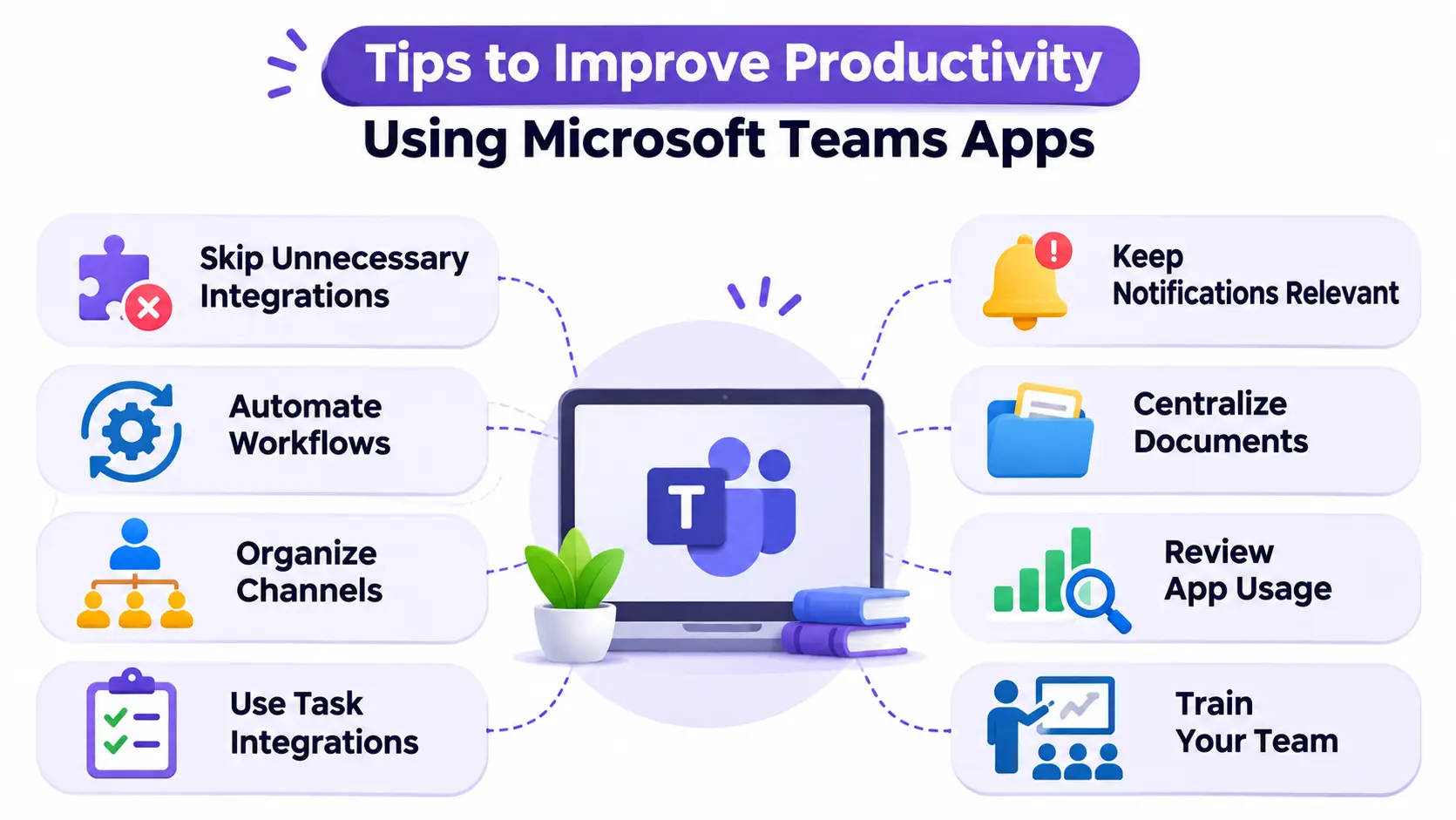
- Avoid installing unnecessary integrations. Every app adds clutter. Install one only if it solves a named problem.
- Automate repetitive workflows. If someone does the same copy-and-paste task weekly, automate it.
- Organize channels by department and project. Clear channels make app notifications easier to read.
- Use task management integrations. Keep tasks next to the conversation that created them.
- Keep notifications relevant. Send alerts to the people who can act on them, not the whole company.
- Centralize documents and project information. Pin the key board, report or folder to each channel. Using cloud-based productivity tools can also help teams access shared files, manage projects and collaborate efficiently from different locations.
- Review app usage regularly. Check quarterly and retire anything people have stopped using.
- Train employees to use integrations effectively. A ten-minute demo often does more than a long guide.
Frequently Asked Questions About Microsoft Teams Productivity Apps
1. What are the best productivity apps for Microsoft Teams in 2026?
Top choices include Jira Cloud, Trello, Zapier, Power BI, GitHub, Polly, Jotform, Signeasy, Typeform and Empuls. The best one depends on your workflow: Jira for issue tracking, Trello for visual tasks, Power BI for reporting and Zapier for automation.
2. Are Microsoft Teams productivity apps free?
Some are, and many offer limited free plans. Jira, Trello, GitHub, Zapier and Polly have free tiers, while Signeasy offers a trial and Empuls is quote-based. Free plans usually cap users, responses or tasks, so check the limits.
3. Can I integrate third-party applications with Microsoft Teams?
Yes. You can add apps from the Teams app store or connect tools through automation platforms such as Zapier and Power Automate. Your admin may need to approve certain apps first.
4. What is the best task management app for Microsoft Teams?
There’s no single winner. Trello is easiest for visual task tracking, Jira suits technical and ticket-based work, and Microsoft Planner is a convenient built-in choice.
5. Can Microsoft Teams integrate with Jira and Trello?
Yes. Both Atlassian products offer apps for Teams, which let you view and share work items in conversations. Confirm the current feature set in the Teams store, since it can change.
6. How do I install apps in Microsoft Teams?
Select Apps in the left sidebar, search for the app, choose Add, sign in if required and pick a chat, channel or meeting. If the app is blocked, ask your administrator for approval.
7. What are the best AI productivity apps for Microsoft Teams?
The answer is changing quickly. Options to evaluate include Microsoft 365 Copilot for meeting and chat assistance, AI features inside Jira and Zapier, and AI add-ons from other vendors. Check each product’s licensing and data policies before you roll out.
8. Are third-party Microsoft Teams integrations secure?
Many are, but security varies by vendor. Review permissions, look for SSO support, read the vendor’s security documentation and use admin controls to approve apps.
9. Can I use productivity apps in Microsoft Teams on mobile?
Often yes. Vendors such as Signeasy say their Teams integration works on mobile. Some tabs and bots have fewer features on a phone, so test the apps your team depends on.
10. How many apps should a business integrate with Microsoft Teams?
There’s no fixed number. Start with two to five apps that solve clear problems, then add more only when there is a reason. Fewer, well-adopted apps beat a long list nobody uses.
Conclusion
The right Microsoft Teams productivity apps are the ones your team will actually use every week. Start with your biggest daily friction, not the longest feature list.
Here is a simple way to decide. Engineering teams should look at Jira and GitHub. Marketing and operations teams will likely get value from Trello and Jotform. Leaders who need shared numbers should pin Power BI dashboards. HR teams can combine Polly for quick feedback with Empuls for recognition, and anyone who needs approvals will save time with Signeasy. Zapier ties the pieces together when the tools don’t talk to each other.
Pick two or three apps, run a short pilot, and keep the notifications clean. Check pricing and permissions with each vendor, because both change often. Do that, and Teams becomes less of a chat window and more of a place where work actually moves.

Mehreen Mushtaq is a skilled content writer dedicated to creating high-quality, engaging, and SEO-focused blogs. She specializes in strategic keyword usage, search intent, and informative content that connects with readers while helping websites strengthen their visibility and rankings in search results.