
Most offices don’t have a tool problem. They have a too-many-tools problem. People juggle email, chat, spreadsheets, task boards, and meeting links, and half the day goes to finding things rather than doing them.
This office productivity tools list covers 15 apps that do real work for real teams. Each one gets a plain description, who it suits, and where it falls short. You’ll also find comparison tables, free options, AI tools, and four workflow examples you can copy.
Quick answer: Office productivity tools are software applications that help people create documents, manage tasks, communicate, schedule meetings, share files, and automate routine work. Examples include Microsoft 365, Google Workspace, Asana, Slack, and Trello.
The Office Productivity Tools List: 15 Picks for Businesses and Individuals
These picks are based on each product’s documented features and how teams commonly use them, not on a lab test. I’ve kept the descriptions short so you can scan, then dig into the tools that match your needs.
1. Microsoft 365: Best All-in-One Office Suite
Microsoft 365 bundles Word, Excel, PowerPoint, Outlook, Teams, and OneDrive. If your clients and partners send you Office files, this is the safest match. Formatting stays intact, and Excel remains the standard for heavy spreadsheet work.
Microsoft Copilot, the AI assistant, is available on many plans, often as a paid add-on. The drawback is complexity: plans and bundles vary, so read the details before you pick one. Here is the Wikipedia entry on Microsoft 365 for a quick history.
Best for: Companies that already live in Outlook and Excel.
2. Google Workspace: Best for Cloud Collaboration
Google Workspace includes Gmail, Drive, Docs, Sheets, Slides, Calendar, and Meet. Its strength is real-time teamwork. Three people can edit one document while a fourth leaves comments, and nobody emails “final_v7.docx” around.
Google’s Gemini AI features are built into Workspace plans, though what you get depends on the tier. Sheets handles everyday spreadsheet work well but struggles with very large or complex models. See the Google Workspace overview on Wikipedia for more background.
Best for: Small teams, startups, and remote groups.
3. Asana: Best for Project and Task Management
Asana turns a project into tasks with owners, due dates, and dependencies. You can view the same work as a list, a board, or a timeline. That flexibility helps when different people think about work in different ways.
It can feel heavy for a two-person team. Some features, such as advanced reporting, sit behind paid plans.
Best for: Teams running several projects with deadlines.
4. Trello: Best for Visual Task Management
Trello uses boards, lists, and cards. If you’ve seen a wall of sticky notes in columns, you already understand it. This style is called Kanban, and it works because you can see the state of everything in one glance.
Trello is simple, which is both its appeal and its limit. Large projects with many dependencies need extra add-ons or a different tool.
Best for: Small teams and simple workflows.
5. Slack: Best for Team Communication
Slack organizes conversation into channels by topic or project. That keeps chat searchable and cuts down on long reply-all email chains. It also connects to thousands of other apps, so alerts from your task tool or CRM can land in the right channel.
The free plan limits how much message history you can see. Noisy channels can also become a distraction, so set clear rules about when to use chat and when to use email.
Best for: Teams that message all day.
6. ClickUp: Best All-in-One Work Management Platform
ClickUp packs tasks, docs, goals, dashboards, and automations into one app. The pitch is replacing several tools with one. For some teams that works well.
The cost of all that range is a learning curve. Plan an hour or two to set up your workspace properly, or the options will overwhelm you.
Best for: Teams that want to consolidate tools.
7. Notion: Best for Notes and Knowledge Management
Notion combines notes, wikis, and databases on flexible pages. Teams use it for meeting notes, onboarding guides, and project documentation. Notion AI can summarize pages and draft text.
It shines as a knowledge base. As a strict task manager it is less precise than Asana or ClickUp. Other users share setups and tips in the Notion community on Reddit.
Best for: Documentation, internal wikis, and personal notes.
8. Canva: Best for Presentations and Design
Canva lets non-designers build slides, one-pagers, and social graphics from templates. It also offers whiteboards and AI-assisted design tools. For an office with no design team, it fills a real gap.
Brand control is the main weakness. Without shared brand templates, every person’s slides end up looking different.
Best for: Decks, reports, and marketing visuals.
9. Zoom Workplace: Best for Virtual Meetings
Zoom Workplace is the current name for Zoom’s meeting and collaboration platform. It handles video calls, screen sharing, recording, chat, and an AI assistant for meeting summaries.
The free plan caps the length of group meetings. If you run long calls, expect to pay or use another option such as Microsoft Teams or Google Meet.
Best for: Client calls and larger meetings.
10. Grammarly: Best for Professional Writing
Grammarly checks spelling, grammar, and tone as you type, in your browser or in many apps. It catches the small mistakes that make an email look careless. Paid tiers add deeper style suggestions and AI writing help.
It can’t judge whether your argument is good. Read its suggestions critically, because they sometimes flatten your voice.
Best for: Anyone who writes emails and reports daily.
11. Todoist: Best for Personal Task Management
Todoist is a fast, clean to-do app. You can add recurring tasks, set reminders, and group items into projects. It’s built for one person’s list more than for team project management.
The free plan is useful but limited. Shared team features are better elsewhere.
Best for: Individuals and freelancers.
12. Airtable: Best for Database and Workflow Management
Airtable looks like a spreadsheet but behaves like a database. You can link records, build forms, and set up views for different roles. Teams use it for content calendars, inventory, and client trackers.
It takes more thought to set up than a normal spreadsheet. If your data is simple, Google Sheets or Excel may be enough.
Best for: Structured data that a plain spreadsheet can’t handle well.
13. Calendly: Best for Meeting Scheduling
Calendly ends the “what time works for you?” email back-and-forth. You share a link, people pick an open slot, and the meeting lands on both calendars. It syncs with Google and Outlook calendars.
Free plans limit what you can set up, such as the number of event types. Heavy users usually need a paid tier.
Best for: Sales, recruiting, consulting, and client work.
14. Loom: Best for Asynchronous Team Communication
Loom records your screen and camera, then gives you a link to share. A three-minute video often explains a design change or a bug faster than a page of text. It’s owned by Atlassian, the company behind Trello.
The free plan limits video length and the number of videos. It also doesn’t replace live conversation when a topic needs back-and-forth.
Best for: Walkthroughs, training clips, and status updates.
15. Zapier: Best for Workflow Automation
Zapier connects apps without code. You set a trigger, such as a new form response, and an action, such as adding a row to a spreadsheet and sending a Slack message. This is a simple form of business process automation.
The free plan has a monthly limit on automated tasks. Complex automations also need testing, since a broken step can fail quietly.
Best for: Teams with repetitive copy-and-paste work.
Quick Comparison: 15 Office Productivity Tools at a Glance
| Tool | Category | Best for | Free option |
| Microsoft 365 | Office suite | Business documents and email | Limited (web versions) |
| Google Workspace | Office suite | Cloud collaboration | Free with a personal Google account |
| Asana | Project management | Planning and tracking projects | Yes |
| Trello | Task management | Visual boards | Yes |
| Slack | Team chat | Day-to-day messaging | Yes |
| ClickUp | Work management | One app for many jobs | Yes |
| Notion | Knowledge base | Notes and internal wikis | Yes |
| Canva | Design | Slides and visuals | Yes |
| Zoom Workplace | Meetings | Video calls | Yes |
| Grammarly | Writing | Clear, clean writing | Yes |
| Todoist | Task management | Personal to-do lists | Yes |
| Airtable | Database | Structured data and workflows | Yes |
| Calendly | Scheduling | Booking meetings | Yes |
| Loom | Video messaging | Recorded updates | Yes |
| Zapier | Automation | Connecting apps | Yes |
Free plans change often. Treat the last column as a starting point and check the vendor’s pricing page.
What Are Office Productivity Tools?
Office productivity tools are the apps you use to get ordinary work done. Think of writing a report, assigning a task, joining a call, or finding last month’s contract. Wikipedia has a short overview of productivity software and the older idea of an office suite if you want the background.
The category is broad on purpose. A word processor, a chat app, and a task board all count, because each one removes friction from a different part of the workday.
How Do Office Productivity Tools Work?
Most of them fall into a few jobs:
- Creating and editing documents, spreadsheets, and slides
- Organizing tasks and projects
- Sending messages and holding meetings
- Storing and sharing files
- Tracking time
- Automating repeat steps between apps
Modern tools run in the cloud. Your work saves automatically, several people can edit the same file at once, and you can open it from a laptop or phone.
Why Do Productivity Tools Matter for Modern Offices?
Good tools save time on the boring parts of work. They also give everyone one place to look for answers, so fewer questions get buried in email threads.
Managers get something too. A shared task board shows who is working on what and which deadlines are close, without a status meeting.
Which Office Productivity Tool Offers the Best Value?
The best value depends on how much of your work happens in one place. If your team already pays for Microsoft 365 or Google Workspace, you probably have chat, meetings, storage, and documents covered. Adding a separate tool for each is often wasted money.
Start with the suite, then add one tool at a time for a gap you can name. Examples are a task board, a scheduling link, or an automation tool. If you can’t describe the problem a tool solves, skip it.
Microsoft 365 vs. Google Workspace
This is the most common head-to-head, so here is the short version.
| Factor | Microsoft 365 | Google Workspace |
| Core apps | Word, Excel, PowerPoint, Outlook | Docs, Sheets, Slides, Gmail |
| Real-time co-editing | Strong, improving | Excellent, built in from the start |
| Heavy spreadsheet work | Stronger | Good for everyday use |
| Desktop apps | Full-featured | Mostly browser-based |
| AI assistant | Copilot | Gemini |
| Best fit | Larger or Office-heavy companies | Small, remote, or fast-moving teams |
Neither is better for everyone. Pick the one your team will actually use, and check current plan details on Microsoft and Google. Zoho Workplace is a third option some small businesses consider on price.
Free vs. Paid Office Productivity Software
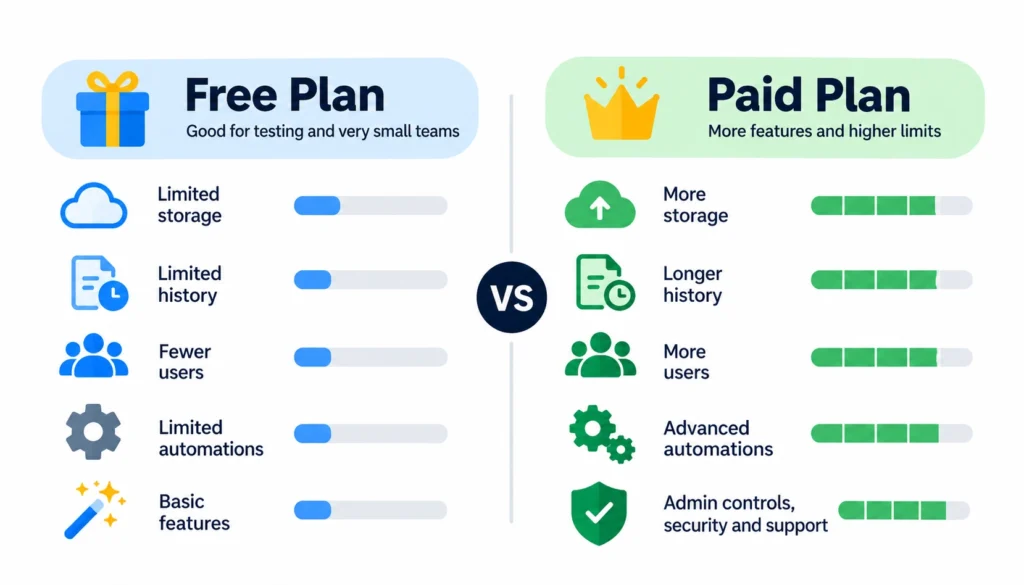
Free plans are good for testing and for very small teams. They usually limit storage, history, number of users, automations, or advanced features. Paid plans add admin controls, security options, larger limits, and support.
Upgrade when a limit starts costing you time. A good sign is when people keep working around the free plan instead of using it.
Types of Office Productivity Software
If you’re not sure what you need, start with the type of work you want to fix. For teams working remotely or across multiple locations, cloud-based productivity and collaboration tools make it easier to share files, manage projects, and collaborate in real time.
- Document tools: Word, Google Docs, LibreOffice Writer
- Spreadsheet and data tools: Excel, Google Sheets, Airtable
- Project and task management: Asana, Trello, ClickUp
- Team communication: Slack, Microsoft Teams, Zoom
- Time tracking: Everhour, Harvest, Memtime
- File storage and sharing: Google Drive, OneDrive, Dropbox
- Scheduling: Google Calendar, Outlook Calendar, Calendly
- AI assistants: ChatGPT, Microsoft Copilot, Google Gemini
- Automation: Zapier, Make, IFTTT
- Notes and knowledge management: Notion, OneNote, Evernote, Joplin
Most offices need tools from only four or five of these groups. You don’t have to fill every category.
Best Office Productivity Tools for Different Business Needs
Small Businesses
Keep it simple and cheap. A suite (Google Workspace or Microsoft 365), a chat app, and one task tool cover most needs. Add Calendly if you book a lot of appointments. Small-business owners compare setups on r/smallbusiness, which is a useful reality check, though opinions there are individual and not verified.
Startups
Startups change fast, so pick tools that scale without forcing a migration. Google Workspace, Slack, Notion, and ClickUp or Asana are a common combination. Use free plans early and upgrade only when you hit a real limit.
Large Enterprises
Big organizations care most about security, admin controls, and integrations. Microsoft 365 or Google Workspace with enterprise plans, plus a project tool like Asana, is typical. Involve your IT and security teams before you buy anything.
Remote Teams
Remote work depends on clear communication. Combine chat (Slack or Teams), meetings (Zoom or Meet), shared docs, and a task board. Add Loom for updates that don’t need a live meeting, which helps when teammates work in different time zones.
Freelancers
Freelancers need to track tasks, time, and client communication without paying for team features. Todoist, Calendly, Canva, and a time tracker such as Harvest cover most of it. Add Grammarly if you write for clients.
Best Free Office Productivity Tools
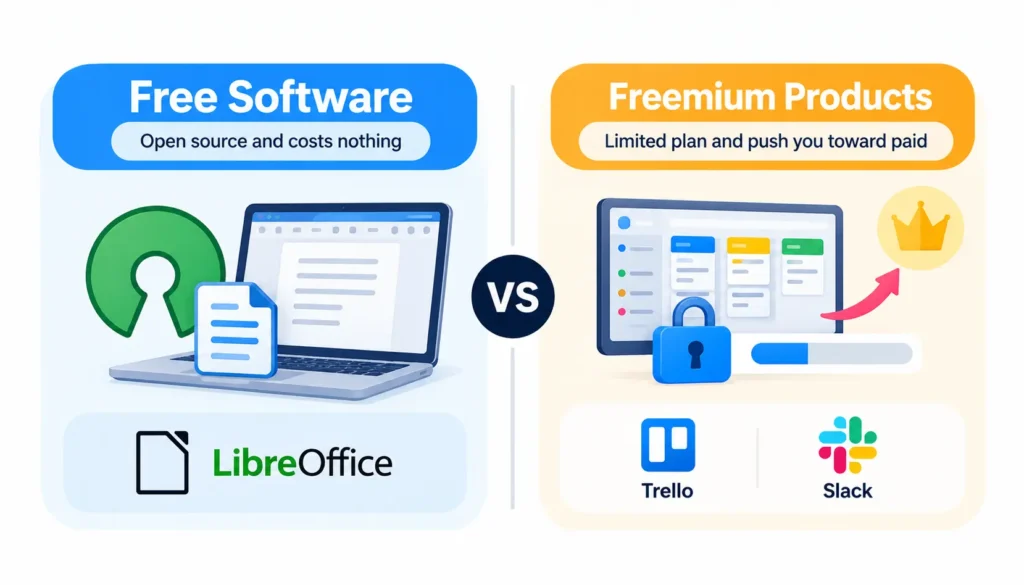
“Free” means two different things. Free software, like LibreOffice, is open source and costs nothing. Freemium products, like Trello or Slack, give you a limited plan and push you toward a paid one.
- Office suite: LibreOffice is a full open-source alternative to Word, Excel, and PowerPoint.
- Cloud collaboration: Google’s free apps (Docs, Sheets, Slides) work with a personal Google account.
- Project management: Trello’s free plan suits simple boards.
- Notes: Joplin is an open-source note app. Notion’s free plan also works well for personal use.
- Task management: Todoist’s free plan covers basic personal lists.
- Communication: Slack’s free plan works for small teams, with limited history.
Open-source options like Nextcloud (file sharing) and Mattermost (team chat) also exist. They give you more control over your data, but someone has to host and maintain them. If you’re looking for more budget-friendly options, explore these free productivity tools that help individuals and teams organize tasks, manage projects, and save time.
Best AI-Powered Office Productivity Tools
AI tools now handle a lot of routine writing and note-taking. They work best as a first draft or a helper, with a person reviewing the result. Never paste confidential data into any AI tool until you’ve checked your company’s policy and the vendor’s data terms.
- ChatGPT: Drafting, brainstorming, summarizing long text, and answering research questions.
- Microsoft Copilot: Helps inside Word, Excel, Outlook, and Teams, such as summarizing an email thread.
- Google Gemini: Assists in Gmail, Docs, and Sheets for writers using Workspace.
- Grammarly: Improves clarity and tone in what you’ve already written.
- Otter.ai: Transcribes meetings.
- Fireflies.ai: Records, transcribes, and summarizes meetings, then makes them searchable.
- Notion AI: Summarizes and drafts inside your workspace notes.
How AI Reduces Repetitive Office Tasks
Here’s a simple example. After a weekly team call, an AI note-taker produces a transcript and a summary with action items. You skim it, fix any errors, and post it in Slack. A job that took 20 minutes now takes five.
The pattern is the same elsewhere: let the AI do the first pass, then check the facts, names, and numbers yourself. AI tools can state wrong things with confidence.
How to Choose the Right Office Productivity Tools
Here is a simple process you can follow in order.
- Define the problem. Write down what is slowing your team. Be specific, such as “we lose track of client requests.”
- List must-have features. Separate what you need from what is nice to have.
- Set a budget. Count the per-user cost across your whole team, not just one person.
- Check integrations. Make sure the tool connects with your suite, chat app, and calendar.
- Review security. Look for two-factor authentication, role-based access, and data encryption. Ask about compliance if you handle sensitive data.
- Test free plans. Run a two-week trial with a small group before committing.
- Check ease of use and scale. A tool nobody opens is worthless, and one that can’t grow will cost you a migration later.
LinkedIn is a useful place to see how other managers talk about tool adoption, and LinkedIn Learning offers courses on several of these apps.
How to Use Office Productivity Tools Together
These are example setups, not guarantees. Adjust them to fit how your team works.
Example 1: Managing Daily Office Tasks
A three-person admin team puts every request on a Trello board, with columns for To Do, Doing, and Done. Due dates sync to Google Calendar. Urgent changes go to a Slack channel so nobody misses them.
Example 2: Managing a Marketing Team
The team plans campaigns in Asana. Designers build visuals in Canva and save the final files to a shared Google Drive folder. Writers run drafts through Grammarly before a manager approves them.
Example 3: Automating Repetitive Office Work
A small business collects leads through a web form. Zapier adds each response to a Google Sheet and sends a welcome email through Gmail. Nobody copies and pastes anything, and leads get a reply within minutes.
Businesses looking to streamline more complex workflows can explore digital business process automation to understand how automated processes reduce manual work and improve operational efficiency.
Example 4: Managing Remote Employees
A remote team uses Microsoft Teams for chat and Zoom for client calls. Tasks live in ClickUp, and shared files sit in Google Drive. Weekly updates go out as short Loom videos, so people in other time zones can watch when it suits them.
Common Mistakes to Avoid When Using Productivity Software
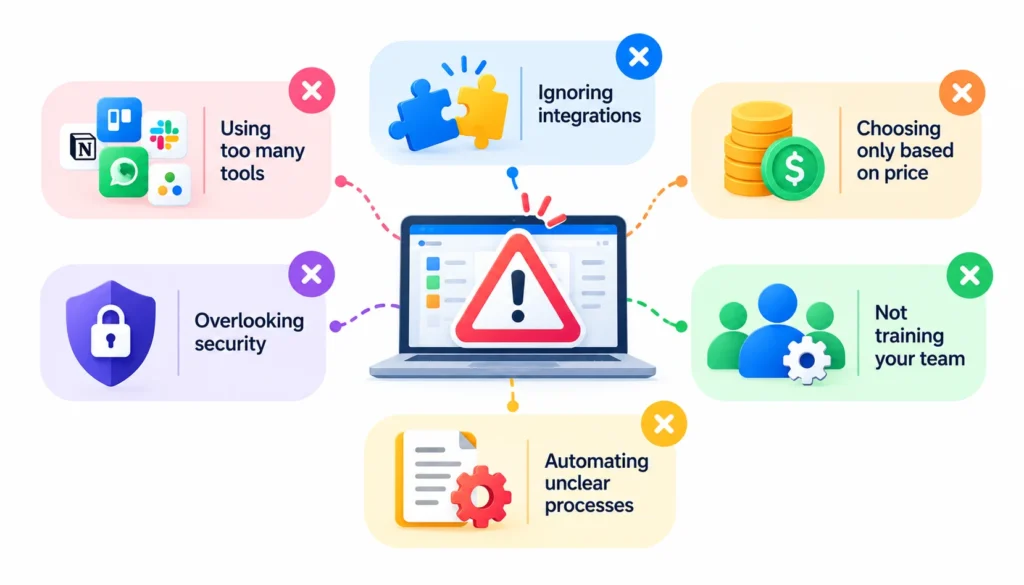
Using Too Many Apps
Every new app adds a login, a notification stream, and another place to search. If two tools do the same job, drop one.
Ignoring Integrations
Tools that don’t connect force people to copy information by hand. Check integrations before you sign up.
Choosing on Price Alone
The cheapest tool costs more if it slows people down. Weigh price against time saved.
Overlooking Security and Privacy
Turn on two-factor authentication, limit who can see what, and review sharing settings. Do this on day one, not after a problem.
Skipping Training
A tool only helps if people use it properly. Run a short walkthrough and write down your team’s rules, such as which channel is for what.
Automating a Messy Process
Automation speeds up whatever you give it, including mistakes. Fix the process on paper first, then automate it.
Frequently Asked Questions About Office Productivity Tools
What are the best office productivity tools?
Microsoft 365 and Google Workspace are the best starting points for most offices. Add Asana or Trello for tasks, Slack for chat, and Zoom for meetings. The right mix depends on your team size and workflow.
What are the five most commonly used productivity tools?
Common picks include Microsoft 365, Google Workspace, Slack, Zoom, and a task manager such as Asana or Trello. Most teams build their setup around a suite, a chat app, and a meeting tool.
What are the best free office productivity tools?
LibreOffice, Google’s free apps, Trello, Todoist, Joplin, and the free plans of Slack and Notion are strong options. Check each plan’s limits before you rely on it.
Which office productivity software is best for small businesses?
Google Workspace or Microsoft 365 gives small businesses documents, email, and storage in one place. Pair either with a simple task board and a chat tool. Add more only when a clear need appears.
Is Microsoft 365 better than Google Workspace?
Neither is better in every case. Microsoft 365 suits companies that rely on Excel and desktop Office apps. Google Workspace suits teams that want simple, real-time collaboration in a browser.
How can office productivity tools improve employee efficiency?
They cut time spent on repeat tasks, searching for files, and scheduling. They also make deadlines and responsibilities visible. Results depend on good setup and consistent use.
What are the best AI tools for office work?
ChatGPT, Microsoft Copilot, Google Gemini, Grammarly, Otter.ai, Fireflies.ai, and Notion AI are widely used. They help with drafting, summaries, and meeting notes. A person should always review their output.
What is the difference between productivity software and project management software?
Productivity software is the broad category and covers anything that helps you work, such as documents, chat, and scheduling. Project management software is one type that focuses on planning tasks, owners, and deadlines.
Can office productivity tools automate daily tasks?
Yes. Tools like Zapier, Make, and IFTTT connect apps and run steps for you. Many suites also have built-in rules, such as email filters and task automations.
How do I choose the right productivity software for my business?
Define your main problem, list must-have features, set a per-user budget, check integrations and security, and test a free plan with a small group. Choose the tool your team will actually use.
Final Thoughts
The best office productivity tools list is the one that matches your actual problems. Start with a suite, add one tool for each clear gap, and drop anything that nobody uses. Fewer, well-connected tools almost always beat a crowded stack.
Before you commit, write down what you need, test the free plans, and ask your team what slows them down. If you’d like to compare notes with other users, communities like productivity and project management are good places to see how real teams work, with the usual caution that individual opinions vary.

Mehreen Mushtaq is a skilled content writer dedicated to creating high-quality, engaging, and SEO-focused blogs. She specializes in strategic keyword usage, search intent, and informative content that connects with readers while helping websites strengthen their visibility and rankings in search results.