
Your team needs to work with files. That part is easy. The hard part is picking the right kind of tool, because “file sharing” and “collaboration” sound like the same thing and often get sold in the same box.
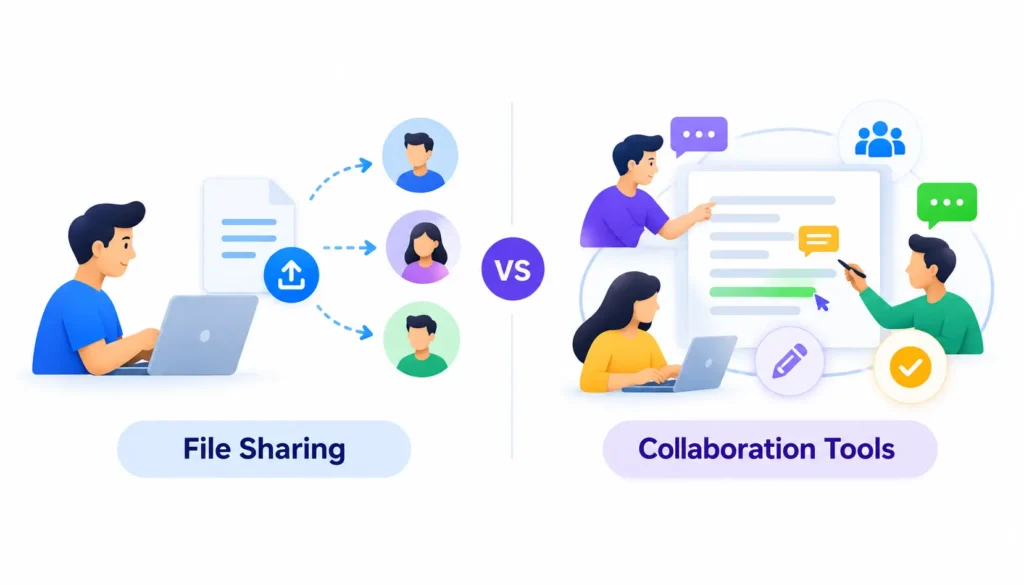
They are not the same. File sharing moves files from one person to another. Collaboration tools help people work on those files together, at the same time, with context. Choosing the wrong one means either paying for features nobody uses or watching your team drown in email attachments named “final_v7_REAL.docx”.
This guide explains file sharing vs. collaboration tools for teams in plain English. You will get a direct comparison, a side-by-side table, practical scenarios, and a simple framework for choosing. Businesses can explore these cloud-based productivity and collaboration tools to connect file sharing, communication, and project management in one workflow.
What Are File Sharing Tools?
File sharing tools let you store files in one place and give other people access to them. Think of a shared folder with a lock on the door and a guest list. Wikipedia describes file sharing broadly as the practice of distributing or providing access to digital files. In business, that usually means cloud storage with sharing controls.
The goal is simple: the right people get the right file, without sending it as an email attachment.
How file sharing works
You upload a file to a cloud location, such as a folder or drive. You then share it with specific people or create a link. Recipients can view it, download it, or sometimes edit it, depending on the permission you set.
The file lives in one place. Everyone who opens it sees the same version. That alone fixes a lot of the confusion caused by emailing copies around.
Common features of file sharing software
Most file sharing tools for teams include:
- Cloud storage with folders and search
- Share by email invite or link
- Permission levels (view, comment, edit)
- Link expiration and password protection
- Desktop and mobile sync
- Basic version history
- Activity logs and admin controls
These features are built around one job: getting files to people safely and keeping them organized.
When file sharing is enough
File sharing is often all you need when the file is already finished. A signed contract, a final invoice, a brand asset pack, or a PDF report all fit this pattern.
It also works well when only one person edits and everyone else just reads. If nobody needs to discuss, review, or co-edit, a simpler tool is usually cheaper and easier to manage.
What Are Team Collaboration Tools?
Collaboration tools are built for people working together. Wikipedia groups these under collaborative software, meaning software designed to help people work toward shared goals. The file is no longer the end product. It is the place where the work happens.
How collaboration software works
Instead of passing files back and forth, team members open the same document in a browser or app. They edit together, leave comments, assign tasks, and chat about it in context.
Behind the scenes, the software merges everyone’s changes automatically. Techniques such as operational transformation and conflict-free replicated data types are two well-known approaches to keeping simultaneous edits consistent. You don’t need to know how they work. You just need to know that two people can type in the same paragraph without wiping out each other’s work.
Common collaboration features
Typical features of team collaboration tools include:
- Real-time co-editing of documents, sheets, and slides
- Comments, @mentions, and suggested edits
- Approval and review workflows
- Task assignment and due dates
- Chat, channels, and video meetings
- Shared wikis or knowledge bases
- Integrations with other business apps
How collaboration tools support team workflows
A good collaboration tool shortens the loop between draft, feedback, and final version. A manager can comment on a paragraph. The writer fixes it. The manager approves it. All of that happens in one place, with a visible record.
This matters most for remote and hybrid teams, where you can’t lean over a desk and say, “Can you look at this?”
File Sharing vs. Collaboration Tools for Teams: Key Differences
Here is where the two categories really split. Each difference below affects how your team works day to day.
Purpose and primary functionality
File sharing tools answer the question, “How do I get this file to the right people?” Collaboration tools answer, “How do we get this work done together?”
One is about access. The other is about teamwork.
File access versus shared editing
In a pure file sharing setup, people open a file, often download it, change it on their own computer, and send it back. That creates copies.
With collaboration tools, everyone edits one live document. There is no copy to send back, because the document never leaves the platform.
Comments, feedback, and approvals
File sharing tools usually offer little beyond basic comments, if that. Feedback often moves to email or chat, away from the file.
Collaboration tools keep feedback attached to the exact line, cell, or slide it refers to. Many also support formal approvals, so you can see who signed off and when.
Version history and conflict prevention
Most file sharing platforms keep older versions of a file. That helps you roll back a mistake. It does not stop two people from saving over each other’s changes.
Collaboration tools reduce conflicts by merging live edits, or by showing who is editing what. Learn more about the basic idea behind tracking changes in Wikipedia’s overview of version control.
Task management and workflow integration
File sharing tools rarely manage tasks. They hold files; they don’t track who does what by when.
Collaboration tools often connect files to tasks, projects, and chat. A document can sit inside a project board, with an owner and a deadline attached.
Security, permissions, and administration
Both categories need strong security. File sharing tools tend to focus on access control, link settings, encryption, and audit logs. Collaboration tools add more surfaces to protect, such as chat channels, guest accounts, and integrations.
More features mean more settings to manage. Your admin workload usually grows with the number of tools and users.
Pricing, complexity, and scalability
File sharing is typically cheaper and easier to roll out. Collaboration suites cost more and take longer to learn, but they can replace several separate apps.
Pricing changes often, so always check each vendor’s current plans before you decide. Also count the hidden cost of training and admin time, not just the monthly fee per user.
File Sharing vs. Collaboration Tools at a Glance
| Factor | File Sharing Tools | Collaboration Tools |
| Main purpose | Store and distribute files | Create and finish work together |
| Editing | Usually one person at a time, often via download | Real-time co-editing |
| Feedback | Basic or none | Inline comments, suggestions, @mentions |
| Approvals | Rare | Often built in |
| Version control | Version history, limited conflict prevention | Live merging and change tracking |
| Tasks and projects | Usually not included | Often included |
| Communication | External (email or chat) | Built-in chat and meetings |
| Security focus | Access, links, encryption, audit logs | Same, plus guests, channels, integrations |
| Complexity | Low | Medium to high |
| Typical cost | Lower | Higher, but may replace other apps |
| Best for | Final files, controlled distribution | Drafting, reviewing, coordinating |
When Should You Use File Sharing Tools?
Choose file sharing when the main need is delivery, access, and organization. Here are the most common cases.
Sending final files to clients
A design agency finishes a logo package. It uploads the files to a shared folder and sends the client a link. The client downloads them. Nobody needs to co-edit anything.
For this job, a simple file sharing tool is faster and less confusing than a full collaboration suite.
Distributing documents for viewing or download
HR wants every employee to read the updated handbook. A view-only link in a shared drive does the job. People can read or download it, but they can’t change it.
Sharing files with controlled access
A law firm needs to give one client access to one folder and no others. File sharing tools handle this well, with per-folder permissions, expiring links, and access logs. Good secure file sharing for business starts with careful access settings like these.
Storing and organizing shared files
A small team wants one clean home for contracts, templates, and brand assets. A shared drive with a clear folder structure keeps everything searchable and backed up.
When Should You Use Collaboration Tools?
Choose collaboration tools when the work itself is shared. Here are the most common cases.
Co-authoring documents and spreadsheets
Three people are building a quarterly report. One writes the summary, one updates the numbers, one reviews the charts. In a document collaboration tool, all three work in the same file at the same time.
Collecting feedback and approvals
A product manager needs sign-off from legal, finance, and design. With comments and approval steps inside the document, the manager sees who has responded and who hasn’t. There is no need to chase people across three inboxes.
Coordinating projects across departments
A product launch involves marketing, sales, support, and engineering. A collaboration platform ties files, tasks, and conversations to one project. Everyone sees the same plan.
Supporting remote and hybrid teams
When people work in different time zones, the work needs to keep moving without meetings. Shared documents, threaded comments, and recorded updates let teammates pick up where others left off.
Can File Sharing and Collaboration Tools Work Together?
Yes, and most teams use both. The real question is whether they work together smoothly or sit in separate silos.
Combining storage, communication, and project management
A common setup looks like this:
- Storage: a cloud drive holds the files
- Communication: a chat tool handles day-to-day discussion
- Project management: a task board tracks who does what
The trick is connecting them. Files should open straight from the task, and chat should link back to the document.
Example workflow for a marketing team
A marketing team is launching a campaign:
- The content lead drafts the blog post in a shared document.
- The designer adds images to a shared folder and links them in the draft.
- The editor leaves comments and suggestions in the document.
- The manager approves it in the project board.
- The final files move to a read-only “Published” folder for the sales team.
Collaboration tools handle steps 1 to 4. File sharing handles step 5.
Example workflow for client document review
An accounting firm sends a draft report to a client:
- The team prepares the report in a collaborative document.
- The firm shares a comment-only link with the client.
- The client leaves questions directly in the document.
- The team resolves each comment and exports a final PDF.
- The signed PDF goes into a locked client folder with an audit trail.
Examples of File Sharing and Collaboration Tools
Many products blur the line. The notes below describe general positioning only. Features and plans change often, so check each vendor’s current documentation before you decide.
Google Drive and Google Docs
Google Drive is a cloud storage and file sharing service. Google Docs, Sheets, and Slides add real-time co-editing, comments, and suggestions on top. Together they cover both needs in one ecosystem. If you’re comparing platforms for your team, explore these cloud-based productivity apps to evaluate their features, pricing, collaboration capabilities, and security.
Microsoft OneDrive, SharePoint, and Microsoft 365
OneDrive handles personal and team file storage. SharePoint is built for team sites and document libraries. Microsoft 365 apps, such as Word and Excel, support co-authoring. Large organizations often choose this stack because it fits with existing Microsoft accounts and admin tools.
Dropbox and Box
Dropbox and Box began as file sharing and storage platforms. Both have added collaboration features, such as commenting and review workflows. They are often chosen for secure sharing with clients and external partners.
Slack and Microsoft Teams
Slack and Microsoft Teams are communication hubs. They are not file storage tools first, but both let people share files in channels and connect to storage services. They are best used alongside a proper file system, not as a replacement for one.
Notion, Confluence, and other knowledge tools
Notion and Confluence focus on shared knowledge, wikis, and project documentation. They suit teams that want to write, organize, and link ideas more than store raw files. Many teams pair them with a cloud drive for attachments.
A note on overlap: Almost every product above does a bit of everything. Compare actual features against your workflow, not the category label.
How to Choose the Right Tools for Your Team
Use this six-step framework. It takes an hour or two and can save months of frustration.
Identify your primary workflow
Ask what your team does with files most often. Are you mainly delivering finished work, or building it together? If it is mostly delivery, start with file sharing. If it is mostly co-creation, start with collaboration.
Evaluate collaboration features
List the features you truly need, such as live co-editing, inline comments, approvals, or task links. Mark each as “must have” or “nice to have.” Ignore everything else, no matter how impressive the demo looks.
Check security and access controls
Look for granular permissions, link controls, encryption, audit logs, and admin reporting. If you handle regulated data, confirm that the vendor supports your compliance needs before you sign anything.
Compare total cost of ownership
Add up license fees, storage limits, admin time, training, and the cost of tools you could cancel. A pricier suite can be cheaper overall if it replaces three separate subscriptions.
Check integrations and compatibility
Your tools should work with what you already use: email, calendar, chat, CRM, and project boards. Also check that people can open and export common file formats without losing formatting. You can also compare these productivity tools and apps to find solutions that match your team’s communication, file management, and project coordination needs.
Test the tools with a real project
Run a two-week pilot with a small team and a real deliverable. Watch where people get stuck. Real use reveals problems that feature checklists never show.
If you want honest peer opinions, communities such as sysadmin and projectmanagement on Reddit are full of practitioners discussing what worked and what didn’t. Treat those posts as anecdotes, not proof, and verify claims against vendor documentation.
Security Best Practices for File Sharing and Collaboration
More sharing means more risk. These habits keep it under control.
Apply least-privilege permissions
Give people only the access they need to do their job. The principle of least privilege is a core security idea, and it works well for shared folders. Start with view-only and raise access when needed.
Manage external access and shared links
Anyone-with-the-link sharing is convenient but risky. Prefer named invitations for sensitive files. Set expiration dates on links, and review active shares regularly.
Protect sensitive files
Use strong sign-in methods such as multi-factor authentication. Turn on encryption options your platform offers. Limit downloads and forwarding for confidential documents when the tool allows it.
Review version recovery, retention, and audit capabilities
Know how long deleted files and old versions are kept. Make sure admins can see who accessed or changed a file. These records matter during mistakes, disputes, and audits.
Common Mistakes to Avoid
Using email attachments as the only source of truth
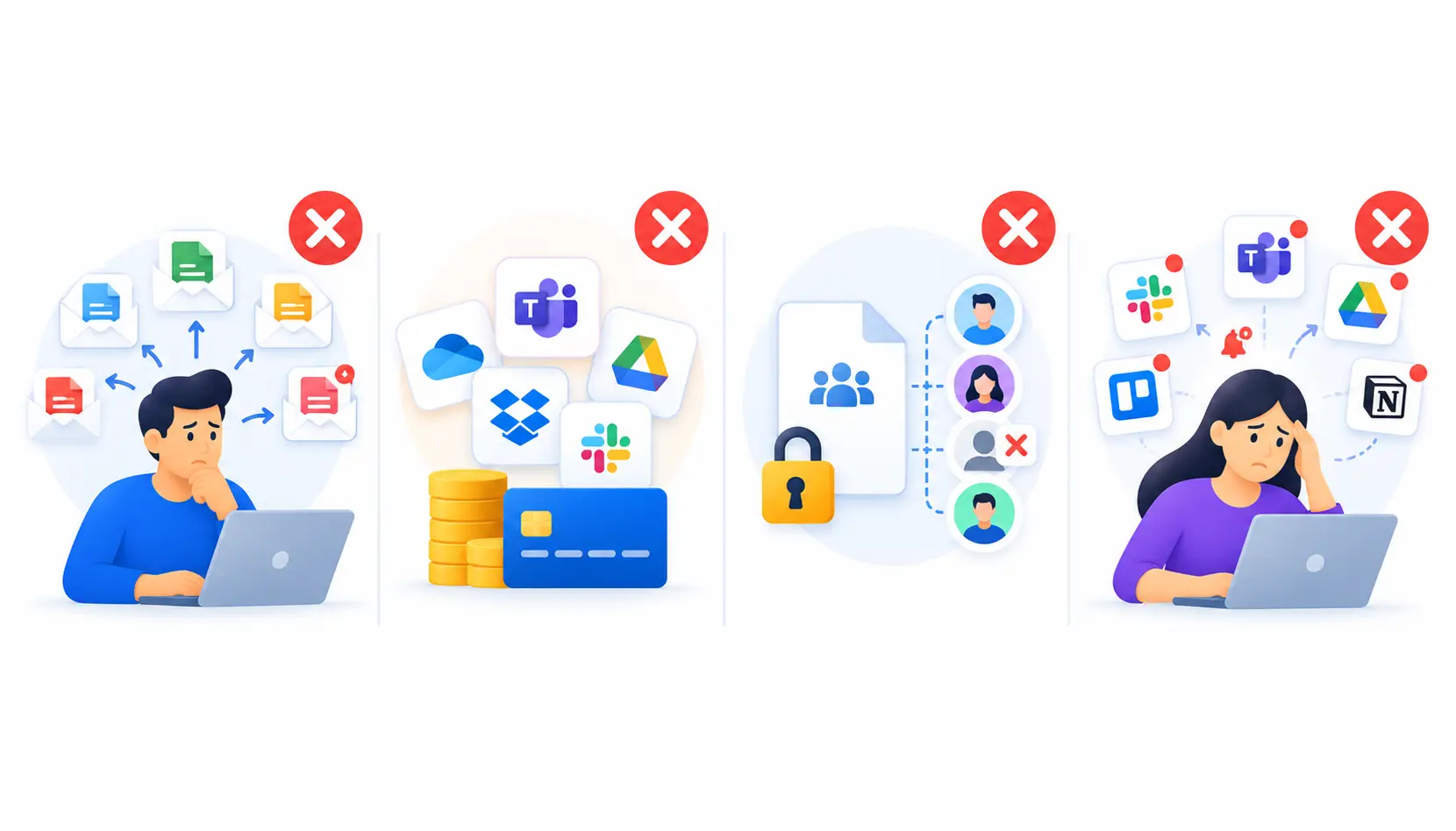
Once a file is attached to an email, it becomes a copy. Five people edit five copies, and nobody knows which is current. Share a link to one file instead.
Paying for overlapping features
It is easy to end up paying for three tools that each offer chat, storage, and docs. Audit your subscriptions once or twice a year and cancel what duplicates something else.
Ignoring permissions and version control
Teams often set permissions on day one and never look again. People leave, projects end, and access stays open. Schedule a regular review, and make sure everyone knows where the latest version lives.
Adding too many disconnected apps
Every new app means another login, another notification stream, and another place to lose a file. Add tools only when they solve a real problem, and make sure they connect to what you already have.
Frequently Asked Questions
1. What is the difference between file sharing and collaboration tools?
File sharing tools store files and control who can access them. Collaboration tools let teams work on content together through live editing, comments, tasks, and chat. File sharing is about access. Collaboration is about teamwork.
2. Can file sharing tools also support collaboration?
Yes, many can. Popular file sharing platforms now include commenting, co-editing, and review features. They usually offer fewer workflow tools than a full collaboration suite, so check whether the built-in features cover your needs.
3. Which tools are best for small businesses?
There is no single best choice. Small teams often do well with an all-in-one suite from Google or Microsoft because it covers storage, documents, and communication under one account. Choose based on the tools your team already uses, your budget, and how much admin time you have.
4. Are file sharing tools secure?
Reputable platforms offer strong security features, such as encryption, permission controls, and audit logs. But security also depends on how you configure and use them. Weak passwords, open links, and unchecked access cause many problems.
5. How do collaboration tools prevent version conflicts?
Most collaboration tools let multiple people edit one live document and merge changes automatically. They also keep a version history, so you can restore earlier drafts. This avoids the “which copy is the latest?” problem.
6. Can Microsoft Teams or Google Drive replace a dedicated collaboration platform?
Sometimes. For many teams, Microsoft 365 or Google Workspace covers documents, storage, chat, and meetings well. If you need advanced project management, complex approvals, or deep reporting, you may still want a dedicated platform alongside them. Check current features and test with a real project.
Conclusion
The file sharing vs. collaboration tools for a team’s decision comes down to one question: are you delivering files, or creating them together?
Pick file sharing tools if your work is mostly storing, distributing, and securing finished files. They are simpler, cheaper, and easy to manage.
Pick collaboration tools if your team drafts, reviews, and approves work together, especially across locations. They cost more but save time that would otherwise be lost to email and version confusion.
For most growing teams, the best answer is a connected mix of both. Start with your main workflow, pilot with a real project, lock down permissions, and add tools only when they solve a clear problem.

Mehreen Mushtaq is a skilled content writer dedicated to creating high-quality, engaging, and SEO-focused blogs. She specializes in strategic keyword usage, search intent, and informative content that connects with readers while helping websites strengthen their visibility and rankings in search results.