
If you’ve searched for cloud-based productivity apps, you probably don’t want another list of 15 logos. You want to know which app actually fits your team, your budget, and the way you already work.
This guide gives you both. Below, you’ll find 15 cloud-based productivity apps, evaluated against the same eight criteria, with pricing checked directly against vendor pages between July and August 2026. You’ll also get a decision framework so you can match the right tool to your specific situation instead of guessing.
Quick answer: The best all-around pick for most teams is Google Workspace or Microsoft 365, depending on which ecosystem you already use. For project-heavy teams, ClickUp or Asana are stronger fits. For flexible knowledge management, Notion wins. Keep reading for the full breakdown, or jump straight to the comparison table below.
Best Cloud-Based Productivity Apps at a Glance
| Rank | App | Best For | Free Plan | Starting Price (Annual) | Overall Score |
|---|---|---|---|---|---|
| 1 | Google Workspace | Best overall cloud suite | 14-day trial only | $7/user/mo | 4.7/5 |
| 2 | Microsoft 365 | Office-centric businesses | No (Business Basic only) | $7/user/mo | 4.6/5 |
| 3 | ClickUp | All-in-one project management | Yes | $7/user/mo | 4.5/5 |
| 4 | Notion | Knowledge management & wikis | Yes | $10/user/mo | 4.5/5 |
| 5 | Asana | Structured project management | Yes (up to 10 users) | $10.99/user/mo | 4.4/5 |
| 6 | Slack | Team communication | Yes | $7.25/user/mo | 4.4/5 |
| 7 | Trello | Simple visual task management | Yes | $5/user/mo | 4.3/5 |
| 8 | monday.com | Customizable workflows | Yes (2 seats) | $9/seat/mo | 4.3/5 |
| 9 | Zoho Workplace | Budget-friendly suite | Yes (5 users) | $3/user/mo | 4.1/5 |
| 10 | Lark | All-in-one collaboration | Yes (up to 50 users) | $12/user/mo | 4.1/5 |
| 11 | Dropbox | Cloud file management | Yes (2GB) | $9.99/mo (individual) | 4.2/5 |
| 12 | Miro | Visual collaboration | Yes | $8/user/mo | 4.2/5 |
| 13 | Confluence | Team documentation | Yes (10 users) | $5.42/user/mo | 4.1/5 |
| 14 | Zoom Workplace | Video-first collaboration | Yes | $14.16/user/mo | 4.2/5 |
| 15 | Todoist | Personal task management | Yes | $5/mo (individual) | 4.3/5 |
Pricing shown is per user, per month, billed annually, checked against official vendor pricing pages in July–August 2026. Plans and prices change; confirm current rates before purchasing.
What Are Cloud-Based Productivity Apps?
Cloud-based productivity apps are software tools that run on remote servers rather than your local hard drive, letting you create, store, and collaborate on work from any device with an internet connection. Instead of installing software once and saving files locally, you log into a browser or app, and your data syncs automatically across every device you use.
That’s the short answer. Here’s what it actually means in practice.
How cloud productivity apps work
A cloud productivity app stores your data on the vendor’s servers (usually spread across multiple data centers) instead of your computer. When you make a change — editing a document, checking off a task, sending a message — that change syncs to the cloud almost instantly. Anyone else with access sees the update in real time.
This is different from a traditional desktop app, where your file lives on one machine and you have to manually save, copy, or email versions to share them.
Cloud-based vs. desktop productivity software
The difference comes down to where your data lives and how you access it.
| Factor | Cloud-Based | Desktop-Based |
|---|---|---|
| Data storage | Vendor’s servers | Your local device |
| Access | Any device, anywhere | Installed device only |
| Collaboration | Real-time, multi-user | Manual file sharing |
| Updates | Automatic | Manual installs |
| Offline use | Limited, with sync on reconnect | Full functionality |
| Backup | Automatic, vendor-managed | Your responsibility |
| Typical cost model | Subscription (per user/month) | One-time license |
Desktop software still has a place — for example, video editing or CAD work that needs heavy local processing power. But for day-to-day tasks, documents, and team coordination, cloud tools have become the default because they solve the “which version is the real one” problem that plagued email attachments and shared drives for years.
Key benefits of cloud productivity apps
- Anywhere access — work from a laptop, phone, or tablet without carrying files around
- Automatic synchronization — changes appear for every collaborator within seconds
- Real-time collaboration — multiple people can edit the same document or board simultaneously
- Cross-device access — start a task on your phone, finish it on your desktop
- Easier updates — the vendor pushes new features and security patches automatically
- Built-in integrations — most cloud apps connect to dozens of other tools via API
- Remote work support — teams can collaborate effectively regardless of location
- Scalability — add or remove users in minutes instead of buying new licenses
Are cloud-based productivity apps secure?
Yes, when configured correctly. Reputable cloud productivity vendors invest heavily in security because a breach would be catastrophic for their business. That said, security isn’t automatic — it depends on which plan you’re on and how your admin sets it up.
The features that actually matter for security are:
- Encryption — data encrypted both in transit (moving between your device and the server) and at rest (stored on the server)
- Multi-factor authentication (MFA) — a second verification step beyond a password
- Single sign-on (SSO) — centralized login through your company’s identity provider
- Role-based permissions — controlling who can view, edit, or share specific content
- Compliance certifications — SOC 2, ISO 27001, GDPR, or HIPAA support depending on your industry
- Data ownership and privacy controls — clarity on who owns your data and how it can be used, especially for AI training
We’ll go deeper on security later in this guide, including what to actually check before signing a contract.
How We Evaluated the 15 Cloud Productivity Apps
Most “best productivity app” lists describe each tool differently one review focuses on pricing, another on integrations, another on design. That makes it nearly impossible to compare apples to apples.
For this guide, every app was scored against the same eight criteria, each out of 5 points, based on publicly available documentation, vendor pricing pages, and hands-on use of free and trial tiers.
| Factor | What We Looked At |
|---|---|
| Ease of use | Learning curve, onboarding, interface clarity |
| Collaboration | Real-time editing, comments, shared workspaces |
| AI capabilities | Built-in AI writing, search, automation, and agents |
| Integrations | Native connections and API/automation support |
| Mobile experience | App quality and feature parity with desktop |
| Offline capability | What works without an internet connection |
| Security | Encryption, SSO, MFA, compliance certifications |
| Value for money | Features delivered relative to price |
Ease of use
We weighted how quickly a new user could become productive without formal training, since onboarding friction is one of the biggest reasons teams abandon a tool within the first 90 days.
Collaboration features
This covers real-time co-editing, commenting, @mentions, and shared workspace structures — the features that actually replace email threads and status meetings.
AI capabilities
By 2026, AI is table stakes rather than a differentiator, but the depth varies enormously. We distinguished between basic AI writing assistance and genuine AI agents that can complete multi-step tasks.
Integrations and automation
We checked native integrations (no third-party middleware required) plus whether the platform supports its own automation or workflow builder.
Security and privacy
We reviewed each vendor’s published security documentation for encryption standards, authentication options, and compliance certifications.
Mobile and offline functionality
We tested whether core features — not just viewing, but actually creating and editing — work on mobile apps and without a live connection.
Pricing and value
We compared list prices for annual billing (the rate most vendors advertise) and evaluated what’s actually included at each tier, since “starting at $X” figures often hide meaningful feature gaps.
Scalability
Finally, we considered whether a tool that works for a 5-person team still works at 50 or 500 people, or whether it requires switching platforms as you grow.
A quick note on transparency: this evaluation is based on published documentation, vendor demos, and free/trial-tier testing rather than paid enterprise deployments for all 15 tools. Pricing and plan features change — always verify current details on the vendor’s official site before purchasing.
Top 15 Cloud-Based Productivity Apps
1. Google Workspace – Best Overall Cloud Productivity Suite
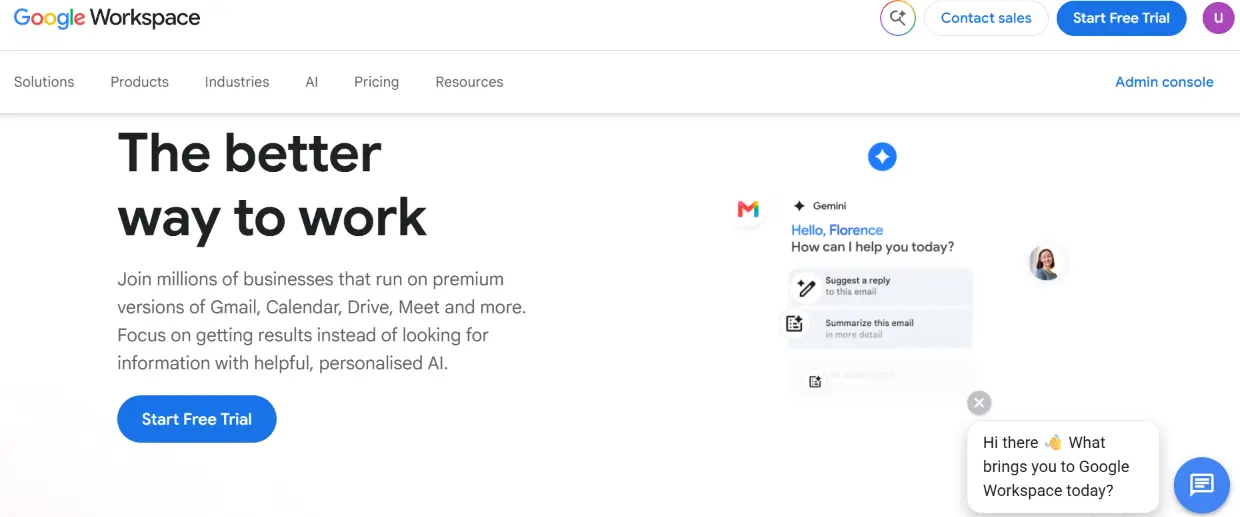
Key features: Gmail, Docs, Sheets, Slides, Drive, Meet, Calendar, and Gemini AI built into every paid tier.
Best for: Teams that want a mature, browser-first suite with minimal setup and strong mobile apps.
Pros and cons:
- ✅ Deeply real-time collaborative editing — arguably the best in the category
- ✅ Gemini AI now included at every paid tier, not sold as a separate add-on
- ✅ Excellent mobile apps with near-full feature parity
- ❌ Offline mode requires setup and works best inside Chrome
- ❌ Advanced admin controls are reserved for Enterprise tier
Pricing: Business Starter runs $7/user/month (annual, $8.40 billed monthly), Business Standard $14/user/month, and Business Plus $22/user/month. Enterprise is custom-priced. All tiers now include Gemini AI, which was previously a $20–30/user/month add-on.
AI features: Gemini is embedded in Gmail, Docs, Sheets, and Meet — drafting emails, summarizing long documents, and generating meeting notes automatically.
Security and collaboration: Google Workspace supports SSO, 2-step verification, and admin-managed data loss prevention on Business Plus and above. Real-time co-editing across Docs, Sheets, and Slides remains its strongest collaboration feature.
Verdict: For most small and mid-sized businesses, Google Workspace is the safest default choice mature, well-integrated, and increasingly AI-forward without a separate AI bill.
2. Microsoft 365 – Best for Office-Centric Businesses
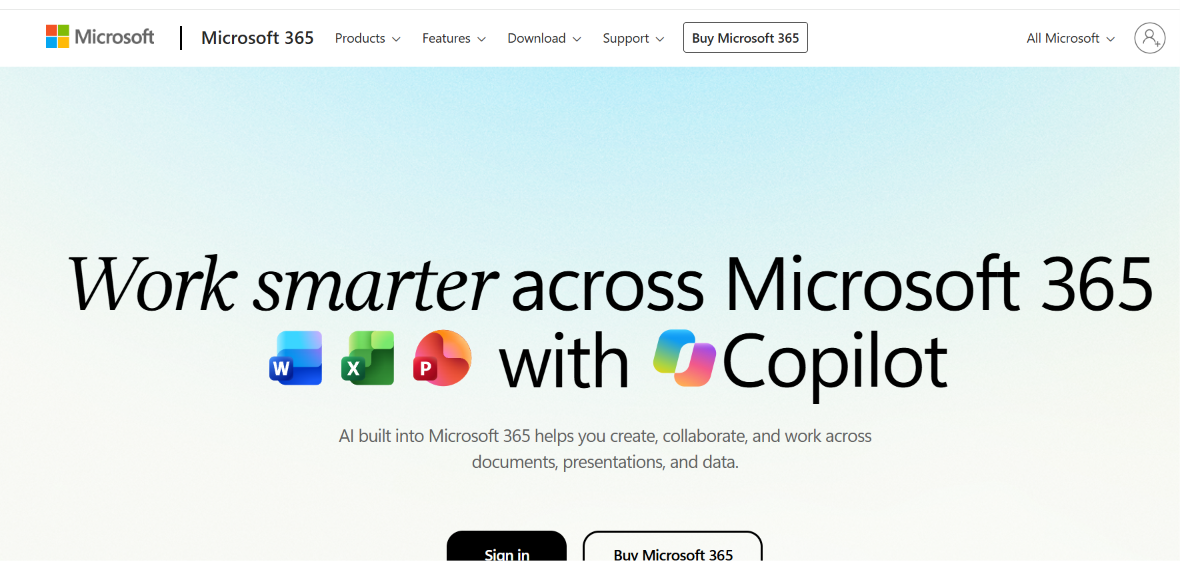
Key features: Word, Excel, PowerPoint, Outlook, Teams, OneDrive, and SharePoint, with Copilot AI available as an add-on.
Best for: Organizations already standardized on Word, Excel, and Outlook, or that need advanced spreadsheet functionality.
Pros and cons:
- ✅ Excel remains the industry standard for complex spreadsheet work
- ✅ Deep integration between Teams, Outlook, and the Office apps
- ✅ Desktop app versions available alongside web versions
- ❌ Copilot AI costs an additional $30/user/month rather than being bundled
- ❌ Plan naming and packaging changes frequently, making comparison shopping harder
Pricing: Business Basic starts at $7/user/month (annual), Business Standard at $14/user/month, and Business Premium at $22/user/month. Microsoft 365 Copilot is a separate add-on at $30/user/month, available on Business Standard and above.
AI features: Copilot lives inside Word, Excel, PowerPoint, Outlook, and Teams, drafting content, analyzing spreadsheet data, and summarizing meetings — but only once purchased separately.
Security and collaboration: Microsoft 365 offers strong enterprise-grade security through Microsoft Entra ID, Defender for Office 365, and Intune device management, particularly on Business Premium and Enterprise tiers.
Verdict: Choose Microsoft 365 if your team already lives in Excel and Outlook, or if you need the deepest desktop-app experience alongside cloud access. Just budget separately for Copilot if AI is a priority.
3. ClickUp – Best All-in-One Project Management Platform
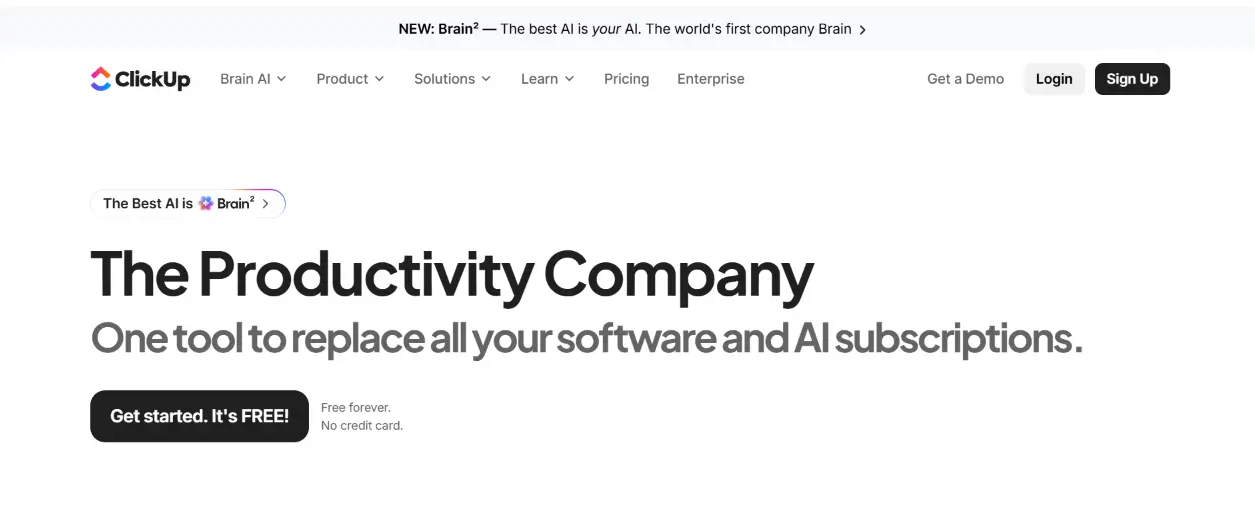
Key features: Tasks, docs, whiteboards, dashboards, goals, and chat in a single customizable workspace.
Best for: Teams that want to consolidate multiple point tools (task tracker, docs, time tracking) into one platform.
Pros and cons:
- ✅ Extremely customizable views (list, board, Gantt, calendar, mind map)
- ✅ Generous free plan with unlimited tasks and members
- ✅ Frequent feature releases and active product development
- ❌ The sheer number of features creates a steep learning curve
- ❌ AI (ClickUp Brain) is a separate paid add-on on top of plan pricing
Pricing: Free plan available. Unlimited is $7/user/month (annual), Business is $12/user/month, and Enterprise is custom. ClickUp Brain AI adds roughly $9/user/month on top of any paid plan.
AI and automation: ClickUp Brain can summarize tasks, generate subtasks, and answer questions about project status. Automation rules run on a monthly quota that scales by plan tier.
Verdict: ClickUp is the strongest pick if you want one platform to replace several separate tools, provided your team has the patience to configure it well.
4. Notion – Best for Knowledge Management and Flexible Workspaces
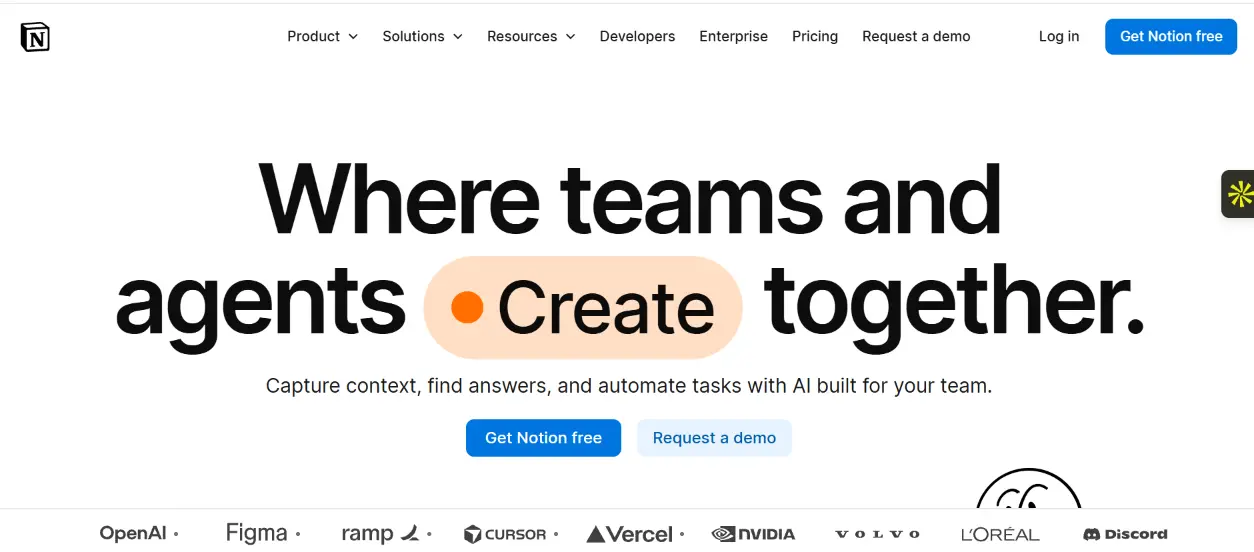
Key features: Pages, databases, wikis, and lightweight project tracking, all built from flexible content blocks.
Best for: Teams that need a single source of truth for documentation, and want to build custom workflows rather than use rigid templates.
Pros and cons:
- ✅ Extremely flexible — pages, databases, and tasks all live in one connected system
- ✅ Clean, minimal interface that’s genuinely enjoyable to use
- ✅ Full AI Agents and enterprise search available on the Business tier
- ❌ Less purpose-built for traditional project management than Asana or ClickUp
- ❌ Full Notion AI requires the Business tier, not the cheaper Plus plan
Pricing: Free for individuals. Plus is $10/user/month (annual), Business is $20/user/month (annual, includes full AI Agents), and Enterprise is custom.
AI features: Notion AI Agents, launched in 2025 and expanded in 2026, can search across your workspace, draft content, and complete multi-step research tasks — but only on Business and above.
Verdict: Notion is the best choice for teams that think in documents and wikis first, and want project tracking layered on top rather than the other way around.
5. Asana Best for Structured Project Management
Key features: Tasks, timelines, portfolios, workflow automation, and goal tracking with strong reporting.
Best for: Teams running multiple concurrent projects that need clear ownership, dependencies, and status visibility.
Pros and cons:
- ✅ Timeline (Gantt-style) view makes dependencies easy to visualize
- ✅ Strong reporting and portfolio-level oversight for managers
- ✅ Free plan supports up to 10 users, more generous than several competitors
- ❌ No Timeline view or custom fields on the free plan
- ❌ Per-seat pricing gets expensive quickly for larger teams
Pricing: Personal is free for up to 10 users. Starter costs $10.99/user/month (annual), Advanced is $24.99/user/month, and Enterprise is custom.
Verdict: Asana earns its reputation for structured, accountable project management — particularly for teams that have outgrown spreadsheets but don’t need the full customization of ClickUp.
6. Slack — Best for Team Communication
Key features: Channels, direct messages, huddles (voice/video), and Slack Connect for cross-company collaboration.
Best for: Teams that need fast, organized, searchable communication that replaces internal email.
Pros and cons:
- ✅ Channel-based organization keeps conversations searchable and contextual
- ✅ Deep integration ecosystem (thousands of app connections)
- ✅ Slack Connect lets you collaborate directly with external partners
- ❌ Free plan limits message history to 90 days
- ❌ Costs scale quickly per user compared to bundled suite chat tools
Pricing: Free plan available. Pro is $7.25/user/month (annual), Business+ is $15/user/month, and Enterprise+ is custom.
Verdict: If communication — not documents or tasks — is your team’s biggest coordination bottleneck, Slack remains the category leader.
7. Trello – Best for Simple Visual Task Management
Key features: Kanban boards, cards, checklists, and Power-Up integrations.
Best for: Small teams or individuals who want visual task tracking without a steep learning curve.
Pros and cons:
- ✅ One of the simplest tools to learn — most people are productive within minutes
- ✅ Free plan is genuinely usable indefinitely, not just a trial
- ✅ Butler automation (included) handles repetitive card actions
- ❌ Lacks native Gantt/timeline views without upgrading or adding Power-Ups
- ❌ Can become unwieldy for complex, multi-team projects
Pricing: Free plan available. Standard is $5/user/month (annual), Premium is $10/user/month, and Enterprise starts at $17.50/user/month (50-seat minimum).
Verdict: Trello is the right call when your team needs lightweight visual tracking, not a full project management suite.
8. monday.com – Best for Customizable Workflows
Key features: Customizable boards, automation recipes, dashboards, and multiple product lines (CRM, dev, service).
Best for: Teams that want visual, no-code workflow customization across departments.
Pros and cons:
- ✅ Color-coded boards make status tracking intuitive at a glance
- ✅ Strong automation builder with a generous rules library
- ✅ Multiple specialized products (CRM, dev tracking) on the same platform
- ❌ All paid plans require a 3-seat minimum, even for solo users
- ❌ AI features run on a separate credit system that can add unpredictable costs
Pricing: Free for up to 2 seats. Basic is $9/seat/month (annual, 3-seat minimum), Standard is $12/seat/month, and Pro is $19/seat/month. Enterprise is custom.
Verdict: monday.com is best for teams that want highly visual, customizable workflows and don’t mind paying for at least three seats from day one.
9. Zoho Workplace – Best Budget-Friendly Productivity Suite
Key features: Zoho Mail, WorkDrive, Writer, Sheet, Show, and Cliq (chat) bundled into one suite.
Best for: Cost-conscious small businesses that want an all-in-one alternative to Google Workspace or Microsoft 365.
Pros and cons:
- ✅ Significantly cheaper than Google Workspace or Microsoft 365 at comparable feature levels
- ✅ Genuine free plan for up to 5 users, unusual for a full productivity suite
- ✅ Deep integration with the broader Zoho ecosystem (CRM, Books, etc.)
- ❌ Smaller third-party integration marketplace than Google or Microsoft
- ❌ Interface feels less polished than the two market leaders
Pricing: Free for up to 5 users. Standard is $3/user/month (annual), Professional is $6/user/month. Mail-only plans start at $1/user/month.
Verdict: For budget-sensitive teams that don’t need Google or Microsoft’s specific ecosystem, Zoho Workplace delivers comparable core functionality at a fraction of the price.
10. Lark – Best All-in-One Collaboration Workspace
Key features: Messenger, video meetings, docs, base (database), and calendar in a single unified app.
Best for: Global or distributed teams that want messaging, meetings, and documents without switching apps.
Pros and cons:
- ✅ Free tier supports up to 50 users, one of the most generous in the category
- ✅ Built-in real-time translation, useful for international teams
- ✅ Genuinely unified experience — less app-switching than a Google + Slack + Zoom stack
- ❌ Smaller market share in North America means fewer third-party integrations
- ❌ Enterprise pricing and support options are less transparent than larger competitors
Pricing: Free for up to 50 users. Pro is $12/user/month, with unlimited users and advanced admin controls. Enterprise pricing is custom.
Verdict: Lark is worth a serious look for distributed international teams that want an all-in-one workspace without paying for four separate subscriptions.
11. Dropbox – Best for Cloud File Management
Key features: File sync, sharing, Dropbox Paper for docs, and Dropbox Sign for e-signatures.
Best for: Teams whose core need is reliable file storage and sharing rather than task management.
Pros and cons:
- ✅ Best-in-class sync reliability, even with very large files
- ✅ Simple, intuitive sharing links and permission controls
- ✅ Add-on e-signature (Dropbox Sign) built into higher tiers
- ❌ Free plan storage (2GB) is stingy compared to Google Drive’s 15GB
- ❌ Business plans require a 3-user minimum
Pricing: Free plan offers 2GB. Plus is $9.99/month (annual, individual, 2TB). Business Standard starts around $18/user/month (3-user minimum, pooled storage).
Verdict: Dropbox remains a strong specialist choice if file sync quality matters more to your team than built-in task or document tools.
12. Miro – Best for Visual Collaboration
Key features: Infinite canvas whiteboards, templates, sticky notes, and AI-assisted diagramming.
Best for: Teams running workshops, brainstorms, retrospectives, or visual planning sessions.
Pros and cons:
- ✅ Genuinely useful for remote brainstorming and workshop facilitation
- ✅ Large template library for common frameworks (retros, roadmaps, mind maps)
- ✅ Guests can view and comment for free on Business and Enterprise plans
- ❌ Free plan caps you at just 3 editable boards
- ❌ Enterprise requires a 30-member minimum, pricing out very small teams
Pricing: Free plan available (3 boards). Starter is $8/user/month (annual), Business is $20/user/month, and Enterprise (30-member minimum) is custom.
Verdict: No other tool on this list replaces a physical whiteboard as effectively as Miro — it earns its place for any team doing regular visual collaboration.
13. Confluence – Best for Team Documentation
Key features: Wiki-style pages, spaces, templates, and deep integration with Jira.
Best for: Engineering and product teams already using Jira that need a connected documentation layer.
Pros and cons:
- ✅ Tight native integration with Jira for engineering teams
- ✅ Structured permissions and page hierarchies suit larger organizations
- ✅ Free plan supports up to 10 users
- ❌ Less flexible and modern-feeling than Notion for general knowledge work
- ❌ AI features (Rovo) are metered by credit allowance, even on paid plans
Pricing: Free for up to 10 users. Standard is $5.42/user/month (annual), Premium is $10.44/user/month, Enterprise is custom.
Verdict: Choose Confluence specifically if your team already runs on Jira — the combined workflow is hard to replicate with a standalone wiki tool.
14. Zoom Workplace – Best for Video-First Collaboration
Key features: Video meetings, team chat, mail, calendar, and AI Companion for meeting summaries.
Best for: Teams whose primary coordination happens through video calls, especially client-facing or remote-first teams.
Pros and cons:
- ✅ Best-known and most reliable video conferencing experience in the category
- ✅ AI Companion generates meeting summaries and follow-up action items automatically
- ✅ Free plan allows unlimited 40-minute meetings, useful for very small teams
- ❌ Free tier’s 40-minute cap on group calls is a common upgrade trigger
- ❌ Task and document features are far less developed than dedicated project tools
Pricing: Free (Basic) plan available. Pro is $14.16/user/month (annual), Business is $18.33/user/month, and Enterprise is custom.
Verdict: Zoom Workplace is the right choice when reliable, high-quality video is the foundation of your team’s daily collaboration.
15. Todoist – Best for Personal and Lightweight Task Management
Key features: Task lists, natural-language date input, recurring tasks, and cross-platform sync.
Best for: Individuals and freelancers who want fast, frictionless personal task tracking without project management overhead.
Pros and cons:
- ✅ Natural-language input (“Call client Friday at 3pm”) makes capturing tasks fast
- ✅ Clean, distraction-free interface across every platform
- ✅ Genuinely useful free plan for basic personal task tracking
- ❌ Free plan caps you at 5 active projects
- ❌ Not designed for complex team project management
Pricing: Free (Beginner) plan available. Pro is $5/month (annual, individual). Business is $8/user/month (annual, team workspace).
Verdict: Todoist remains the gold standard for individual task management — simple, reliable, and fast, without trying to be everything at once.
Cloud Productivity Apps Comparison
| App | Best For | Free Plan | Starting Price | AI | Project Management | Collaboration | Storage |
|---|---|---|---|---|---|---|---|
| Google Workspace | Overall suite | Trial only | $7/user/mo | Gemini (included) | Basic | Excellent | 30GB–2TB/user |
| Microsoft 365 | Office-centric teams | No | $7/user/mo | Copilot (+$30) | Basic (Planner) | Strong | 1TB/user |
| ClickUp | All-in-one PM | Yes | $7/user/mo | Brain (+$9) | Excellent | Strong | Unlimited (paid) |
| Notion | Knowledge management | Yes | $10/user/mo | Included (Business+) | Good | Strong | Unlimited |
| Asana | Structured PM | Yes | $10.99/user/mo | Included (Advanced) | Excellent | Strong | 100MB/file (free) |
| Slack | Communication | Yes | $7.25/user/mo | Slack AI (Business+) | None | Excellent (chat) | 5GB–10GB pooled |
| Trello | Visual task mgmt | Yes | $5/user/mo | Butler AI | Basic | Good | 250MB/file (paid) |
| monday.com | Custom workflows | Yes (2 seats) | $9/seat/mo | Credit-based | Excellent | Strong | 5GB–100GB/seat |
| Zoho Workplace | Budget suite | Yes (5 users) | $3/user/mo | Limited | Basic | Good | 5GB–100GB |
| Lark | All-in-one workspace | Yes (50 users) | $12/user/mo | Included | Good | Excellent | 100GB–1TB |
| Dropbox | File management | Yes (2GB) | $9.99/mo | Limited | None | Good | 2TB–9TB pooled |
| Miro | Visual collaboration | Yes | $8/user/mo | Included (credits) | Basic | Excellent (visual) | Unlimited (paid) |
| Confluence | Documentation | Yes (10 users) | $5.42/user/mo | Rovo (credits) | Basic | Good | 2GB–1TB |
| Zoom Workplace | Video collaboration | Yes | $14.16/user/mo | AI Companion | None | Excellent (video) | 5GB–unlimited |
| Todoist | Personal tasks | Yes | $5/mo | Ramble (voice) | Basic | Limited | N/A |
Best free cloud productivity apps
- ClickUp — unlimited tasks and members even on the free tier
- Notion — unlimited pages and blocks for solo use
- Asana — supports up to 10 users free, more generous than most competitors
- Zoho Workplace — a genuinely usable free suite for up to 5 users
- Lark — free for up to 50 users, the most generous free tier on this list
Best affordable cloud productivity apps
- Zoho Workplace ($3/user/month) — the cheapest full productivity suite here
- Trello ($5/user/month) — simple task tracking at a low, predictable cost
- Todoist ($5/month individual) — inexpensive personal task management
- Confluence ($5.42/user/month) — budget documentation for teams already on Jira
Best cloud productivity apps for large teams
- Google Workspace and Microsoft 365 — mature admin controls and enterprise-grade security at scale
- ClickUp and Asana — designed to handle complex, multi-department project portfolios
- monday.com — visual customization that scales across departments with different workflows
Which Cloud Productivity App Is Best for You?
Rather than repeating the list, here’s how to match a tool to your specific situation.
- Best for individuals: Todoist for tasks, Notion for notes and personal knowledge management
- Best for students: Notion (free, flexible note-taking) or Google Workspace (familiar, browser-based)
- Best for freelancers: Trello or Todoist for lightweight task tracking without team overhead
- Best for startups: ClickUp or Notion — flexible enough to grow without switching tools early
- Best for small businesses: Google Workspace or Zoho Workplace, depending on budget
- Best for remote teams: Slack plus Zoom Workplace for communication, paired with Asana or ClickUp for tasks
- Best for enterprises: Microsoft 365 or Google Workspace Enterprise, with Confluence for documentation
- Best for project managers: Asana or monday.com for portfolio-level visibility and reporting
- Best for developers: Confluence paired with Jira, or Notion for lighter-weight technical documentation
- Best for marketing teams: monday.com or ClickUp for campaign tracking and creative workflows
- Best for content teams: Notion for editorial calendars and drafts, paired with Google Docs for collaborative writing
Google Workspace vs Microsoft 365
These two dominate the office-suite category, and the choice usually comes down to ecosystem fit rather than raw feature count.
Documents
Google Docs favors real-time, browser-first collaborative editing. Microsoft Word offers deeper formatting control and remains the standard for complex, print-ready documents.
Collaboration
Google Workspace’s real-time co-editing across Docs, Sheets, and Slides is generally considered smoother and more intuitive. Microsoft 365’s collaboration runs through Teams and SharePoint, which is powerful but has a steeper setup curve.
AI
Google bundles Gemini AI into every paid Workspace tier at no extra cost. Microsoft Copilot is a $30/user/month add-on, meaning Microsoft’s AI costs significantly more once you account for it.
Storage
Google Workspace allocates storage per plan tier (30GB to 2TB per user). Microsoft 365 Business plans generally include 1TB of OneDrive storage per user regardless of tier.
Security
Both offer enterprise-grade security. Microsoft’s Entra ID and Defender suite are particularly strong for organizations with complex on-premises or hybrid IT environments. Google’s security model is simpler to administer for cloud-only organizations.
Pricing
At the entry tier, both cost $7/user/month (annual). The gap widens once you factor in AI: Google’s Gemini is included, while Microsoft’s Copilot adds $30/user/month on top.
Which one should you choose?
Choose Google Workspace if you prioritize simple, real-time collaboration, want AI included in the base price, and don’t need deep desktop application functionality.
Choose Microsoft 365 if your team relies on advanced Excel functionality, needs full desktop versions of Office apps, or is already invested in the Microsoft ecosystem (Windows, Azure, Active Directory).
All-in-One vs Specialized Cloud Productivity Apps
Advantages of all-in-one platforms
- Fewer subscriptions to manage and pay for
- Data stays connected across functions (tasks reference docs, docs reference chat threads)
- Simpler onboarding — one login, one interface to learn
- Reduced risk of tools falling out of sync with each other
Advantages of specialized tools
- Each tool is typically stronger at its specific job than a bundled equivalent
- Easier to swap one tool without disrupting your entire stack
- Teams can choose best-in-class options for each function
- Often better for teams with highly specific workflow needs (e.g., video-first teams needing Zoom’s reliability)
Which approach is better for your team?
Smaller teams with straightforward needs generally benefit from all-in-one platforms like ClickUp or Lark, since consolidation reduces both cost and app-switching friction. Larger or more specialized teams — particularly engineering organizations — often do better stitching together best-in-class tools (Slack for chat, Confluence for docs, Jira for tickets) because the depth of each specialized tool outweighs the convenience of consolidation.
What Features Should You Look for in a Cloud Productivity App?
Real-time collaboration
Multiple people should be able to edit the same document, board, or task list simultaneously without version conflicts.
Cross-device synchronization
Changes made on your phone should appear instantly on your laptop, with no manual export or import step.
Task and project management
Even communication-first tools benefit from at least basic task tracking to avoid work falling through the cracks.
Communication
Comments, mentions, and direct messaging reduce reliance on email for day-to-day coordination.
Cloud storage
Look for clear, predictable storage limits per plan, and understand whether storage is per-user or pooled across the team.
Integrations
Native connections to the tools you already use (Slack, Google Drive, Zoom, Salesforce) save significant setup time compared to third-party middleware.
Automation
Rule-based automation (e.g., “when a task is marked done, notify the channel”) removes repetitive manual work.
AI assistance
Evaluate whether AI is included in your plan tier or sold as a separate add-on, since this materially changes the real cost.
Security and permissions
Role-based access control should let you restrict sensitive files or projects to specific people or teams.
Offline access
Check what specifically works offline — viewing files is common, but full editing with reliable sync-on-reconnect is rarer.
Analytics and reporting
Dashboards showing project status, team workload, or communication trends help managers spot bottlenecks before they become deadlines.
How to Choose the Right Cloud-Based Productivity App
- Identify your main productivity problem. Are tasks falling through the cracks, is communication scattered across email and chat, or is documentation impossible to find? Different tools solve different problems.
- Consider your team size. A 3-person team and a 300-person organization have very different needs for admin controls, permissions, and pricing structure.
- Define your must-have features. List the three or four features you can’t work without, and eliminate any tool that doesn’t clear that bar.
- Check integrations. Confirm the tool connects natively with your existing stack — email, calendar, storage, and communication tools.
- Evaluate security. Check for SSO, MFA, and relevant compliance certifications if you handle sensitive client or regulatory data.
- Compare total cost. Factor in per-seat minimums, AI add-ons, and storage overage fees — not just the advertised starting price.
- Test the free plan. Nearly every tool on this list offers a usable free tier or trial. Use it with real work, not a demo project.
- Measure adoption and productivity. After 30 days, check whether your team is actually using the tool daily, and whether it’s reducing — not adding — coordination overhead.
Can Cloud Productivity Apps Work Offline?
Most cloud productivity apps offer some offline functionality, but the depth varies significantly by platform.
Typically, offline mode works through local caching — the app stores a recent copy of your data on your device, letting you view and sometimes edit content without a connection. When you reconnect, the app synchronizes your changes back to the cloud.
The risk is sync conflicts, which happen when the same file is edited offline on two different devices before either reconnects. Most platforms resolve this by keeping both versions and prompting you to merge them manually, but it’s worth testing before relying on offline mode for critical work.
Document-editing tools (Google Docs, Microsoft Word, Notion) generally support the most robust offline editing. Communication tools (Slack, Zoom) offer limited offline value since their core function requires a live connection. Task managers (Todoist, Trello) usually support offline task creation with sync once you’re back online.
Are Cloud-Based Productivity Apps Secure?
Encryption
Reputable vendors encrypt data both in transit (using TLS) and at rest (using AES-256 or equivalent), meaning your data is scrambled and unreadable to anyone intercepting it without the correct key.
Authentication
Multi-factor authentication (MFA) requires a second verification step — a code sent to your phone, for example — beyond just a password, significantly reducing the risk of account compromise.
Access controls
Role-based permissions let admins define exactly who can view, edit, or share specific files, folders, or projects, rather than giving every user blanket access.
Compliance
Certifications like SOC 2 (a US auditing standard for data security practices) and ISO 27001 (an international information security management standard) signal that a vendor has undergone independent security audits. If you handle EU customer data, check for GDPR compliance specifically.
Data backup
Cloud vendors typically maintain redundant backups across multiple data centers, but it’s worth confirming your specific plan includes version history in case you need to recover an earlier draft or deleted file.
Privacy considerations
With AI features now built into most platforms, ask specifically whether your data is used to train the vendor’s AI models, and whether you can opt out. Policies vary significantly between vendors and even between plan tiers.
How AI Is Changing Cloud Productivity Apps
AI has moved from a nice-to-have to a baseline expectation across nearly every tool on this list. Here’s where it’s having the most practical impact.
AI meeting summaries
Zoom’s AI Companion and Google’s Gemini in Meet can automatically generate meeting notes and action items, reducing the need for a dedicated notetaker.
AI writing
Most document tools — Google Docs, Notion, Microsoft Word — now offer AI drafting and editing assistance directly inside the writing interface.
AI search
Tools like Notion Business and Confluence’s Rovo let you ask natural-language questions across your entire workspace instead of manually searching by keyword.
Automated task creation
Some platforms can now convert a meeting transcript or a chat message directly into an assigned task with a due date, cutting out manual entry.
AI scheduling
AI assistants increasingly handle calendar coordination, suggesting meeting times based on participants’ existing availability.
Workflow automation
Beyond simple “if this, then that” rules, newer AI automation can handle multi-step processes, like routing a support ticket, drafting a first response, and flagging it for review.
AI agents
The newest category — seen in Notion’s Custom Agents and ClickUp Brain — allows AI to complete multi-step tasks autonomously, such as researching a topic across your workspace and drafting a summary document, rather than just responding to a single prompt.
The practical takeaway: when comparing tools, check whether AI is bundled into your plan tier or billed separately, since the real cost difference between “AI included” and “AI add-on” platforms can be substantial at scale.
Frequently Asked Questions
What are cloud-based productivity apps?
Cloud-based productivity apps are software tools hosted on remote servers that let you create, store, and collaborate on work from any internet-connected device, with automatic syncing across your team.
What is the best cloud-based productivity app?
There’s no single best app for everyone. Google Workspace and Microsoft 365 are the strongest overall picks for most businesses, while ClickUp and Asana lead for dedicated project management, and Notion leads for flexible knowledge management.
What is the best free cloud productivity app?
Lark offers the most generous free tier, supporting up to 50 users. ClickUp, Notion, and Asana also offer genuinely usable free plans for smaller teams.
Are cloud productivity apps secure?
Yes, when properly configured. Look for encryption, multi-factor authentication, role-based permissions, and compliance certifications like SOC 2 or ISO 27001 before trusting a platform with sensitive data.
Can cloud productivity apps work offline?
Most support limited offline functionality through local caching, syncing changes once you reconnect. Document editors generally offer the most robust offline support; communication tools offer the least.
What is the difference between cloud and desktop productivity software?
Cloud software stores data on remote servers and syncs automatically across devices, while desktop software stores data locally and requires manual sharing or backup.
Which cloud productivity app is best for remote teams?
A combination of Slack or Zoom Workplace for communication, paired with Asana or ClickUp for task tracking, covers most remote teams’ core coordination needs.
Which productivity app is best for small businesses?
Google Workspace and Zoho Workplace are the strongest starting points, depending on whether budget or ecosystem familiarity matters more.
Can productivity apps integrate with each other?
Yes. Most tools on this list offer native integrations with each other (for example, Slack connecting to Google Drive or Asana) plus broader automation platforms like Zapier for less common connections.
Do cloud productivity apps use AI?
Nearly all major cloud productivity apps now include AI features, ranging from basic writing assistance to full AI agents capable of completing multi-step tasks. Whether AI is included in your base price or sold separately varies significantly by vendor.
Final Verdict: Which Cloud Productivity App Should You Choose?
There’s no universal “best” cloud productivity app — only the best fit for your specific workflow, team size, and budget.
Choose Google Workspace if you want a mature, browser-first suite with AI included at no extra cost and best-in-class real-time collaboration.
Choose Microsoft 365 if your team depends on advanced Excel functionality or is already standardized on the Microsoft ecosystem.
Choose ClickUp if you want to consolidate task management, docs, and dashboards into a single highly customizable platform.
Choose Notion if flexible knowledge management and documentation matter more to your team than rigid project management structure.
Choose Asana if you need clear accountability and reporting across multiple concurrent projects.
Choose Slack if communication — not documents or tasks — is your team’s biggest coordination challenge.
Choose Trello if you want the simplest possible visual task tracking without a learning curve.
The pattern across every recommendation above is the same: the right tool depends on your workflow, not on which app has the longest feature list. A platform that adds five features you’ll never use isn’t better than one that nails the three you actually need every day. Start with the problem you’re trying to solve, test the free plan with real work, and let your team’s actual usage — not the marketing page — tell you whether you’ve found the right fit.
Pricing and plan details in this guide were checked against official vendor pricing pages between July and August 2026. Software pricing and features change frequently — verify current rates on each vendor’s official website before making a purchasing decision.