
Adobe Premiere Pro has been a popular choice among professional video editors, filmmakers, content creators, and marketing teams for years. Its extensive editing tools, multitrack timeline, effects, and integration with other Adobe applications make it suitable for a wide range of video production projects.
However, not every creator needs the complexity of a professional desktop editing application. Some want a browser-based editor, others prefer software with a simpler interface, while many are looking for AI features that can handle repetitive editing tasks without taking away creative control.
The growing range of video editing applications has made it easier to find alternatives that match different production requirements. Some focus on professional post-production, while others prioritize quick social media editing, automated captions, or AI-assisted footage assembly.
If you are considering moving away from Premiere Pro, here are six alternatives worth exploring in 2026, starting with a platform that combines AI editing agents with a professional timeline.
How We Selected These Premiere Pro Alternatives
We considered the editing experience, timeline flexibility, AI-assisted capabilities, creative controls, ease of use, and suitability for different types of projects.
The selection includes browser-based and desktop applications, along with tools designed for both beginners and experienced editors. Each option serves a different purpose, so the best choice depends on the type of videos you create and how much control you need over the editing process.
1. Invideo Editor: Best for AI-Assisted Editing and Timeline Control
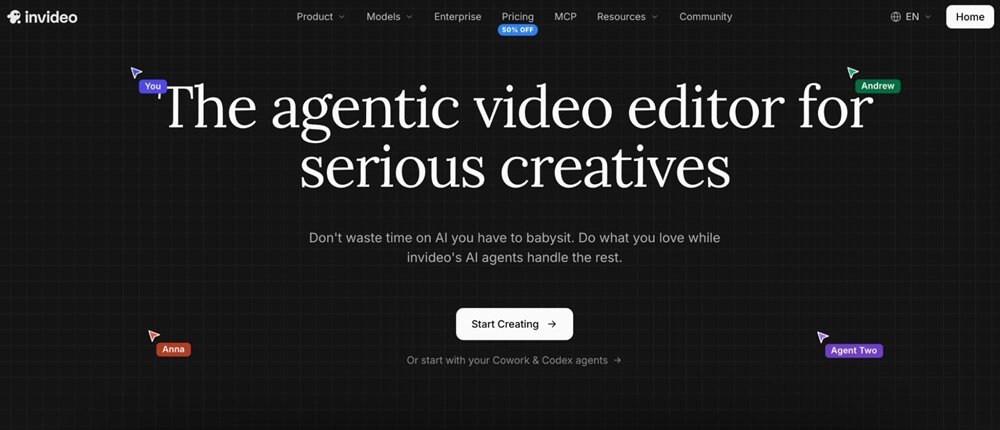
Invideo editor is a browser-based AI video editor that combines AI editing agents with a professional multitrack timeline. It takes a different approach from traditional editing software by allowing creators to delegate repetitive editing tasks to AI agents while retaining control over every part of the project.
Instead of manually reviewing hours of footage, creators can upload their recordings and describe what they want the edit to look like. The editing agent can review clips, identify useful moments, select clean takes, remove unnecessary pauses, and assemble an initial cut directly on the timeline. Users can then inspect the result, rearrange clips, adjust timing, and refine the sequence manually.
The platform also provides professional editing controls for color grading, audio mixing, transitions, keyframe animation, typography, visual effects, and compositing. This makes it useful for projects that require more than simple trimming or template-based editing. Creators can work on interviews, documentaries, YouTube videos, marketing campaigns, and social media content within the same browser-based environment.
Another useful aspect is its collaboration and agent connectivity. Teams can work together through multiplayer editing, while compatible external AI assistants can connect to the editing environment and perform supported tasks on the timeline. This gives creators more flexibility in how they manage their projects.
Key features:
- AI-assisted footage review and rough-cut assembly
- Editable multitrack timeline
- AI multicamera editing and footage search
- Color grading and audio mixing
- Keyframes, transitions, effects, and typography
- Multiplayer collaboration and external agent connectivity
Best for: Creators, filmmakers, and marketing teams who want AI agents to handle repetitive editing work while maintaining professional timeline control.
2. DaVinci Resolve: Best for Professional Color Grading and Post-Production
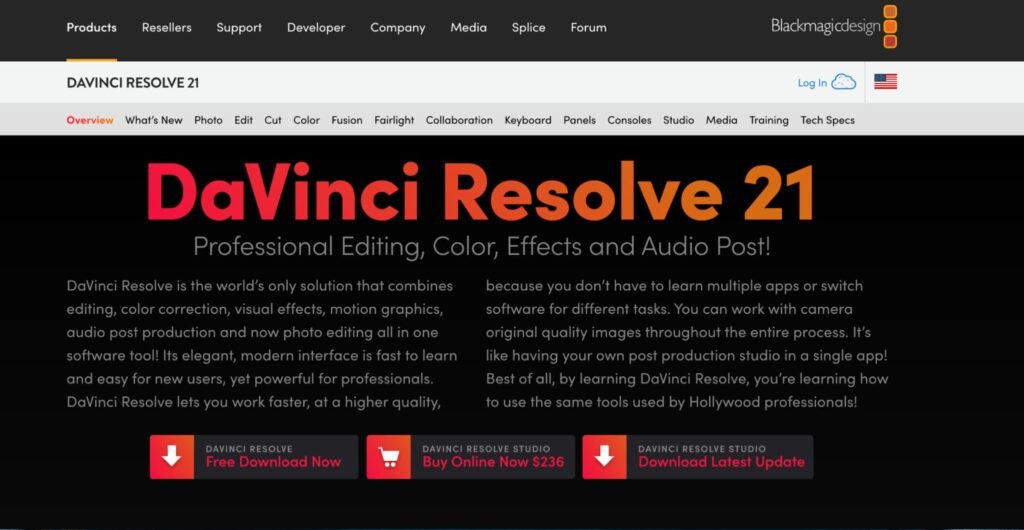
DaVinci Resolve is a comprehensive post-production application developed by Blackmagic Design. It combines video editing, color correction, visual effects, motion graphics, and audio post-production within one application. Its dedicated workspaces allow editors to move between different stages of production without constantly switching software.
One of its biggest strengths is its color grading environment, which offers detailed controls for adjusting exposure, contrast, saturation, and individual color ranges. Its Fusion workspace supports visual effects and compositing, while Fairlight provides tools for audio editing and mixing.
DaVinci Resolve also includes AI-powered features through its Neural Engine, particularly in the Studio edition. The free version already provides extensive editing and color grading capabilities, making it an attractive option for creators who want professional tools without an initial software purchase.
However, its extensive interface and advanced features can take time to learn. Beginners who primarily want quick editing or automated footage assembly may find it more complex than necessary.
Key features:
- Professional timeline editing
- Advanced color correction and grading
- Fusion visual effects and compositing
- Fairlight audio post-production
- Multicam editing and collaboration
- AI-powered features in the Studio edition
Best for: Filmmakers, professional editors, and colorists who need detailed control over video, audio, and visual effects.
3. Final Cut Pro: Best for Mac-Based Video Editing
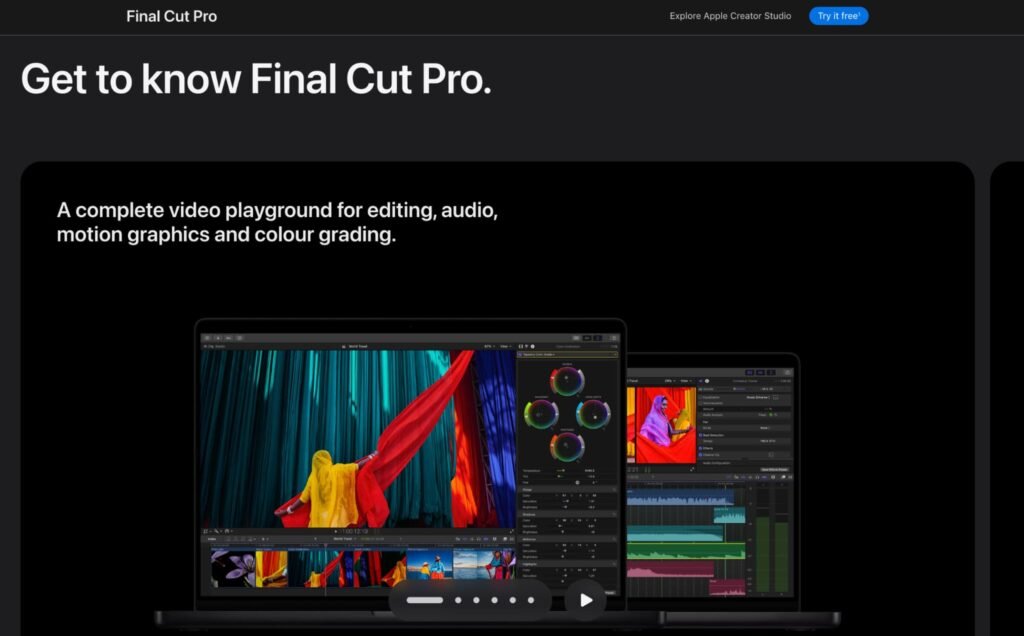
Final Cut Pro is Apple’s professional video editing application designed for Mac users. Its most recognizable feature is the Magnetic Timeline, which automatically manages clip relationships when editors insert, move, or trim footage. This can make arranging sequences and maintaining synchronization easier, especially for projects with multiple connected audio and video elements.
The software provides tools for organizing media, editing multicamera footage, applying effects, adjusting colors, and working with audio. Its AI-assisted features include automatic caption generation, Magnetic Mask for isolating subjects, and Smart Conform for adapting projects to different aspect ratios.
Final Cut Pro is particularly useful for YouTube creators, filmmakers, and production teams already working within the Apple ecosystem. Its timeline behaves differently from Premiere Pro’s traditional track-based approach, so editors may need some time to adjust.
Its main limitation is platform availability. Final Cut Pro is designed for Apple’s ecosystem and is not a native Windows editing application.
Key features:
- Magnetic Timeline
- Multicamera editing
- Automatic caption generation
- Magnetic Mask and Smart Conform
- Color correction tools
- Media organization and audio editing
Best for: Mac users who want professional editing capabilities and a timeline designed for fast clip arrangement.
4. CapCut: Best for Social Media and Short-Form Videos
CapCut is a popular video editing application for creators who regularly produce short-form content. Its editing tools are designed to make common tasks such as trimming clips, adding captions, applying transitions, and including music relatively straightforward.
The platform offers timeline editing alongside features such as automatic captions, aspect ratio adjustments, effects, and templates. These capabilities make it useful for creating Instagram Reels, TikTok videos, YouTube Shorts, and promotional content. Its desktop, mobile, and web versions provide different editing experiences, with feature availability varying across platforms.
CapCut is particularly appealing to beginners and social media teams that need to publish content frequently. Templates and automated features can help speed up production, while its timeline allows users to make additional adjustments.
However, it is more focused on accessible content creation than complex professional post-production. Editors who need advanced color grading, detailed audio mixing, or extensive visual effects may prefer a more specialized application.
Key features:
- Timeline-based editing
- Automatic caption generation
- Templates and visual effects
- Aspect ratio adjustments
- Audio and music editing
- Desktop, mobile, and web versions
Best for: Social media creators, influencers, and marketers producing frequent short-form videos.
5. Wondershare Filmora: Best for Beginners and Intermediate Creator
Wondershare Filmora offers an accessible editing environment with a collection of creative tools and AI-assisted features. Its interface is designed to make common editing operations easier to understand without removing the timeline controls needed for more detailed projects.
Creators can organize footage, trim clips, add transitions, apply effects, adjust audio, and work with titles and captions. Its AI Media Analysis can help identify people, scenes, actions, speech, and important moments in recordings, making it easier to find relevant footage before editing. Filmora also provides rough-cut tools, keyframes, camera tracking, and other timeline controls.
Filmora is useful for YouTube videos, tutorials, product demonstrations, vlogs, and marketing content. It provides a balance between ease of use and creative flexibility, making it suitable for users who are moving beyond basic editing applications.
However, it does not offer the same depth of professional post-production controls as Premiere Pro or DaVinci Resolve. Some AI features and creative resources may also depend on the subscription plan or usage credits.
Key features:
- AI Media Analysis
- Multitrack timeline editing
- Rough-cut editing tools
- Keyframe animation
- Camera tracking
- Color correction and creative effects
Best for: Beginners and intermediate creators who want accessible editing software with AI-assisted features.
6. VEED: Best for Online Editing and Captions
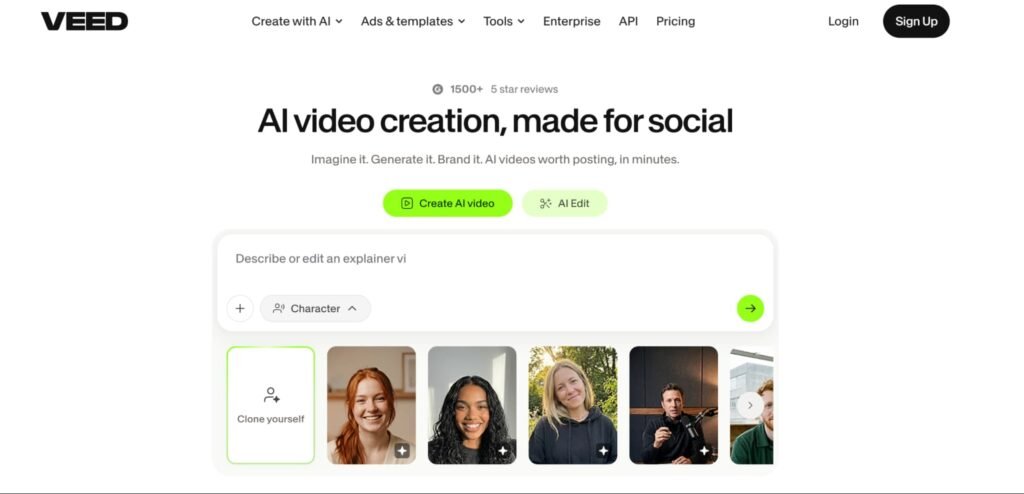
VEED is a browser-based video editing platform designed for creators and businesses that want to edit videos without installing traditional desktop software. Its workspace supports video editing, subtitles, text overlays, templates, screen recording, and other content production tasks.
One of its useful features is automatic subtitle generation. Creators can upload a video, select the spoken language, generate subtitles, and edit their timing and appearance. Depending on the plan, additional options such as speaker detection and subtitle translation may also be available.
VEED is particularly useful for marketing teams, educators, and businesses producing tutorials, presentations, internal communications, and social media videos. Its browser-based setup makes it convenient for quick editing and sharing projects with collaborators.
While VEED offers useful editing and AI-assisted features, it is not intended to replace the advanced post-production environment of Premiere Pro. Its strengths are accessibility, online editing, and content preparation.
Key features:
- Browser-based video editing
- Automatic subtitle generation
- Animated subtitle styles
- Screen recording
- Text and visual overlays
- Online content creation and collaboration
Best for: Businesses, educators, and content teams that want convenient online editing and captioning.
Comparison: Which Premiere Pro Alternative Should You Choose?
| Editor | Main strength | Best suited for |
| Invideo Editor | AI agents + professional timeline | AI-assisted editing and raw footage assembly |
| DaVinci Resolve | Advanced color grading | Professional post-production |
| Final Cut Pro | Magnetic Timeline | Mac-based editing |
| CapCut | Social media editing | Shorts, Reels, and TikTok |
| Filmora | Accessible editing + AI tools | Beginners and intermediate creators |
| VEED | Browser-based editing | Captions and online content creation |
How to Choose the Right Premiere Pro Alternative
Choosing an alternative depends on what you want to improve in your editing process. If your main challenge is handling large amounts of raw footage, look for software that can help organize recordings, identify useful moments, and assemble an initial cut. If you primarily create short-form content, an editor with templates, captions, and quick resizing features may be more practical.
You should also consider how much manual control you need. Some creators prefer to perform every edit themselves, while others want AI to handle repetitive operations and leave them with an editable result. For professional projects, color grading, audio controls, multicamera support, and collaboration features can also influence the decision.
For creators who want a combination of AI assistance and hands-on editing, invideo editor offers an interesting alternative. Its agents can work on the timeline while editors review and refine the results. On the other hand, DaVinci Resolve remains a strong choice for advanced grading, and Final Cut Pro is particularly suitable for Mac-based production.
The best choice is ultimately the editor that supports your projects without adding unnecessary complexity to your workflow.
Final Thoughts
Adobe Premiere Pro remains a capable professional video editor, but it is not the only option for creators who need reliable editing tools. Alternatives such as DaVinci Resolve, Final Cut Pro, CapCut, Filmora, and VEED offer different approaches to video production.
Among these options, invideo editor stands out for combining AI editing agents with a professional, editable timeline. Rather than simply automating individual tasks, it allows creators to delegate parts of the editing process, review the changes, and continue refining their videos manually.
Whether you create social media videos, interviews, documentaries, advertisements, or YouTube content, choosing the right editor comes down to finding the balance between automation, creative control, and the features your projects actually require.
Frequently Asked Questions
1. What is the best alternative to Adobe Premiere Pro?
The best alternative depends on your editing requirements. invideo editor is worth considering for AI-assisted editing and timeline control, DaVinci Resolve for professional color grading, and Final Cut Pro for Mac-based editing.
2. Is invideo editor a good alternative to Premiere Pro?
Yes. invideo editor offers a professional multitrack timeline, AI editing agents, color grading, audio editing, transitions, and collaboration features. Its main difference is that AI agents can perform editing tasks directly on the timeline, which creators can continue refining manually.
3. Which Premiere Pro alternative is best for beginners?
CapCut, Filmora, and VEED are approachable options for beginners. They provide accessible editing interfaces and features that simplify common tasks such as trimming, captioning, and adding effects.
4. Which Premiere Pro alternative is best for color grading?
DaVinci Resolve is particularly well known for its advanced color grading environment. invideo editor and Final Cut Pro also provide color adjustment tools, although their workflows and depth differ.
5. Are there free alternatives to Adobe Premiere Pro?
Yes. DaVinci Resolve offers a free version with extensive editing and post-production features. CapCut and other platforms also offer free access with varying feature and usage limitations.
6. Can AI replace manual video editing?
AI can automate repetitive tasks such as footage organization, caption generation, silence removal, and initial sequence assembly. However, creative decisions involving storytelling, pacing, visual style, and emotional impact still benefit from human judgment.
7. Can I edit videos online instead of installing Premiere Pro?
Yes. Browser-based platforms such as invideo editor and VEED allow creators to work on video projects online. invideo editor combines this browser-based access with AI agents and professional timeline controls.