
Most of us don’t lack effort. We lack a clear system. Tasks pile up, meetings eat the calendar, notifications pull us away, and repetitive work drains the afternoon.
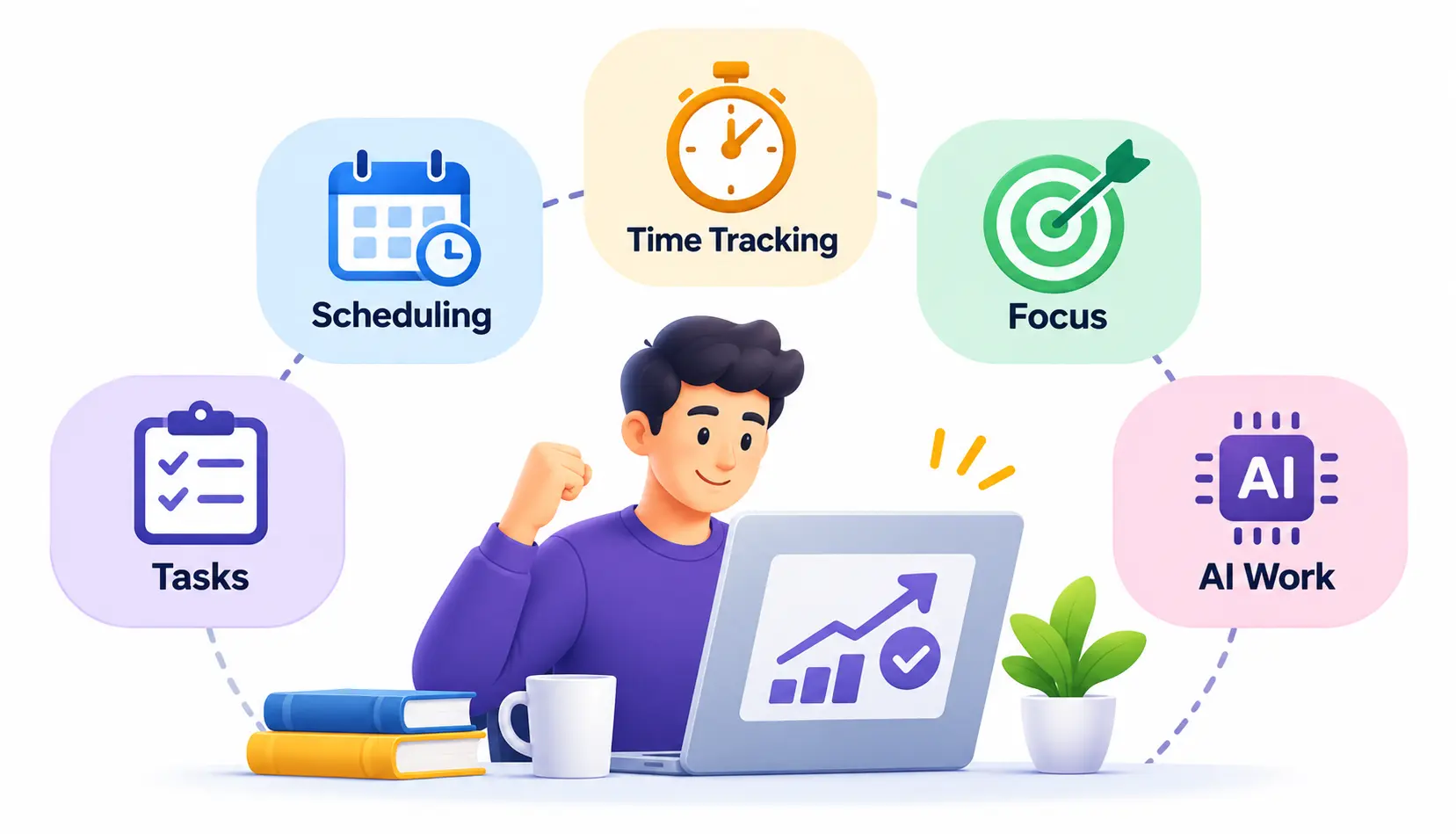
The right productivity tools can fix much of this. This guide covers five tools, each solving a different problem: daily tasks, meeting scheduling, time tracking, focus, and AI-assisted work.
One honest note before we start. Productivity tools organize your work, but they don’t do it for you. A simple workflow with two or three tools beats a phone full of apps you never open.
What Are Productivity Tools?
Productivity tools are apps and software that help you finish work faster, with less stress and fewer mistakes. They handle jobs like planning tasks, booking meetings, tracking time, blocking distractions, and automating repetitive steps.
For individuals, they act like an external memory and a gentle manager. For teams, they keep everyone aligned on who is doing what and by when.
They are not the same as time-management or project-management software. Time-management tools focus on how you spend hours, such as calendars and trackers. Project-management tools focus on coordinating complex projects with many people, milestones, and dependencies. Productivity tools is the broader umbrella that includes both, plus anything else that helps you work better. You can read the general concept of productivity and the related field of time management.
5 Productivity Tools That Help You Do More in Less Time
I picked these five because each solves a different problem. That avoids the common trap of installing five apps that all do the same job.
The selection criteria were ease of use, practical value, useful features, and fit for different kinds of work. This is a shortlist, not a ranking of the “best” tools in the world. Features and pricing change often, so check each official website before you commit.
1. Todoist – Best for Managing Daily Tasks
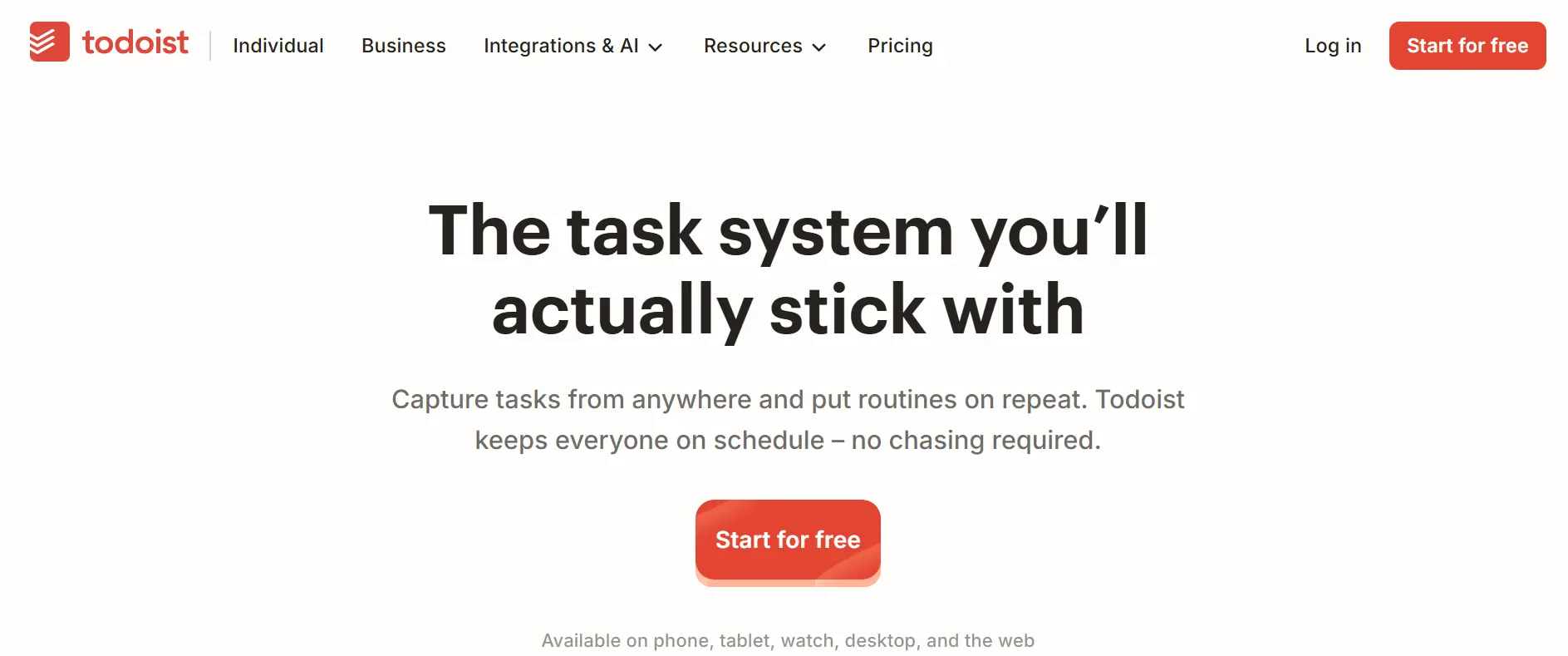
What is Todoist? Todoist is a task manager and to-do list app available on web, desktop, and mobile. It lets you capture tasks quickly and organize them by project, priority, and date. If you want to explore other options, check out our guide to the best to-do list apps to compare tools for organizing your daily tasks.
Key features:
- Task lists with priority levels
- Due dates and reminders
- Recurring tasks (for example, “every Monday”)
- Projects and sections for organizing work
How it saves time: Todoist gets tasks out of your head and into one trusted place. You stop wasting energy remembering things, and you stop re-deciding what to do next.
Practical example: Say you run a small marketing team. Every Sunday evening you add the week’s tasks, set priorities, and give each one a due date. On Monday morning you open the “Today” view and see exactly what matters. Recurring tasks like “send weekly report” appear on their own.
Pros:
- Clean, simple interface
- Quick task entry
- Works across devices
Limitations:
- Some features, such as reminders and certain views, depend on your plan
- It is not a full project-management suite for complex team workflows
Who should use Todoist? Individuals, freelancers, and small teams who want a simple, reliable system for daily tasks. People who like a method such as Getting Things Done often find it a natural fit. Curious how others use it?
2. Calendly – Best for Scheduling Meetings
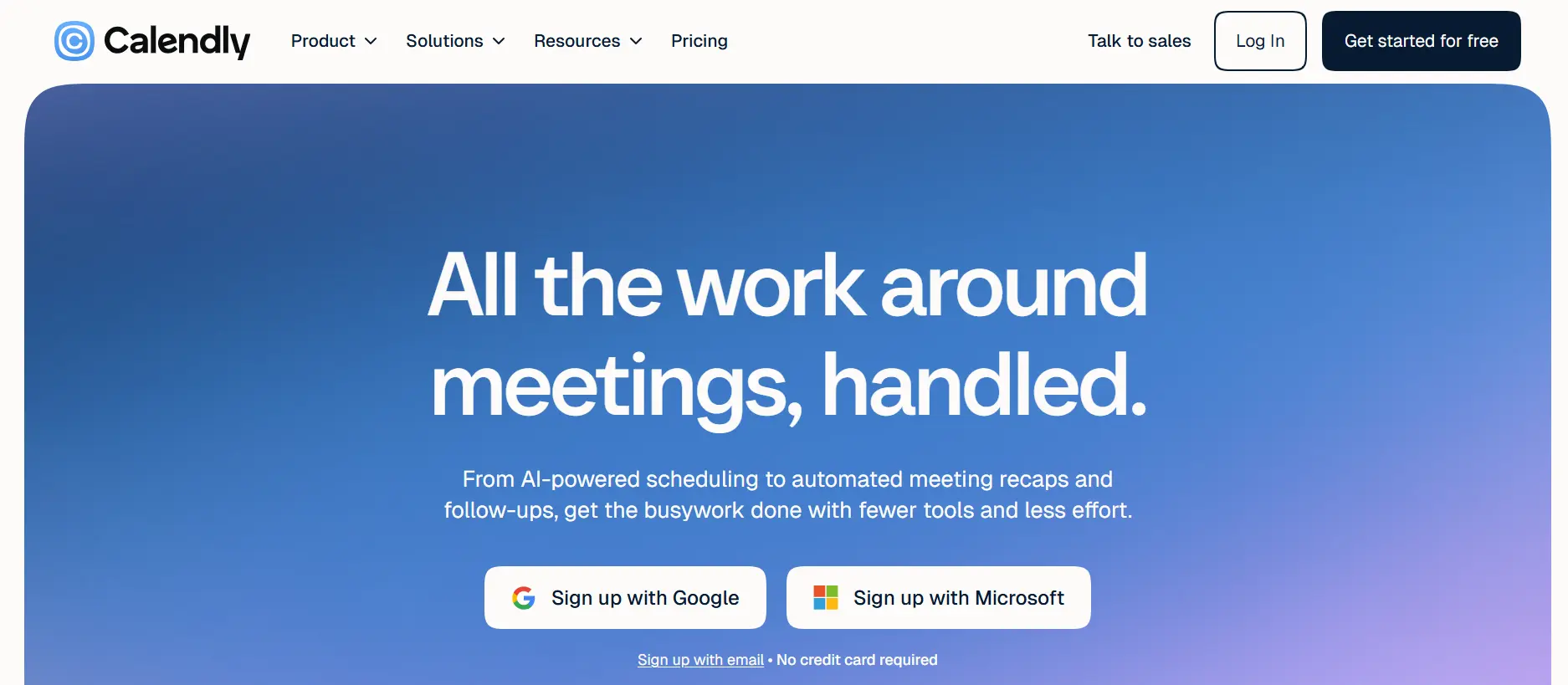
What is Calendly? Calendly is a scheduling tool that lets other people book time with you based on your real availability. You share a link, and they pick a slot that works.
Key features:
- Personal booking links
- Automatic checks against your calendar availability
- Meeting types with set durations
- Integrations with popular calendars and video tools
How it reduces back-and-forth: The classic scheduling email chain (“Does Tuesday work?” “How about Thursday?”) disappears. The other person sees your open times and books one. Calendly then adds it to your calendar.
Practical example: A consultant sends one Calendly link to every new client. Clients choose a 30-minute slot, get a confirmation, and receive a reminder. The consultant never types a single “are you free?” email.
Pros:
- Saves repeated emails
- Prevents double bookings when connected to your calendar
- Easy for guests, who need no account to book
Limitations:
- Advanced features, such as team scheduling, require paid plans
- Sharing a link may feel impersonal in some relationships
Who should use Calendly? Consultants, sales teams, recruiters, coaches, and anyone who books many meetings with people outside their company.
3. Toggl Track – Best for Tracking Work Time
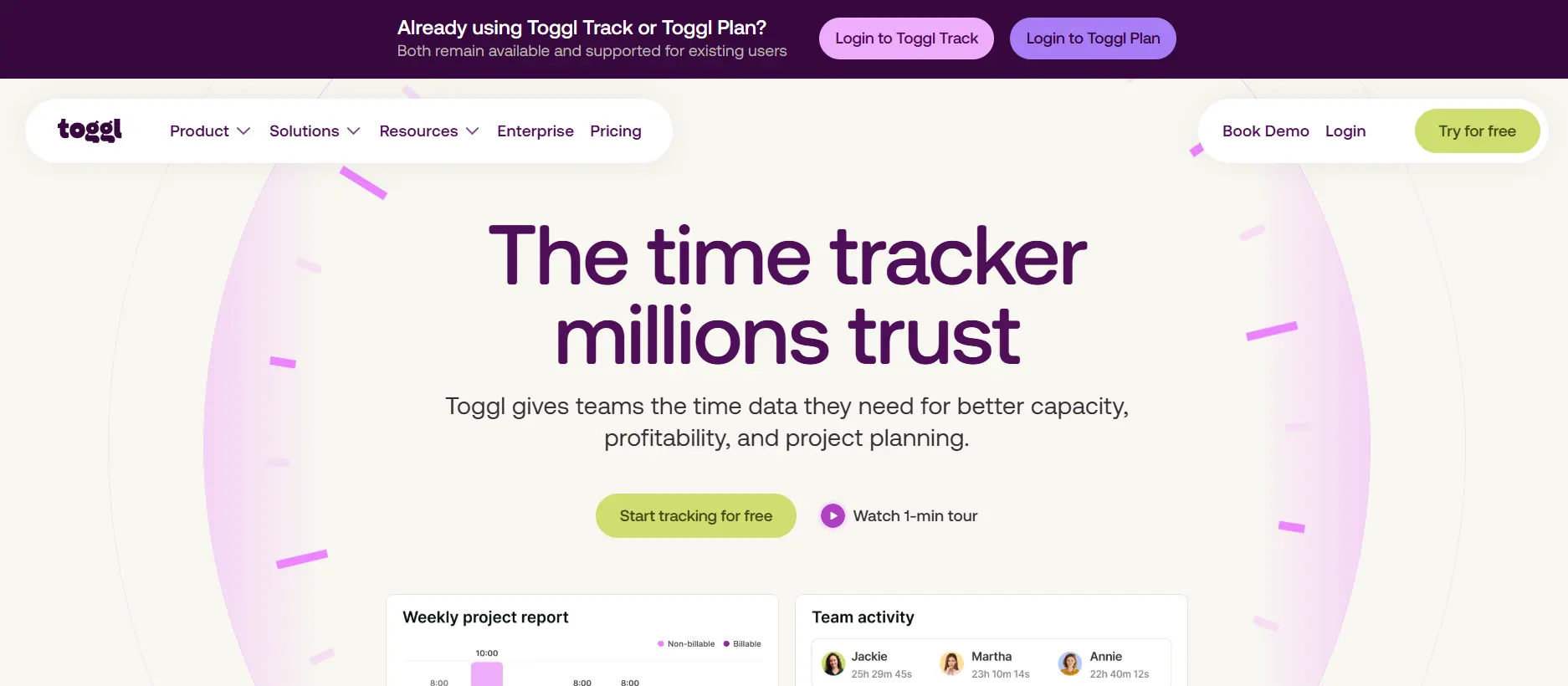
What is Toggl Track? Toggl Track is a time-tracking app. You start a timer when you begin a task, and it records how long you spend. It is part of the broader category of time-tracking software.
Key features:
- One-click timers on web, desktop, and mobile
- Project and task tracking
- Timesheets
- Reports that show where your hours go
How it identifies wasted time: Most people guess how they spend their day, and most guess wrong. Tracking gives you real numbers. You may find that “quick” email checks take two hours daily. Combining time tracking with effective time management tools and practices can help you identify time drains and organize your workday more efficiently.
Practical example: A freelance designer tracks time per client project for two weeks. The report shows one low-paying client uses 30% of her hours. She uses that data to raise her rates or drop the client. Tracking also makes billing for hourly work accurate.
Pros:
- Simple timers and clear reports
- Useful for billing clients
- Reveals hidden time drains
Limitations:
- You must remember to start and stop timers (some people find this annoying)
- Detailed reporting and team features may need a paid plan
Who should use Toggl Track? Freelancers, agencies, and teams that bill by the hour, and anyone who wants honest data about their workday. Toggl also has a LinkedIn company page with product updates.
4. Forest – Best for Improving Focus
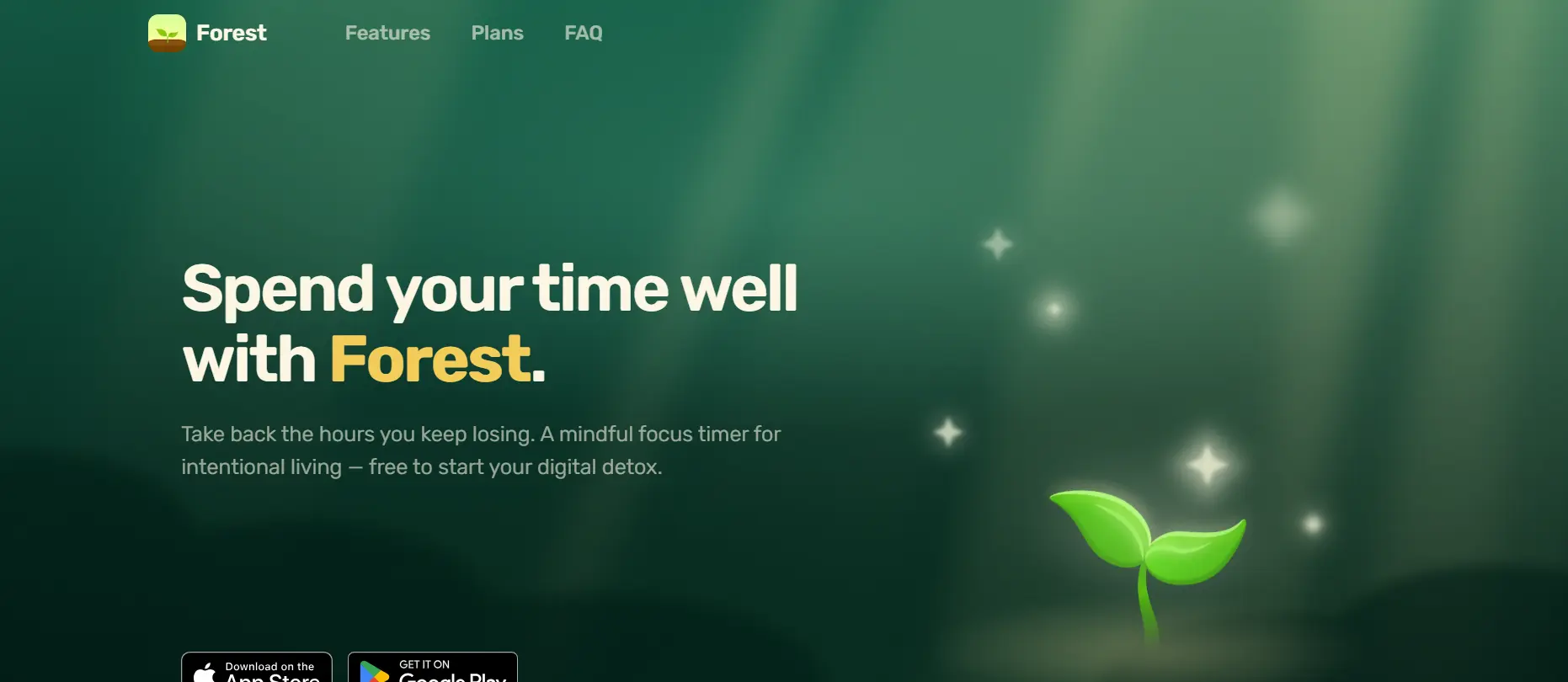
What is Forest? Forest is a focus app built around a simple idea. You plant a virtual tree and set a timer. If you leave the app to check your phone, the tree dies.
How its focus timer works: It uses the same logic as the Pomodoro Technique, which breaks work into short, focused intervals separated by breaks. Forest adds a small game-like reward on top.
Key features:
- Timed focus sessions
- A growing virtual forest that shows your progress
- Less phone distraction during sessions
How it supports focused work: Staying off your phone is hard. A tiny consequence, like losing a tree, is often enough to keep your thumb away from social media. For additional techniques beyond focus apps, explore our guide on how to stay focused at work and reduce everyday distractions.
Practical example: A student sets a 25-minute session to study for an exam. The phone stays face down. After the session, they take a five-minute break, then start another. At the end of the day, they have a small forest and a finished chapter.
Pros:
- Fun and motivating
- Very low learning curve
- Helpful for building focus habits
Limitations:
- It mainly controls phone distraction, not computer distraction
- Pricing and features differ by platform, so check the app store listing
Who should use Forest? Students, remote workers, and anyone who loses time to their phone.
5. ChatGPT – Best for AI-Powered Productivity
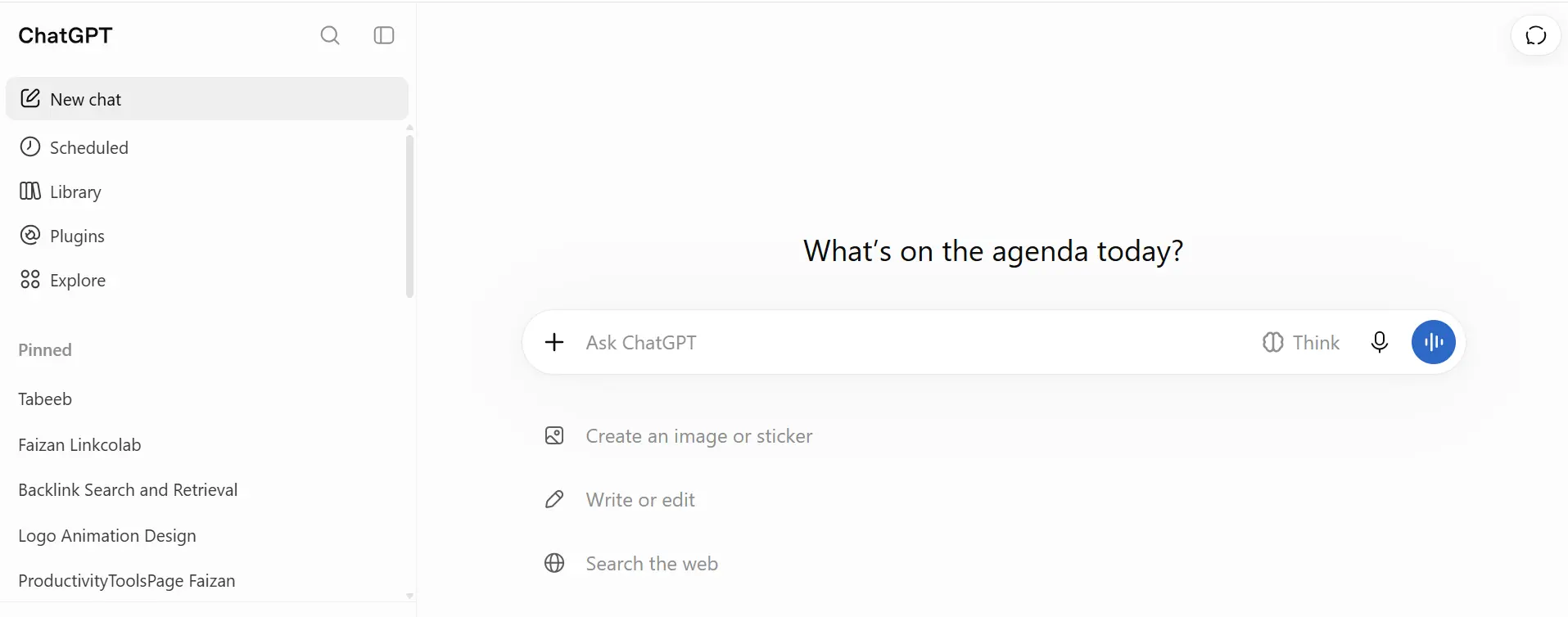
What is ChatGPT? ChatGPT is an AI chatbot from OpenAI. You type a request in plain language, and it replies with text, summaries, ideas, or plans.
Key productivity use cases:
- Drafting and improving emails
- Summarizing long documents
- Brainstorming ideas
- Research assistance
- Creating task plans
Practical example: After a one-hour meeting, you paste your rough notes into ChatGPT and ask: “Turn these into a list of action items with owners and deadlines.” You get a clean list in seconds. You then review it, fix any errors, and copy it into Todoist.
Limitations and why you must verify: AI can state wrong information in a confident tone. Always check facts, numbers, names, and sources before you use them. Treat the output as a first draft, not a final answer.
Privacy considerations: Do not paste confidential client data, passwords, or private company information into any AI tool unless your employer’s policy allows it. Read the tool’s data and privacy settings first.
Who should use ChatGPT? Knowledge workers, writers, managers, and students who handle lots of text, such as emails, reports, and notes
How to Choose the Right Productivity Tool
The best tool is the one you will actually use. Start with the problem, not the app.
Identify Your Biggest Productivity Challenge
Ask yourself what slows you down most:
- Missed deadlines: Try a task manager like Todoist.
- Too many meetings: Try a scheduler like Calendly.
- Poor time management: Try a tracker like Toggl Track.
- Digital distractions: Try a focus app like Forest.
- Repetitive tasks: Try an AI assistant like ChatGPT.
Consider Your Budget and Required Features
Many tools offer a free plan. Start there. Upgrade only when you hit a real limit, such as a cap on features, users, or integrations.
List your must-have features first. Ignore the rest, however shiny they look.
Check Ease of Use and Compatibility
Check whether the tool works on your devices, both desktop and mobile. Test how steep the learning curve feels in the first 15 minutes. Make sure it connects with the calendar, email, or apps you already use.
Avoid Using Too Many Productivity Apps
Choose tools with distinct purposes. Avoid two apps with the same feature. Review your toolset every few months and delete anything you no longer open.
How to Use Productivity Tools to Get More Done in Less Time
Tools only help when paired with good habits. These six steps work with almost any setup.
Plan Your Tasks Before Starting Work
Spend five minutes each morning (or the night before) listing what you need to do. This stops you from starting the day by reacting to email.
Prioritize Important Activities
Pick the top three tasks that matter most. A simple approach is the Eisenhower method, which sorts tasks by urgency and importance.
Schedule Focused Work Sessions
Block time on your calendar for deep work. Treat it like a meeting you can’t skip. Use a focus timer during that block.
Track Where Your Time Goes
Run a time tracker for a week or two. Review the report and look for surprises. Small changes often free up several hours.
Automate Repetitive Activities
Use recurring tasks, booking links, and AI drafts for work you do again and again. Every repeated step you remove is time you get back.
Review Your Productivity Weekly
Every Friday, spend ten minutes checking what worked and what did not. Adjust your plan for next week.
A simple daily workflow example:
- 8:30 a.m.: Open Todoist and pick your top three tasks.
- 9:00 a.m.: Check your calendar. Calendly has already filled meeting slots, so you know your free blocks.
- 9:15 a.m.: Start a Toggl Track timer and begin a 50-minute focus session. Put your phone in Forest.
- Midday: Paste meeting notes into ChatGPT to get action items. Review them, then add them to Todoist.
- 5:00 p.m.: Glance at your time report and plan tomorrow.
Common Productivity Tool Mistakes to Avoid
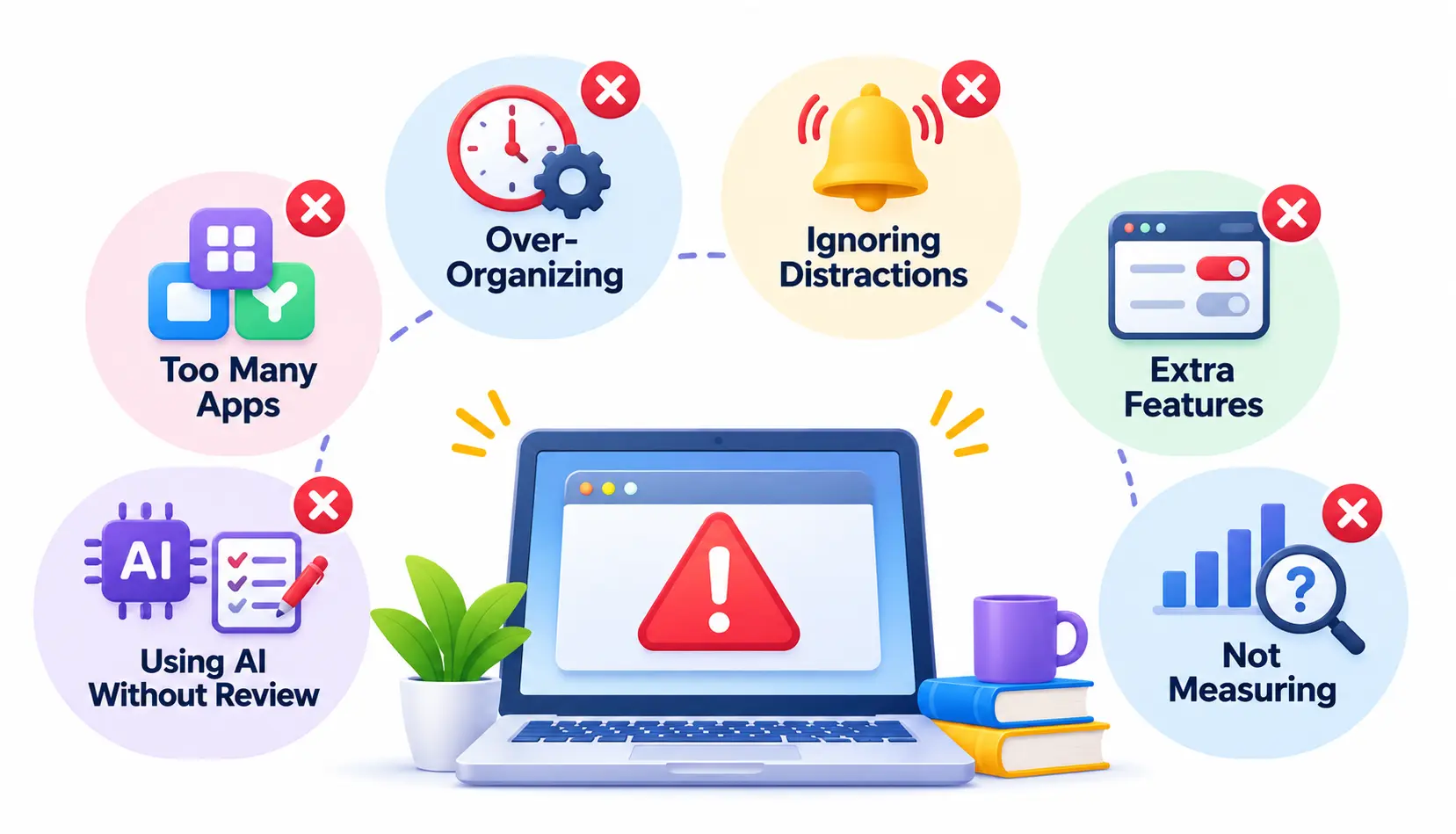
- Using too many apps at once. More tools often means more switching and more confusion.
- Spending more time organizing than working. If you tweak your system for an hour, that is procrastination in disguise.
- Ignoring notifications and distractions. A tool can’t help if alerts keep interrupting you. Turn off the ones you don’t need.
- Choosing features you do not need. Pick simple over powerful.
- Relying on AI without reviewing its output. Always read, check, and edit.
- Failing to measure whether a tool helps. After a month, ask: am I finishing more, or just feeling busier?
Frequently Asked Questions About Productivity Tools
1. What are the five most commonly used productivity tools?
Popular choices fall into five types: task managers (Todoist), schedulers (Calendly), time trackers (Toggl Track), focus apps (Forest), and AI assistants (ChatGPT). Other widely used options include calendar apps, note-taking apps, and team chat tools.
2. What are the best free productivity tools?
Many productivity tools offer free plans, including Todoist, Calendly, and Toggl Track. Free plans usually limit features or users. Check each official pricing page, since plans change.
3. Which productivity tools are best for small businesses?
Small businesses often do well with a task manager for daily work, a scheduler for client bookings, and a time tracker for billing. Start with one or two tools, and add more only when a clear need appears.
4. How do productivity tools help save time?
They cut wasted effort in three ways. They remove decision fatigue by showing what to do next, they automate repeated steps like scheduling, and they reveal where your time actually goes.
5. Can AI tools improve workplace productivity?
Yes, for tasks like drafting, summarizing, and brainstorming. However, AI can make mistakes and may raise privacy concerns. Verify its output and follow your company’s data policy.
6. How many productivity tools should I use?
Two to four is a good range for most people. Each tool should solve a separate problem. If two apps overlap, drop one.
7. What is the best productivity tool for managing daily tasks?
Todoist is a strong option for many people thanks to its simple design and recurring tasks. The best choice still depends on your needs, so try one or two free versions first.
Conclusion
The best productivity tools don’t add work. They remove friction.
Start small. Pick the one problem that costs you the most time, try the matching tool for two weeks, and measure the result. Add a second tool only if you still need it.
In the end, your habits matter more than your apps. Plan your day, protect your focus, and review your week. The right tools simply make that routine easier to keep.

Mehreen Mushtaq is a skilled content writer dedicated to creating high-quality, engaging, and SEO-focused blogs. She specializes in strategic keyword usage, search intent, and informative content that connects with readers while helping websites strengthen their visibility and rankings in search results.