

A beginner’s guide to the types, examples, and safe use of everyday ICT productivity tools.
Basic ICT productivity tools are software and online services that help you create, organize, share, and store information. They include word processors, spreadsheets, presentation software, databases, search engines, email, cloud storage, note-taking apps, and video conferencing platforms.
These tools matter in classrooms, offices, and everyday life. You use them to write an essay, track a budget, send an application, or join a remote meeting. This guide explains the main types, gives popular examples, shows how to choose between them, and walks through a practical task. It also covers limitations and safe-use habits.
What Are Basic ICT Productivity Tools?
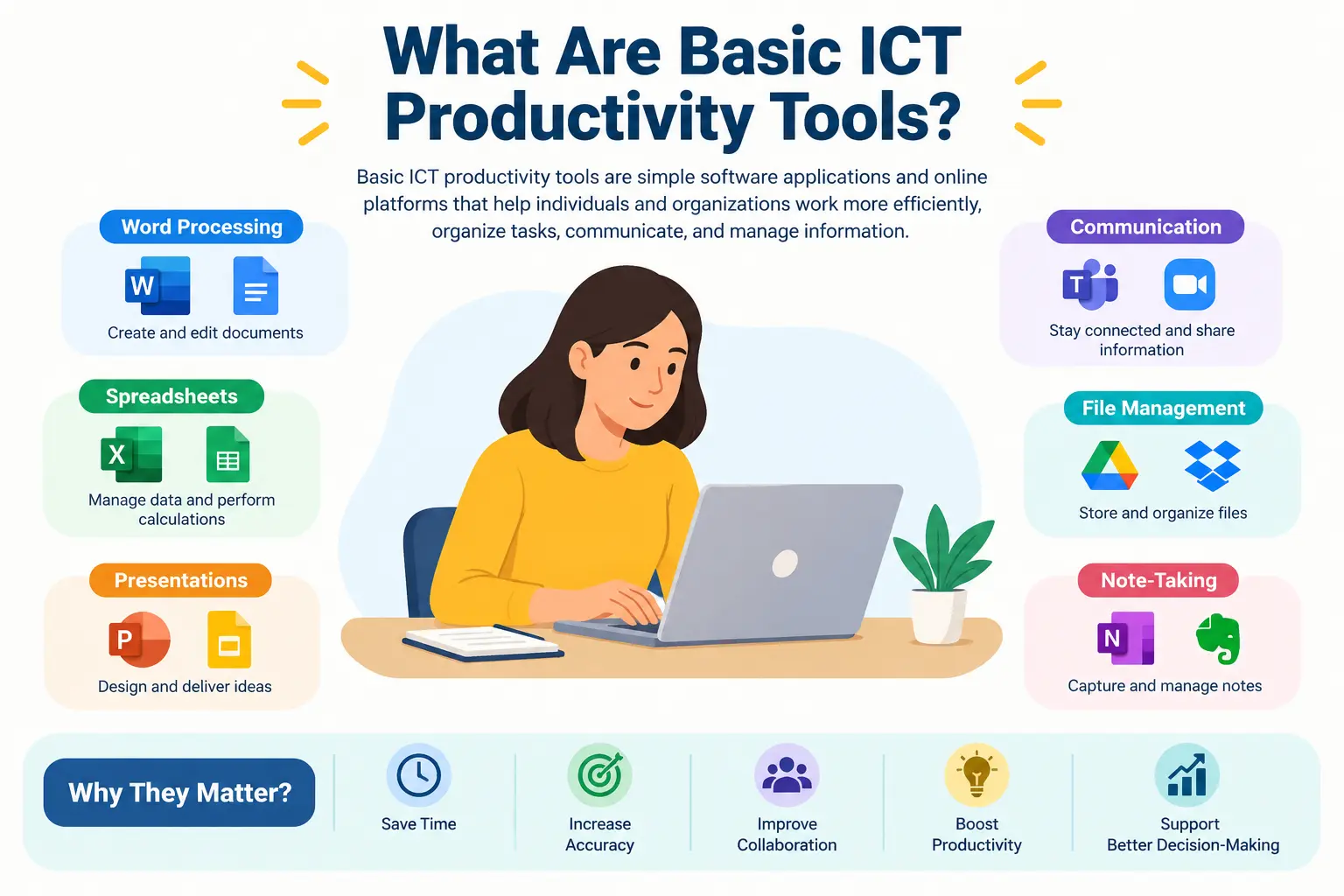
Definition of ICT and productivity tools
ICT stands for information and communication technology. It covers the devices, software, and networks used to handle information. Productivity tools are the applications within ICT that help you complete work, such as writing, calculating, presenting, communicating, and storing files.
Why these tools are important
They let you perform common tasks in a consistent, repeatable way. Instead of handwriting, retyping, or posting documents, you can create, edit, and share them digitally. The practical implication is that learning a small set of tools covers a large share of school and office tasks.
Everyday examples of ICT productivity
- Writing a report in a word processor
- Tracking expenses in a spreadsheet
- Searching for information online
- Emailing a teacher or manager
- Saving files to cloud storage
- Joining a video meeting
Think of information moving through four stages: it is created, processed, shared, and stored. Each tool in this guide supports one or more of those stages.
Suggested visual: a simple diagram of the create, process, share, store cycle.
What Are the Main Types of ICT Productivity Tools?
The main types are word processing, spreadsheets, presentations, databases, internet research, email, cloud storage, note-taking, and video conferencing tools. Each type serves a different purpose.
| Category | Main purpose | Example tools |
|---|---|---|
| Word processing | Write and format documents | Microsoft Word, Google Docs |
| Spreadsheets | Calculate and analyze data | Microsoft Excel, Google Sheets |
| Presentations | Communicate ideas visually | Microsoft PowerPoint, Google Slides |
| Databases | Store structured records | Microsoft Access |
| Internet research | Find online information | Google, Bing |
| Send messages and files | Gmail, Outlook | |
| Cloud storage | Store and share files online | Google Drive, OneDrive, Dropbox |
| Note-taking | Capture and organize notes | OneNote, Evernote |
| Video conferencing | Meet and collaborate remotely | Microsoft Teams, Google Meet, Zoom |
Word processing and document creation tools
These tools create text documents such as essays, letters, and reports. They let you format text, add headings, and insert images or tables.
Spreadsheet and data analysis tools
Spreadsheets organize data in rows and columns. You can enter formulas to calculate totals or averages and build charts to show patterns.
Presentation tools
Presentation tools arrange information into slides. They suit talks, lessons, and project summaries.
Database management tools
A database stores structured records, such as student lists or inventory, so you can search and sort them. It differs from a spreadsheet in how it organizes and connects records. [NEEDS SOURCE] for any detailed technical comparison.
Internet research and search tools
Search engines help you locate online information. A search engine finds pages, while a browser is the program you use to view them. Mixing the two up is a common beginner mistake.
Email and communication tools
Email sends written messages and attachments. It suits formal communication and keeps a record of what was said.
Cloud storage and file-sharing tools
Cloud storage keeps files on online servers so you can open them from different devices and share them with others. Sync is not the same as backup, a point covered in the best-practices section below.
Note-taking and organization tools
These apps capture and organize ideas, lecture notes, and to-do lists in one searchable place.
Video conferencing and collaboration tools
These tools support live meetings, screen sharing, and group work when people are in different locations.
Examples of Popular ICT Productivity Tools and Their Uses
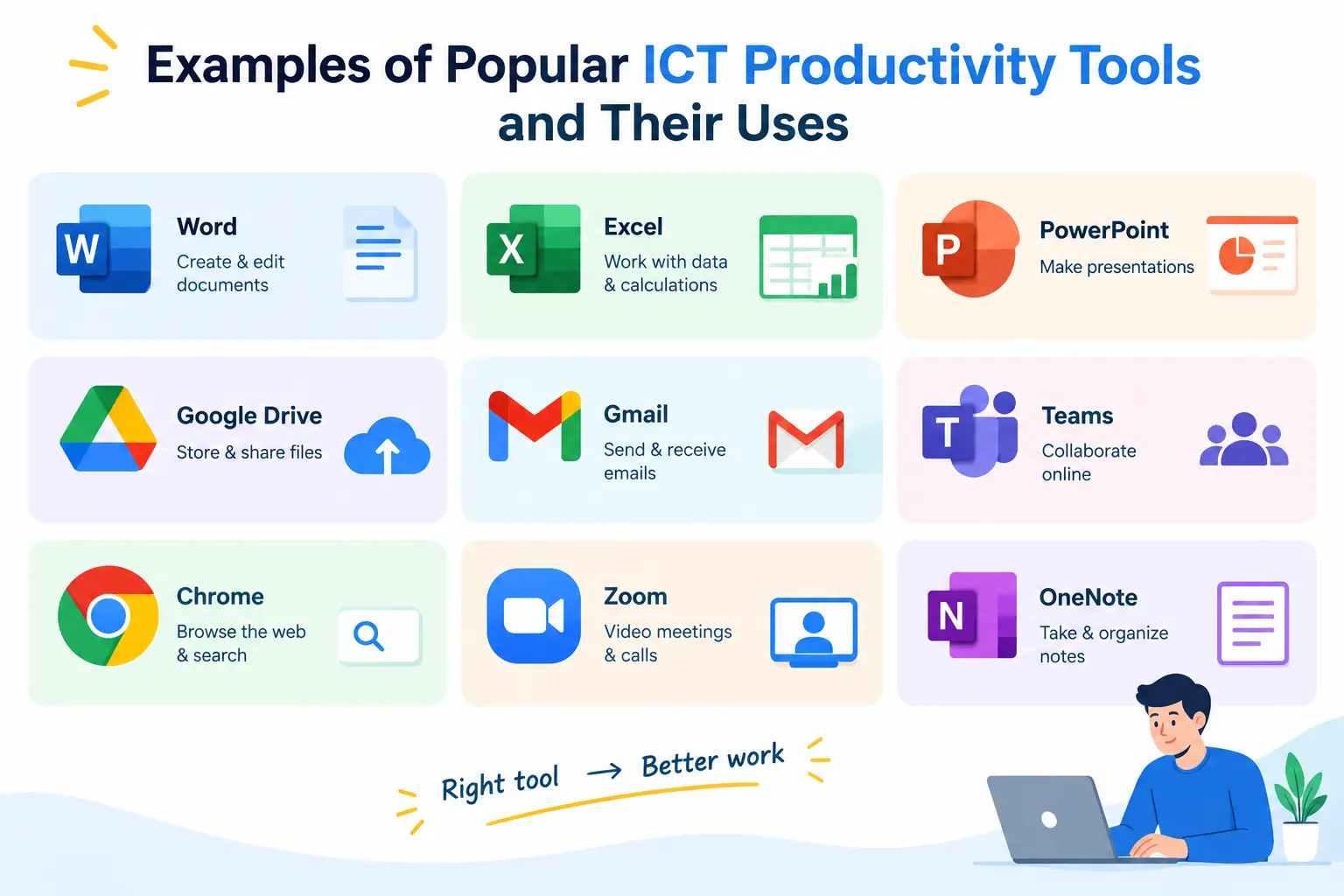
Microsoft Word and Google Docs for documents
Both create and format text documents. Choose either for essays, reports, and letters. Google Docs runs in a web browser, while Word is a Microsoft application. [NEEDS SOURCE] for current product details.
Microsoft Excel and Google Sheets for calculations and data
Use these when numbers need organizing, calculating, or charting, such as budgets, grade books, or simple surveys.
Microsoft PowerPoint and Google Slides for presentations
These build slide decks for classes, meetings, or project reports. Pick one based on which ecosystem you already use.
Microsoft Access and other database systems for structured records
Access is an example of a database tool. Use a database when you need to manage many related records, such as customers and orders, rather than a single table of figures.
Google and Bing for online research
Both are search engines. Use them to find information, then check the source before relying on it.
Gmail and Outlook for email communication
Both send, receive, and organize email. They are useful for applications, assignments, and workplace messages.
Google Drive, OneDrive, and Dropbox for file storage
These services store files online and let you share them with other people. They are useful when you work on several devices or with a group.
OneNote and Evernote for organizing notes
Use them to collect class notes, research ideas, and checklists in one place.
Microsoft Teams, Google Meet, and Zoom for online collaboration
These platforms host video meetings, and some also offer chat and file sharing. Choose based on what your school or workplace already uses.
How to Choose the Right ICT Productivity Tool
Start with the task, then check practical constraints. The checklist below turns that into a quick decision.
Identify the task you need to complete
Ask what you are trying to do. Writing points to a word processor, calculating to a spreadsheet, presenting to slides, and meeting to video conferencing.
Consider cost, device compatibility, and internet access
Check whether the tool is free or paid, whether it works on your device, and whether you need a reliable connection. [NEEDS SOURCE] for the pricing or offline capability of any specific product.
Check collaboration, accessibility, and ease of use
If several people must edit together, look for shared-editing features. Also consider how easy the tool is for beginners to learn.
Evaluate privacy, security, and data ownership
Review who can see your files and where they are stored. This matters most for school records, personal data, and work documents.
| Question | If yes, consider |
|---|---|
| Do I need to write or format text? | A word processor |
| Do I need to calculate or chart numbers? | A spreadsheet |
| Do I need to present to an audience? | Presentation software |
| Do others need to edit with me? | A cloud-based tool with sharing |
| Will I work without internet at times? | Check offline support first |
| Does the file contain sensitive data? | Review privacy and permissions |
How to Use ICT Productivity Tools to Complete a Task
The tools work best together. The example below is hypothetical: a student preparing a short project on household energy use.
- Research the topic using reliable online sources. Use a search engine, compare several sources, and note where each fact came from.
- Write and format the document. Draft the report in a word processor, using headings and clear paragraphs.
- Organize information and calculate data where needed. Enter figures in a spreadsheet, calculate totals, and create a chart.
- Create a presentation to communicate the results. Turn the key findings and the chart into a few slides.
- Save, back up, and share the finished files. Store the files in cloud storage, keep a second copy elsewhere, and send the teacher a link or attachment by email.
| Step | Tool type used |
|---|---|
| Research | Search engine |
| Writing | Word processor |
| Data and charts | Spreadsheet |
| Presenting | Presentation software |
| Saving and sharing | Cloud storage, email |
What Are the Benefits of ICT Productivity Tools?
Saving time and reducing repetitive work
Reusing templates, copying and editing text, and applying formulas can cut repetitive effort. The size of any time saving varies by task. [NEEDS SOURCE] for any specific figure.
Improving accuracy and organization
Spell-checking, formulas, and structured files can reduce manual errors and make information easier to find.
Supporting teamwork and remote communication
Shared files and video meetings let people work together without being in the same place.
Making information easier to access and present
Cloud storage, search, and presentation tools help you retrieve information and present it clearly.
What Are the Limitations of ICT Productivity Tools?
| Limitation | How to reduce it |
|---|---|
| Internet and technical requirements | Check offline options and device needs in advance |
| Subscription costs and learning curves | Compare free and paid options; start with the basics |
| Privacy and cybersecurity risks | Use strong security habits (see next section) |
| Compatibility problems | Test file formats before sharing |
| Distractions and overdependence | Set focus time; keep core skills practiced |
Internet connectivity and technical requirements
Many tools depend on a connection or a capable device. Check requirements before relying on a tool for something important.
Subscription costs and learning curves
Some features may require payment, and new tools take time to learn. [NEEDS SOURCE] for specific pricing.
Privacy risks and cybersecurity threats
Online accounts and shared files can be exposed through weak passwords or careless sharing.
Compatibility problems, distractions, and overdependence
Files may display differently across applications. Notifications can distract, and relying on tools alone can weaken manual skills such as mental arithmetic.
Best Practices for Using ICT Productivity Tools Safely
Use strong passwords and multi-factor authentication
Use a unique, hard-to-guess password for each account and turn on multi-factor authentication where offered.
Verify online information before relying on it
Not every search result is reliable. Check who published the information and compare it with other sources.
Set appropriate file-sharing permissions
Share files only with the people who need them, and grant only the access they need. Overly broad permissions are a common mistake.
Keep independent backups and organize files
Cloud synchronization is not a complete backup. If a file is deleted or corrupted, the change may sync everywhere. Keep a separate backup and use clear folder and file names.
Respect copyright, privacy, and online etiquette
Credit your sources, do not share other people’s private information, and communicate politely online.
Quick safety checklist
- Unique passwords and multi-factor authentication on
- Sources checked before use
- Sharing permissions reviewed
- A separate backup stored
- Sources credited
Frequently Asked Questions About ICT Productivity Tools
What are the five basic productivity tools?
Sources differ, and the outline does not fix a list. A common interpretation is word processing, spreadsheets, presentations, databases, and email or communication tools. [NEEDS SOURCE] for the “official” list in a specific syllabus. Confirm which five your course uses.
What is the difference between ICT and productivity software?
ICT is the broad field covering devices, networks, and software used to handle information. Productivity software is one part of it: the applications that help you complete tasks such as writing, calculating, and presenting.
Can ICT productivity tools work offline?
Some can, and some cannot. It depends on the specific tool, its settings, and your account. [NEEDS SOURCE]: check each product’s official documentation.
Are basic ICT productivity tools free?
Some are free and some are paid, and features can differ by plan. [NEEDS SOURCE]: verify current pricing and free-tier limits in official documentation.
Which ICT productivity tools should beginners learn first?
Start with a word processor, a spreadsheet, and presentation software, plus email and a search engine. Together they cover most beginner tasks. This is a recommendation based on the task-focused structure of this guide, not a verified ranking.
Conclusion
Basic ICT productivity tools cover nine main areas: word processing, spreadsheets, presentations, databases, internet research, email, cloud storage, note-taking, and video conferencing. No single tool fits every job, so choose by task first, then by cost, device, collaboration needs, and security. As the project example showed, these tools work best in combination. Pair them with safe habits such as strong passwords, careful sharing, and separate backups, and keep building practical digital skills.