
If your team’s conversations are over the place across email threads and group texts and different apps that people forget to check you know what happens. People lose messages. The same decisions get made over and over. Team members miss things.
Team communication tools are supposed to help solve this problem. Finding the right tool is not just about picking the one with the most reviews. It is about finding a platform that works the way your team works. A small startup with five people and a large logistics company with 400 employees need different solutions, even if they are both searching for team communication tools. The right productivity tools can also help teams organize tasks, manage workflows, and make communication more efficient.
This guide will show you the team communication tools. It will help you figure out what makes them different. It will also help you set up a communication system that does not just add notifications to your day. Further, Unified communications for background on how these categories evolved. Team communication tools are important. This guide will walk you through the best ones.
What Are Team Communication Tools?
Team communication tools are like programs that help people in a team talk to each other. They can send messages, make calls, have meetings and share files with each other. This is really helpful because they do not have to use email or meet in person all the time.
Team communication tools include things like Slack where people can chat with each other. They also include video platforms like Zoom where people can see each other and talk. Some team communication tools can even do both of these things.
The idea of team communication tools is pretty big. It is not just about chat apps like Slack. It is about anything that helps people who work together share information. Team communication tools can be used to send a message to someone, schedule a meeting, or even record a message that someone can watch later. For development teams, best code review tools can also support better collaboration by helping developers share feedback, discuss changes, and resolve issues directly within the development workflow.
How team communication tools work
Most of these tools organize conversations into channels or threads instead of one long inbox. You join the channels relevant to your work, mute the ones that aren’t, and search when you need to find something from three weeks ago. Video and voice usually live inside the same app, so you can jump from a chat message straight into a call. When communication is organized effectively, it can also support employee productivity by reducing distractions, keeping information accessible, and helping employees stay focused on their priorities.
Team communication tools vs collaboration tools
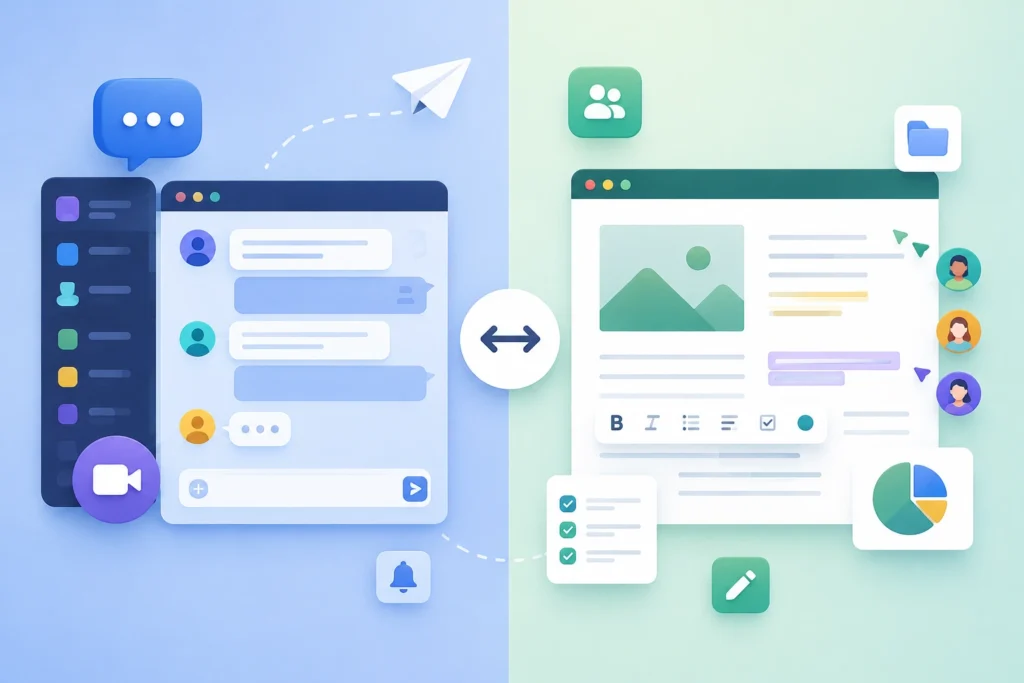
The two are similar but not exactly the same. Communication tools focus on sharing information. Things like messages, calls and updates. Collaboration tools, such as Google Docs or Figma focus on working on the thing at the same time.
Many teams use both types of tools. Some platforms, like Notion or Slite, mix chat with shared documents making the difference less clear.
Best Team Communication Tools in 2026
1. Slack: best for organized team messaging
Slack made the channel-based way of chatting popular and now most modern messaging tools copy that idea. You have channels and private channels you can have conversations in threads and there is a search feature that really finds old messages.
That might sound simple. You won’t realize how useful it is until you use a tool that doesn’t have it. Huddles let you make audio or video calls without having to leave the app. Slack also works with thousands of tools through its app directory.
The free version only keeps messages for 90 days. That can be a problem for teams who don’t know about this until they need something older.
Best for: teams that spend all day in chat and want search and connections, with other tools.
2. Microsoft Teams: best for Microsoft 365 organizations
If your company already uses Outlook, SharePoint and Excel Teams fits in easily. Chat, video meetings and working on files through Office apps all happen in one place. Copilot can help by summarizing meetings or writing replies.
The look and feel of the interface can seem more complicated than Slacks and companies that don’t use Microsoft products sometimes find it difficult to add on.
For businesses that already pay for Microsoft 365 Teams is usually part of the package with no extra charge, which is a great deal, in terms of cost.
Best for: companies already committed to the Microsoft ecosystem.
3. Zoom Workplace: best for video-first communication
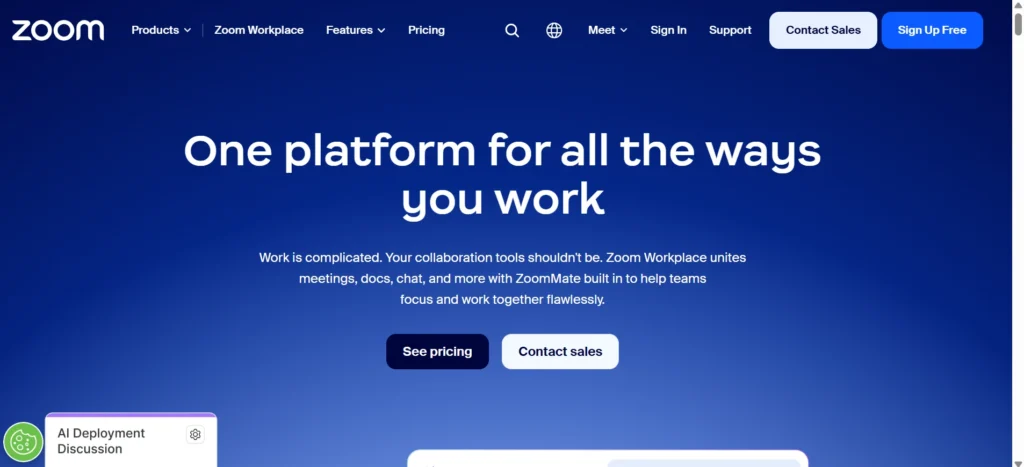
Zoom built its reputation on video calls, and it’s since expanded into a fuller workplace suite with Team Chat, phone, whiteboard, and mail and calendar. <cite index=”1-1″>Zoom’s team communication tools bring messaging, meetings, and phone into a single workspace built for how people actually work.</cite>
The AI Companion can generate meeting summaries and highlight next steps automatically, which saves the person who used to be stuck taking notes. Free accounts cap group meetings at 40 minutes, so smaller teams often upgrade fast.
Best for: teams where video meetings are the primary way of getting things done.
4. Google Chat: best for Google Workspace teams
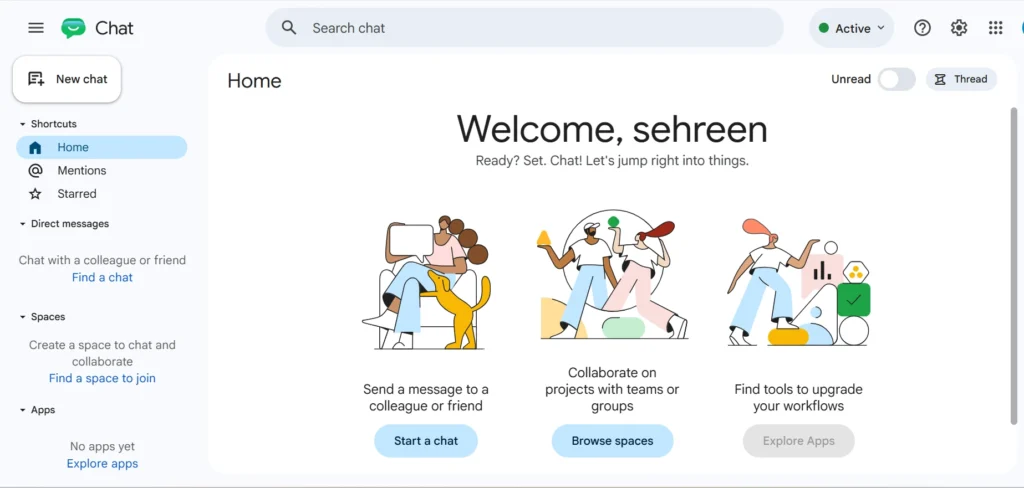
Google Chat is part of Gmail. It works with Google Meet, Google Docs and Google Calendar. If your team is already using Google Workspace then Google Chat is an addition because it is connected to the other Google tools you are already using.
Google Chat has a feature called Gemini that gives you a summary of what people are talking about and it also suggests replies to messages.. Google Chat does not have as many features as Slack. Google Chat is not really a tool, it is more like a way for people to talk to each other that is connected to the other Google tools, like Google Meet and Google Docs and Google Calendar.
Best for: teams fully invested in Google Workspace who want messaging without a new subscription.
5. Webex: best for enterprise communication
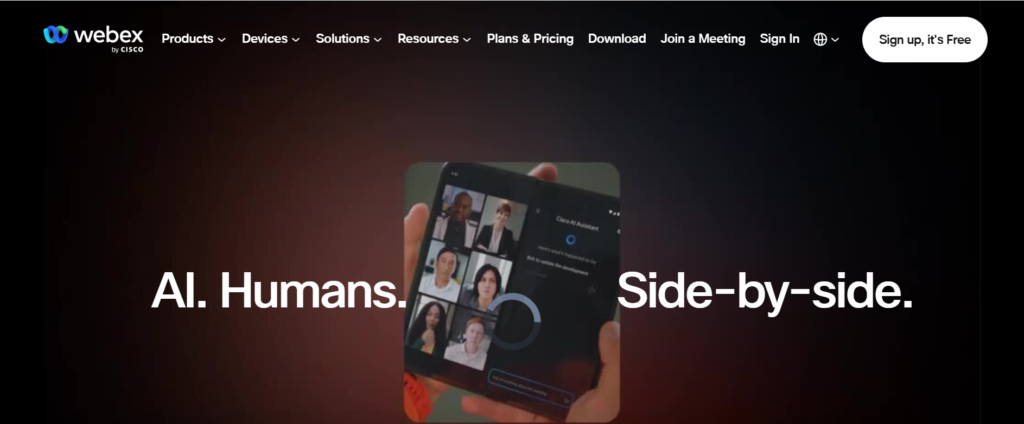
Cisco’s Webex leans into enterprise needs: security certifications, large-scale meeting capacity, and integration with existing Cisco hardware. It handles video, chat, and calling under one roof.
It’s less common in smaller companies, partly because the interface and pricing are built with IT departments in mind rather than a five-person team signing up on their own.
Best for: large enterprises with strict security and compliance requirements.
6. Loom: best for asynchronous video communication
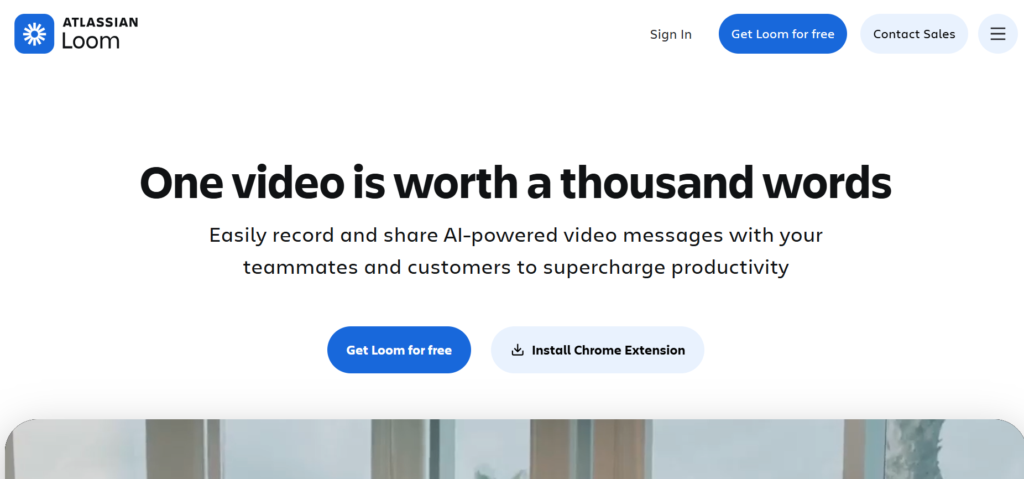
Loom lets you record your screen and face, then send the link instead of scheduling a meeting. It’s become a default way to explain something visual, a bug, a design change, a walkthrough, without pulling three people into a call.
Recipients can watch on their own time and drop timestamped comments, which is often faster than trying to explain the same thing in a paragraph of text.
Best for: teams that want to cut down on meetings by replacing them with short recorded updates.
7. Twist: best for low-interruption async communication
Built by the makers of Basecamp’s To-Do, Twist deliberately avoids real-time chat features like typing indicators and instant notifications. Conversations are organized into threads by topic, meant to be read and replied to on your own schedule rather than immediately.
It won’t suit teams that need instant back-and-forth, but for teams tired of constant pings, the structure forces a calmer pace.
Best for: remote teams trying to protect focus time from constant interruptions.
8. Connecteam: best for frontline and deskless teams
Most communication tools assume everyone sits at a desk. Connecteam doesn’t, it’s built mobile-first for retail staff, warehouse crews, and field workers who don’t have a company email address.
Alongside chat, it bundles scheduling, time tracking, and task checklists, which matters for teams where communication and operations are tightly linked.
Best for: businesses with hourly, mobile, or non-desk employees.
9. Workvivo: best for employee engagement and company communication
Workvivo functions more like an internal social feed than a chat app. Leadership posts updates, employees react and comment, and the goal is company-wide visibility rather than task-level coordination.
It works best alongside a separate day-to-day chat tool, not instead of one, Workvivo covers the “what’s happening at the company” layer, not the “can you review this” layer.
Best for: larger organizations trying to strengthen culture and internal visibility.
10. Pumble: best for budget-conscious teams
Pumble offers unlimited message history and a generous free tier, which puts real pressure on Slack’s most common complaint. Features are more basic, fewer integrations, simpler video calls, but the core chat experience covers what most small teams actually need.
Best for: small teams and startups watching every line item in the budget.
11. Slite: best for communication plus knowledge management
Slite treats documentation as part of communication rather than a separate task. <cite index=”2-4″>The platform separates asynchronous discussion, video, chat, and knowledge management</cite> instead of forcing every conversation into a chat window. The idea is that decisions and explanations should end up somewhere searchable, not buried in a thread from two months ago.
AI features help keep that documentation current and searchable as the team grows.
Best for: teams that keep losing decisions in old chat threads and want a shared source of truth.
12. RingCentral: best for unified communications
RingCentral combines phone systems, video meetings, and team messaging into one platform, aimed at companies that still rely heavily on business phone lines alongside chat. It’s a common pick for customer-facing teams that need call routing and analytics, not just internal chat.
Best for: businesses needing a full phone system alongside chat and video.
13. Discord: best for informal or community-style teams
Discord started as a gaming platform but has become a legitimate option for startups, creator teams, and open-source communities. Voice channels you can drop into without a scheduled call feel more casual than a formal meeting link.
It lacks some of the enterprise security and admin controls larger companies expect, which keeps it less common in corporate settings.
Best for: small, informal teams, creator groups, and open-source projects.
14. Nextiva: best for communication and customer-facing workflows
Nextiva pairs internal team chat with customer-facing phone and messaging tools, aimed at support and sales teams who need both in one place. AI features help route calls and summarize customer interactions.
Best for: customer support and sales teams managing both internal and external communication.
15. Homebase: best for small hourly and shift-based teams
Homebase combines team messaging with scheduling and time tracking, built for restaurants, retail, and other shift-based businesses. Managers can post schedule changes and staff can message each other directly from their phones, without needing a work email.
Best for: small businesses running hourly staff and shift schedules.
Tool Comparison:
| Tool | Best for | Communication style | Video | AI features | Free plan |
| Slack | Organized team messaging | Chat-first | Huddles | Yes | Yes, limited history |
| Microsoft Teams | Microsoft 365 organizations | Chat + meetings | Full meetings | Copilot | Yes |
| Zoom Workplace | Video-first teams | Meetings + chat | Full meetings | Yes | Yes, 40-min limit |
| Google Chat | Google Workspace teams | Chat | Meet integration | Gemini | With Workspace |
| Webex | Enterprise communication | Meetings + chat | Full meetings | Yes | Yes, limited |
| Loom | Async video | Recorded video | Async only | Yes | Yes, limited |
| Twist | Low-interruption async chat | Threaded async | No | No | Yes, limited |
| Connecteam | Frontline/deskless teams | Mobile chat | No | Limited | Yes, small teams |
| Workvivo | Employee engagement | Feed + chat | Limited | Yes | No |
| Pumble | Budget-conscious teams | Chat | Basic calls | Limited | Yes, unlimited history |
| Slite | Communication + knowledge base | Async docs + chat | No | Yes | Yes, limited |
| RingCentral | Unified communications | Phone + chat + video | Full meetings | Yes | Trial only |
| Discord | Informal/community teams | Chat + voice channels | Screen share | Limited | Yes |
| Nextiva | Customer-facing teams | Phone + chat | Video | Yes | No |
| Homebase | Small hourly/shift teams | Chat + scheduling | No | No | Yes |
Team Communication Tools Compared
A side-by-side view helps once you’ve narrowed things down to two or three options.
| Tool | Chat | Video | Async | File sharing | AI | Mobile app |
| Slack | Strong | Basic (Huddles) | Threads | Yes | Yes | Yes |
| Microsoft Teams | Strong | Strong | Limited | Yes (Office) | Copilot | Yes |
| Zoom Workplace | Strong | Strong | Limited | Yes | AI Companion | Yes |
| Loom | No | No | Strong | Limited | Yes | Yes |
| Twist | Strong | No | Strong | Limited | No | Yes |
| Slite | Basic | No | Strong | Yes (docs) | Yes | Yes |
Best Team Communication Tools by Use Case
Remote teams: usually prefer a mix of tools..Teams, for chatting. Meet for video calls that are scheduled. Look for things that don’t require a meeting.
Hybrid teams: We need tools that work well for the person in the office and the person at home. Teams and Zoom Workplace are. Good examples of this because they handle things in a way that does not favor one group over the other.
This means that Teams and Zoom Workplace are fair to the person in the office and the person at home. Teams and Zoom Workplace make sure that both the person in the office and the person at home have the experience.
Small businesses: often start with Pummel or Slack’s free tier before their communication needs justify a paid upgrade.
Startups: tend to prioritize speed and low cost, which is why Slack and Twist show up often in early-stage teams.
Enterprise teams: generally need the security, admin controls, and scale that Webex, Teams, or RingCentral are built around.
Frontline and deskless employees: need mobile-first tools like Connecteam or Homebase, a desktop-first tool like Slack often gets ignored by staff who never log into a computer during their shift.
Software development teams: frequently pair Slack or Discord for chat with Twist-style async threads for design discussions that don’t need to happen in real time.
Distributed international teams: lean on async tools more heavily, since time zone gaps make real-time chat unreliable for half the team.
Cross-functional teams: benefit from tools with strong search and channel organization, so people outside the core group can still find context without asking around.
Synchronous vs Asynchronous Team Communication
This is the single most useful framework for choosing between tools, and most buying guides skip past it.
What is synchronous communication?
Synchronous communication is when people talk at the time. This means that both people are there together like when you’re having a live chat or talking on the phone or having a video meeting or just talking to someone in person.
Synchronous communication includes things like chat and phone calls and video meetings and talking to someone in person.
When you need to resolve something, synchronous communication is a good way to do it.. The problem with synchronous communication is that it needs everyone to be paying attention at the same time.
What is asynchronous communication?
When we talk about communication it means that the people involved do not need to be available at the same time. Things like email and recorded video work in this way. We also have documentation and threaded discussions that are examples of communication.
You can send something. The other person will look at it and respond when they have time. This way of communicating is not as fast. It is good because it lets people focus on their work without being disturbed.
It also works well when people are in time zones so asynchronous communication is very useful for email and recorded video and other things like that. Asynchronous communication respects the time of each person. Allows them to work at their own pace.
When should teams use synchronous communication?
Use it for anything urgent, emotionally sensitive, or genuinely faster to talk through than to type, a production outage, a difficult feedback conversation, or a fast decision that’s blocking someone’s work.
When should teams use asynchronous communication?
Use it for anything that doesn’t require a response: status updates, design feedback, documentation or explaining a process someone can look at whenever they have time. If a message doesn’t need a reply, within the hour it probably didn’t need to be done in real time.
The best communication stack combines both
Teams that rely much on things that need to happen at the same time like video calls end up having meeting after meeting. Teams that do everything on their schedule can feel like they are moving really slowly and are not really working together. Most teams that work well usually do things on their schedule and only use real-time communication like phone calls or video chats when the work they are doing actually needs it. This way teams can use tools, like video calls and asynchronous tools, like email in a way that makes sense for the work they are doing.
Essential Features of Team Communication Tools
Before comparing specific products, it helps to know what to actually look for.
Team messaging and channels: the core of any tool, organized so conversations don’t blur together.
Threaded conversations: keeps a specific topic contained instead of scattering replies across the whole channel.
Video and voice calls: built in, so a conversation can escalate from text to a call without switching apps.
File sharing: attaching documents and images directly in a conversation, ideally with version history.
Searchable history: the difference between finding an old decision in ten seconds and re-asking the question.
Notification and availability controls: status settings, do-not-disturb hours, and channel muting that let people control their own attention.
Integrations: connections to project management, calendars, and other tools your team already uses.
Mobile access: non-negotiable for any team with people who aren’t at a desk all day.
AI-powered features: summaries, transcription, and search that reduce manual note-taking.
Security and administration: encryption, access controls, and admin-level settings for larger organizations.
Analytics and reporting: usage data that helps IT or HR understand adoption and engagement.
External collaboration: the ability to safely bring in clients, contractors, or partners without giving them full internal access.
How AI Is Changing Team Communication Tools in 2026

AI has moved from a nice-to-have to a standard feature across most of these platforms. <cite index=”1-1″>Zoom’s AI Companion focuses on summarizing meetings and surfacing next steps directly inside the workplace suite</cite>, while other platforms use AI more for search and documentation.
Meeting summaries turn an hour-long call into a few bullet points, so people who missed it can catch up fast.
Automatic action items pull commitments out of a conversation and turn them into trackable tasks.
AI-powered search finds relevant context across old messages, not just exact keyword matches.
Conversation summarization condenses long threads into a short recap for anyone joining late.
AI-generated documentation helps keep internal knowledge bases current without someone manually rewriting pages.
Translation lets international teams communicate without everyone needing to work in a shared second language.
AI agents and workflow automation are starting to handle routine tasks, scheduling, status updates, simple replies, inside the chat interface itself.
Risks of relying on AI for workplace communication: summaries can miss nuance, and teams that lean too hard on auto-generated recaps sometimes lose the context that comes from actually reading the full conversation. Treat AI summaries as a starting point, not a replacement for judgment.
How to Choose the Right Team Communication Tool
- Identify your biggest communication problem. Too many meetings, missed announcements, and buried decisions each point to a different fix.
- Determine how your team actually communicates today. Watch what’s already happening before adding new software on top of it.
- Decide what needs to be synchronous vs asynchronous. This shapes which tools even belong on your shortlist.
- Check integrations with your existing software. A tool that doesn’t connect to your calendar or project tracker creates more manual work, not less.
- Evaluate security and compliance needs. Healthcare, finance, and legal teams have requirements most general-purpose tools don’t meet out of the box.
- Compare pricing and total cost. Per-user pricing adds up fast once you factor in every team member, not just the people who’ll use it daily.
- Test usability and adoption. The best tool on paper is useless if half the team refuses to open it.
- Check scalability. Make sure the tool still works at twice your current headcount, not just today’s.
- Test mobile and frontline accessibility. If part of your team doesn’t sit at a desk, this isn’t optional.
- Run a pilot before rolling it out company-wide. A two-week trial with one department catches problems a sales demo never will.
How to Build a Team Communication Stack
Very few teams run on a single tool, and trying to force everything into one app usually backfires. A more realistic approach is combining a few tools, each doing one job well.
- Chat and messaging for quick, day-to-day exchange, Slack, Teams, or Pumble.
- Video meetings for anything that genuinely needs face time, Zoom, Meet, or Teams.
- Async video for updates that don’t need a live meeting, Loom.
- Knowledge management so decisions don’t disappear into old chat threads, Slite or Notion.
- Project management to track who’s doing what, Asana, ClickUp, or Trello.
- File storage as the shared home for documents, Google Drive or Microsoft 365.
Example communication stacks
Small business: chat + video + shared file storage. Nothing fancier needed until the team grows.
Remote startup: chat + async video + project management + a knowledge base, since time zones make real-time coordination unreliable.
Enterprise: an employee communication platform for company-wide updates, unified communications for phone and video, plus dedicated collaboration and knowledge tools for day-to-day work.
Frontline team: mobile-first chat, shift scheduling, and task management — desktop tools rarely fit this group.
Common Team Communication Problems and the Right Solution

| Problem | Likely cause | Recommended fix |
| Too many meetings | Overuse of synchronous communication | Shift routine updates to async video or docs |
| Messages get lost | Poor channel structure | Use dedicated channels and threads |
| Employees miss announcements | Limited reach of current tool | Add an employee communication platform |
| Repeated questions | Missing or outdated documentation | Build a searchable knowledge base |
| Notification overload | Too many active channels and tools | Set a clear notification policy |
| Remote employees feel disconnected | No structured touchpoints | Combine async updates with scheduled live check-ins |
| Frontline staff miss updates | Desktop-first tools | Switch to mobile-first communication |
How to Improve Team Communication With These Tools
Buying the right software is only half the job, how you use it determines whether it actually helps.
- Set clear communication rules. Decide what belongs in chat, what belongs in email, and what needs a meeting.
- Use consistent channel naming. A predictable structure means new hires can find their way around without asking.
- Define response-time expectations. Not every message needs an instant reply, and saying so out loud reduces anxiety.
- Cut unnecessary notifications. Mute channels that don’t need real-time attention.
- Document important decisions somewhere searchable. Chat is not a knowledge base, even though it often gets treated like one.
- Keep project discussions in the right workspace. Scattered conversations about the same project make it harder to track progress.
- Default to async before scheduling a meeting. Ask whether a message or recorded video could replace the call.
- Review your communication stack periodically. Tools that fit a 10-person team often stop fitting at 50.
Common Mistakes When Choosing Team Communication Tools
- Choosing based on popularity alone, without checking if the tool fits how your specific team works.
- Buying too many overlapping tools, which creates confusion about where to actually post something.
- Ignoring employee adoption, since the best-reviewed tool is worthless if people don’t use it.
- Focusing on feature lists instead of actual workflows.
- Forgetting frontline or deskless workers when the whole company decision gets made by people sitting at desks.
- Ignoring security requirements until a compliance review forces the issue later.
- Letting communication turn into notification overload, which is the opposite of the problem these tools are meant to solve.
- Using chat as a permanent knowledge base, when it was never built to be searchable long-term.
Team Communication Tool Security Checklist
- Encryption for messages and files, both in transit and at rest.
- Access controls so permissions match actual roles, not blanket access for everyone.
- SSO and authentication to centralize login through your existing identity provider.
- Data retention policies that match your industry’s legal requirements.
- Admin controls for managing users, channels, and integrations at scale.
- Compliance certifications relevant to your industry — HIPAA, SOC 2, GDPR, depending on where you operate.
- Guest and external-user management so outside collaborators get limited, controlled access.
How Much Do Team Communication Tools Cost?
Pricing varies widely depending on team size and feature tier.
Free plans cover basic chat and limited video for small teams, though most cap message history or meeting length.
Per-user pricing is the most common model, typically ranging from around $5 to $20 per person per month for standard business tiers.
Enterprise pricing usually requires a custom quote and includes advanced security, admin, and support features.
Hidden costs often catch teams off guard: training time, migration effort, admin overhead, paid integrations, add-on AI features, extra storage, and premium security tiers can all add up beyond the sticker price.
Frequently Asked Questions
What are team communication tools?
Software platforms that let teams message, call, meet, and share files without relying solely on email, covering chat apps, video platforms, and hybrid tools that combine both.
What is the best team communication tool in 2026?
There isn’t one universal answer. Slack fits general team messaging, Microsoft Teams fits Microsoft-based organizations, and Zoom Workplace fits video-first teams. The right pick depends on your team’s size, workflow, and existing software.
What is the best free team communication tool?
Pumble offers unlimited message history on its free plan, which makes it a strong option for small teams on a tight budget. Slack’s free plan works well too, but it caps message history at 90 days.
Is Slack better than Microsoft Teams?
Neither is universally better. Slack tends to feel faster and more flexible for pure chat, while Teams makes more sense for organizations already running Microsoft 365, since it comes bundled at no extra cost.
What is the best communication tool for remote teams?
A combination usually works best: chat for quick exchange, video for scheduled meetings, and async video like Loom for updates that don’t need a live call.
What is the best communication tool for small businesses?
Pummel or Slack’s free tier typically cover what a small team needs before paid features become necessary.
What is the best communication tool for frontline employees?
Connecteam and Homebase are both built mobile-first for workers who don’t sit at a desk or use a company email address.
Conclusion
There’s no best team communication tool for every organization because the right choice depends on your team’s size, work style, communication needs and whether employees work primarily at desks or in the field.
Slack is a choice for team messaging Microsoft Teams works well for organizations already using Microsoft 365 Zoom Workplace suits video-first teams while Loom and Twist are useful for asynchronous communication.
Slite is an option for teams that prioritize knowledge management while Connecteam and Homebase can be valuable for frontline and hourly employees and Workvivo focuses more on employee engagement. Ultimately the tool matters less than how your team uses it.
An organized team with clear communication rules can work more effectively with a simple platform, than a disorganized team using an expensive feature-heavy system. Start by identifying your team’s communication problems then choose the tool that solves them without creating unnecessary complexity or communication overload.

Mehreen Mushtaq is a skilled content writer dedicated to creating high-quality, engaging, and SEO-focused blogs. She specializes in strategic keyword usage, search intent, and informative content that connects with readers while helping websites strengthen their visibility and rankings in search results.