
Being busy and being productive are not the same thing. You can answer emails all day, jump between five apps, and still end the day wondering what you actually finished.
The right free productivity tools can close that gap. They catch loose ideas, show you what matters next, and reveal where your hours go. This guide covers five tools, what each one does well, where the free plan falls short, and how to pick the ones that fit your work.
What Are Productivity Tools, and How Do They Save Time?
Productivity tools are apps that help you plan, organize, and complete work with less effort. They usually handle one of four jobs: capturing information, managing tasks, tracking projects, or measuring time. Most people only need one tool for each job they struggle with.

How productivity apps help organize everyday work
A good app moves information out of your head and into one trusted place. Once a task is written down, you stop spending mental energy trying to remember it. That is the core idea behind popular methods like Getting Things Done, which teaches you to capture everything first and decide what to do with it later.
The time savings come from small things. You stop searching for that one note. You stop re-deciding what to work on. You stop re-sending the same reminder.
Common problems these tools solve
Most of us hit the same few walls. Here is how they show up and which kind of tool helps.
Forgotten tasks and scattered notes
Ideas end up on sticky notes, in text messages, and in random documents. A quick-capture app puts them in one place so you can sort them later.
Missed deadlines and inefficient scheduling
Without due dates and reminders, deadlines sneak up on you. A task manager shows what is due today and what can wait.
Distractions and repetitive manual work
Recurring tasks, templates, and saved workflows remove the need to rebuild the same checklist every week. That frees up focus for work that needs real thinking.
Why more apps do not always mean more productivity
Every new app adds a login, a notification stream, and another place to check. Past a certain point, managing your tools becomes the job. Research on time management consistently points to simple, consistent habits over complicated systems.
A useful rule: if a tool does not save you time within the first two weeks, drop it.
How We Chose These Five Free Productivity Tools
We looked for tools that are genuinely useful without paying. A tool with a great paid plan and a useless free one did not make the list. Here is what we weighed.
Useful features available without payment
The free plan had to solve a real problem on its own. A short trial or a crippled free tier did not count.
Ease of use and setup time
You should be able to get value within minutes. Tools that need hours of configuration before they help were ranked lower.
Cross-device access and integrations
Work happens on phones, laptops, and tablets. Every tool here has web access and mobile apps, and most connect with calendars or other common apps.
Practical usefulness for individuals and small teams
We favored tools that work for a solo freelancer and still scale to a small team without a big learning curve.
How free-plan limitations were verified
Free-plan details come from each vendor’s public pricing and help pages. Plans change, so treat the limits below as a starting point and confirm them on the official site before you commit. (Publisher note: add the date you checked, and describe hands-on testing only if you actually did it.)
Quick Comparison of the 5 Free Productivity Tools
This table gives you the short version. Detailed reviews follow below.
Comparison table by best use case, free-plan status, main benefit, and limitation
| Tool | Best for | Free plan | Main benefit | Main limitation |
| Google Keep | Quick notes and reminders | Free with a Google account | Fastest way to capture an idea | Not built for projects or deep organization |
| Todoist | Personal tasks and deadlines | Free plan available | Clean daily task planning | Some features, like reminders, are limited on free |
| Trello | Visual project tracking | Free plan available | See work status at a glance | Limits on boards and advanced automation |
| Clockify | Time tracking | Free plan available | Shows where your hours go | Advanced reports and controls are paid |
| Notion | Notes, docs, and workspaces | Free plan available | Flexible all-in-one workspace | Easy to over-build; some limits on free |
Which tool should you choose first?
Start with the problem that costs you the most time. If you forget ideas, try Google Keep. If you miss deadlines, try Todoist. If a team keeps asking “where are we on this?”, try Trello. If you suspect your day disappears into meetings, try Clockify. If your notes and documents are a mess, try Notion.
Pick one. Use it for two weeks. Then decide whether you need a second.
1. Google Keep — Best for Quick Notes and Reminders
Google Keep is a simple note-taking app. Think of it as a digital sticky note that follows you everywhere. It is a quick-capture tool, not a replacement for a full project-management app.
What Google Keep does
Keep lets you save text notes, checklists, photos, and voice memos. Notes sync across your phone and computer through your Google account. You can color-code and label notes to find them later.
Key features that help save time
- Instant capture: Open the app and type. There is almost no setup.
- Checklists: Turn a note into a to-do list with checkboxes.
- Reminders: Attach a time or location reminder to any note.
- Search and labels: Find old notes quickly.
- Voice notes: Dictate an idea when your hands are busy.
How to use notes, checklists, and reminders in a daily workflow
Try this simple routine. During the day, drop every idea, errand, and half-formed thought into Keep. Each evening, spend five minutes sorting: delete what does not matter, set reminders for what does, and move real tasks into your task manager.
A freelance writer might save article ideas on a walk, then review them on Monday morning. The idea never gets lost, and the review takes minutes.
Best use case: Capturing ideas before they are forgotten
Keep shines when speed matters more than structure. If you have ever thought “I’ll remember that” and then did not, this is the fix.
Limitations and when to choose a different tool
Keep has limited organization. There are no nested pages, no real project views, and no team workflows. If your notes grow into hundreds of items, you will want something with more structure, such as Notion.
Who should use Google Keep?
Keep suits anyone who wants a frictionless place for quick thoughts. Students, busy parents, and professionals who live in Gmail and Google Calendar will feel at home.
2. Todoist — Best for Managing Tasks and Deadlines
Todoist is a task manager built around one question: what should I do today? It is designed for personal planning and task execution, which sets it apart from a visual team board like Trello.
What Todoist does
Todoist lets you create tasks, group them into projects, set due dates, and mark them done. You can type natural phrases like “pay rent every first of the month” and it understands the schedule.
Key features for organizing daily work
- Natural-language dates: Type the due date as you would say it.
- Today and Upcoming views: See only what needs attention now.
- Projects and labels: Group tasks by area of life or work.
- Priorities: Mark what is urgent so it stands out.
- Cross-platform apps: Works on web, desktop, and mobile.
How to use recurring tasks, priorities, and due dates
Recurring tasks are the biggest time saver. Set up weekly reports, monthly invoices, and routine check-ins once, and Todoist brings them back automatically.
Use priorities sparingly. If everything is top priority, nothing is. A good habit is to limit yourself to three high-priority tasks per day.
Example: Planning a workday without forgetting important tasks
Imagine a freelance designer. On Sunday night, she opens Todoist and reviews the week. She sets due dates on client deliverables, marks two as high priority, and adds a recurring Friday task to send invoices.
On Monday, she opens the Today view and sees exactly five tasks. No scrolling, no guessing.
Free-plan limitations to check
The free plan has caps on things like the number of active projects and some advanced features. Reminders and certain views may be reserved for paid plans. These limits have changed over time, so check Todoist’s current pricing page before relying on a feature.
Who should use Todoist?
Todoist fits individuals who want a clear, simple daily to-do list. It also works well for freelancers who juggle several clients and deadlines.
3. Trello — Best for Visual Project and Workflow Management
Trello organizes work on visual boards. If a to-do list tells you what to do, a Trello board shows you where everything stands.
What Trello does
Trello uses boards, lists, and cards. A card represents a task or item. A list is a stage of progress. You move cards across lists as work advances.
How Kanban boards organize work
Trello is built on the Kanban method, which began in manufacturing and later spread to software and knowledge work. The idea is simple: make work visible and limit how much is in progress at once. That keeps teams from starting too many things and finishing none.
Using To Do, In Progress, and Done columns
Most boards start with three lists: To Do, In Progress, and Done. Each card can hold a description, checklist, due date, attachments, and comments.
When everyone can see the board, you send fewer “any update?” messages. The next action is obvious.
Example: Tracking a content calendar or team project
A small marketing team plans a month of blog posts. Each post is a card. The lists run from Ideas to Drafting, Editing, Scheduled, and Published.
The editor sees at a glance which articles are stuck in editing. Nobody has to ask.
Free-plan limitations to check
The free plan has limits on the number of boards per workspace and on automation runs. Some views and admin controls sit behind paid tiers. Confirm the current limits on Trello’s pricing page.
Who should use Trello?
Trello suits small teams, solo creators who think visually, and anyone running a project with clear stages. If you prefer lists and deadlines over boards, Todoist may feel better.
4. Clockify — Best for Understanding Where Your Time Goes
Clockify is a time tracker. It will not make you productive on its own. What it does is show you real patterns, which you can then act on.
What Clockify does
Clockify lets you start a timer, assign it to a project, and review reports later. You can also add time manually if you forget to start the timer.
Time tracking, project records, and reports
Each entry records what you worked on and for how long. Reports group that data by project, client, or day. Over a few weeks, you get an honest picture of how you spend your hours.
How to track work without interrupting focus
Keep it low effort. Start the timer when you begin a task and stop it when you finish. Use broad project names rather than tiny categories. If tracking feels like a chore, simplify it.
Another option is to log time in blocks at the end of the day. It is less precise, but it is better than not tracking at all.
Example: Finding time lost to meetings and administrative work
A consultant tracks her week and expects to see mostly client work. The report shows nearly a third of her time went to meetings and admin. She cancels two recurring meetings and batches email into two daily slots.
The data did not fix anything. The decisions she made because of it did.
Free-plan limitations to check
Clockify’s free plan is known for being generous with basic tracking, but advanced reporting, approvals, and some controls are paid. Verify the current free features on Clockify’s pricing page.
Who should use Clockify?
Freelancers who bill by the hour will get the most value. Anyone curious about where their day goes can also benefit, as can small teams that need simple time records.
5. Notion — Best for Notes, Documents, and Organized Workspaces
Notion is a flexible workspace. You can use it for notes, documents, wikis, simple databases, and project trackers, all in one place.
What Notion does
Notion is built from pages. Pages can contain text, checklists, tables, images, and links to other pages. You shape it into whatever system you need.
Using pages, databases, and templates
- Pages: The basic building block for notes and documents.
- Databases: Tables you can view as lists, boards, or calendars.
- Templates: Ready-made layouts for meeting notes, projects, and more.
Templates are the fastest way to start. You can adapt one instead of building from a blank page.
How to organize research, projects, and reference material
A simple structure works best. Create one page for each area, such as Work, Personal, and Research. Inside each, use a database to track items with a status and a date.
Link related pages together. That way, a project page can point to its meeting notes and source material.
Example: Building a simple workspace for recurring work
A freelance researcher creates a database called “Projects.” Each entry has a client, a deadline, a status, and a linked notes page. A weekly review template reminds her to update everything on Fridays.
She built it in an afternoon and has used it for months.
Free-plan limitations to check
Notion’s free plan is aimed at individuals, with limits on things like file upload size, team collaboration, and version history. Details change, so check Notion’s pricing page.
Who should use Notion?
Notion works for people who enjoy building systems and need one home for notes and documents. A warning: it is easy to spend hours customizing and little time working. Start simple and add structure only when you need it.
How to Choose the Right Free Productivity Tool for Your Needs
The best free productivity tools are the ones you actually keep using. Match the tool to your situation, not to the hype.
Best for students and personal organization
Google Keep plus Todoist covers most needs. Keep handles quick notes, and Todoist handles assignments and due dates. Notion is a good addition if you want to organize class notes.
Best for freelancers and independent professionals
Todoist for tasks and Clockify for time tracking is a strong pair. Add Notion if you need a client or project knowledge base.
Best for small teams and collaborative projects
Trello gives teams a shared view of progress. Notion also works well if the team needs shared documents and wikis.
Best for tracking time and billable work
Clockify is the clear pick here. It was built for this job, and the free plan covers basic tracking.
Best for organizing notes and research
Notion handles structured notes and research well. If your notes are simple and short, Google Keep is enough.
Questions to ask before signing up
A few minutes of thought now can save you a painful switch later.
Is the feature I need included in the free plan?
Check the pricing page for the exact feature, not just the plan name. A tool can be “free” and still lock the one thing you need.
Does the tool work on my devices?
Confirm there is a mobile app or browser version for every device you use. A tool you cannot open on your phone is a tool you will forget.
Will it replace an existing app or add unnecessary complexity?
If you already have a tool that does the job, do not add another. The goal is fewer places to look, not more.
How to Combine These Tools Into a Simple Productivity Workflow
You do not need all five tools. Choose a small set and give each one a clear role. Here is a workflow that shows how they can fit together.
Step 1: Capture ideas and quick tasks
Use Google Keep for anything that pops into your head. Do not organize yet. Just capture it.
Step 2: Turn actionable items into tasks
Once a day, move real to-dos from Keep into Todoist. Give each one a due date or a clear next step. Delete the rest.
Step 3: Schedule important work
Use due dates and your calendar to protect time for your top priorities. Put the hardest task in your most focused hours.
Step 4: Track projects and team responsibilities
For shared or multi-step work, use a Trello board. Each card should have an owner and a next step.
Step 5: Review time use and adjust your routine
Once a week, check your Clockify report. Look for time that went to low-value work, and change one habit based on what you see.
When one all-in-one app is enough
If this feels like too much, it probably is. Notion can handle notes, tasks, and simple project tracking in one place. Many people do well with just one or two tools. Avoid running two systems for the same job.
Common Mistakes to Avoid When Using Productivity Apps
Even the best tools fail when used badly. These are the mistakes we see most often.
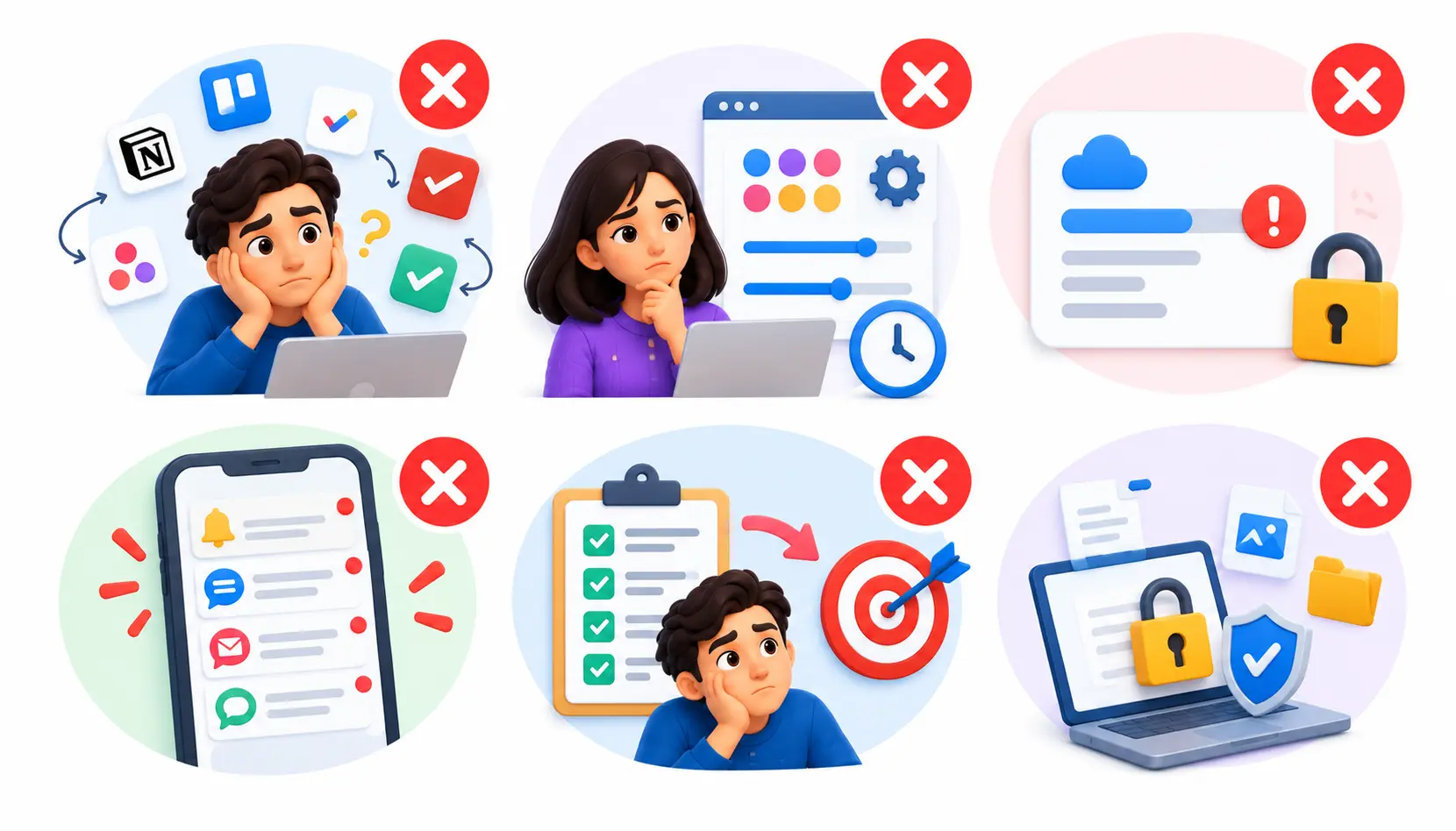
Using too many apps for the same purpose
Two task managers means you will never trust either. Pick one per job.
Spending more time customizing than doing work
Perfect color labels do not finish projects. Set up the basics, then start working.
Ignoring free-plan restrictions
Hitting a limit in the middle of a project is frustrating. Read the limits first, and plan for them.
Turning on too many notifications
Alerts meant to help can become the biggest distraction. Keep only the ones tied to real deadlines.
Tracking activity instead of meaningful outcomes
Hours logged and tasks checked off are not the same as results. Ask whether the work moved a goal forward.
Storing sensitive information without checking security settings
Before storing passwords, client data, or financial details, review the app’s privacy and security settings. When in doubt, keep sensitive data out of general-purpose tools.
Frequently Asked Questions About Free Productivity Tools
1. What are the best five free productivity tools?
Google Keep, Todoist, Trello, Clockify, and Notion are five strong free options. Each solves a different problem: quick notes, personal tasks, visual projects, time tracking, and organized workspaces. Most people only need one or two of them.
2. Are free productivity apps worth using?
Yes, for most individuals and small teams. Free plans usually cover the basics well. Upgrade only when you hit a limit that blocks real work.
3. Which free productivity tool is best for daily tasks?
Todoist is a strong choice for daily tasks because of its Today view, due dates, and recurring tasks. Google Keep is a simpler alternative if you only need quick checklists.
4. What is the best free app for time management?
It depends on what you mean. For planning your day, use Todoist. For measuring how you spend your hours, use Clockify.
5. Can free productivity tools replace paid software?
Sometimes. Solo workers and small teams often get by on free plans. Larger teams usually need paid features like advanced permissions, reporting, and automation.
6. How many productivity apps should I use?
Start with one or two. A capture tool plus a task manager is enough for many people. Add more only when you have a specific problem to solve.
7. How can I tell whether a productivity app saves time?
Try it for two weeks and compare. Are you missing fewer deadlines? Finding information faster? Spending less time on admin? If not, stop using it.
Conclusion
The best free productivity tools do not make you work harder. They remove friction so you can focus on what matters. Google Keep captures ideas, Todoist organizes your day, Trello shows project progress, Clockify reveals where time goes, and Notion keeps your knowledge in order.
Do not install all five. Pick the one that fixes your biggest problem, use it for two weeks, and keep it only if it helps.

Mehreen Mushtaq is a skilled content writer dedicated to creating high-quality, engaging, and SEO-focused blogs. She specializes in strategic keyword usage, search intent, and informative content that connects with readers while helping websites strengthen their visibility and rankings in search results.