
A student with five deadlines, a teacher with thirty essays to mark, and an administrator coordinating a timetable all face the same problem. There is too much to track and too little time. The answer is rarely more effort. It is usually a better system.
The essential productivity tools for education are digital apps that help students, teachers, and schools plan work, take notes, collaborate, research, stay focused, and handle routine admin. The right mix saves time without adding clutter. This guide covers tools for students, teachers, and institutions, plus AI helpers, workflows, and common mistakes.
A note on facts: apps change plans, prices, and features often. Check each tool’s official page before you commit, especially for free education access.

What Are Productivity Tools in Education?
A productivity tool is software that helps you finish tasks with less friction. In education, that means anything that supports planning, writing, teamwork, feedback, or record keeping.
Think of it like a well-organized school bag. The bag does not do your homework, but it makes sure the right things are in reach.
How Educational Productivity Tools Work
Most tools fall into a few jobs:
- Organize: calendars, to-do lists, and note apps keep information in one place.
- Collaborate: shared documents and chat let groups work on the same file.
- Create: editors, slide builders, and design apps help produce materials.
- Assess: quiz and feedback tools collect responses and show results fast.
- Automate: reminders, templates, and recurring tasks handle repeat work.
The best tools do one or two of these jobs well. Tools that promise everything often end up half-used.
Why Productivity Tools Matter for Students and Teachers
Education runs on deadlines, shared resources, and constant communication. Without a system, small things slip. A missed announcement or a lost file can cost hours.
Good tools help in five practical ways:
- They make deadlines visible before they become emergencies.
- They keep readings, notes, and files easy to find.
- They speed up communication between students, teachers, and parents.
- They support planning, so work is spread across days instead of crammed into one night.
- They reduce repetitive admin, which frees teacher time for actual teaching.
Tools do not replace good study habits or good teaching. They simply remove friction around them.
Productivity Tools vs. Educational Apps vs. Learning Management Systems
These terms get mixed up, so here is a plain split.
| Type | Main purpose | Examples |
| Productivity tools | Organize and manage your own work | Calendars, task lists, note apps |
| Educational apps | Teach or practice content | Language apps, math practice, flashcard decks |
| Learning management systems (LMS) | Deliver courses, collect work, record grades | Moodle, Canvas, Google Classroom |
A learning management system is the school’s central course space. Moodle and Canvas are well-known examples. Productivity tools sit alongside it and help you manage the work inside it.
Essential Productivity Tools for Education at a Glance
If you want the short version, start here. Pick the category that matches your biggest headache, then choose one tool from it.
Best Productivity Tools by Category
| Need | Good options | Best for |
| Task management | Todoist, Trello, Asana | Tracking homework, projects, and lesson prep |
| Scheduling | Google Calendar, Outlook Calendar | Deadlines, classes, time blocking |
| Note-taking | Notion, Microsoft OneNote | Lecture notes, study plans, class records |
| Collaboration | Google Docs and Drive, Microsoft 365 | Group work, shared lesson files |
| Research | Zotero, Mendeley | Sources, PDFs, citations |
| Writing support | Grammarly, Quetext | Clarity checks and originality review |
| Focus | Forest, Cold Turkey | Fewer distractions during study |
| Revision | Anki, Quizlet | Flashcards and recall practice |
| Teaching admin | Google Classroom, Kahoot!, attendance apps | Assignments, quizzes, class records |
This is a starting list, not a ranking. Many other good tools exist, and the best one is the one you will actually open every day.
Free vs. Paid Educational Productivity Tools
Many tools offer a free plan that is enough for most individual students. Paid plans usually add storage, advanced collaboration, automation, or admin controls.
Here is how access usually works:
- Free plans: basic features, limited storage or limited users.
- Paid upgrades: extra features, often billed monthly or yearly.
- Education discounts: some products offer free or reduced plans to verified students and teachers. Rules differ by product and region.
- Institutional licenses: schools may already pay for a suite such as Google Workspace for Education or Microsoft 365 Education. Ask your IT team before buying anything yourself.
Common restrictions include file size limits, caps on collaborators, and missing offline or export features. Always read the free-plan limits before moving your notes or files into a new app.
Which Productivity Tool Should You Choose?
Use this quick guide.
- “I forget deadlines.” Start with a calendar and a simple task list.
- “My notes are a mess.” Try OneNote or Notion, and keep one structure for all subjects.
- “Group projects fall apart.” Use a shared document plus a shared task board.
- “I cannot focus.” Try a timer or a site blocker before adding anything else.
- “I spend too long on admin.” Look at your LMS, templates, and recurring tasks first.
- “My device is old or my internet is weak.” Pick tools with solid offline support.
Best Productivity Tools for Students
Students rarely need ten apps. A calendar, a task list, a notes app, and a research tool cover most needs. Here is what each popular option does well. Students can get more from these apps by following practical productivity tips for students that help them organize assignments, build study routines, and manage deadlines.
Notion for Study Planning and Organization
Notion is a flexible workspace that combines notes, databases, and task boards. It suits students who like building their own system.
Organizing subjects, assignments, and study notes
Create one page per subject. Inside each, keep a notes section and an assignments table with due dates and status. Link everything back to one dashboard so you can see the week in one view.
A first-year student might build a simple table with columns for course, task, due date, and status. That alone beats scattered sticky notes.
When a simpler tool is a better choice
Notion can tempt you to spend hours designing pages instead of studying. If you find yourself tweaking layouts, switch to a plain to-do list and a notes app. Simple systems survive busy weeks.
Google Calendar for Time Management
A calendar turns vague plans into real commitments. It is free, works across devices, and is easy to share. Using calendars alongside proven time management strategies can help students plan study sessions, prioritize assignments, and avoid last-minute work.
Creating a weekly study schedule
Start by adding fixed items: classes, work, and travel. Then add study blocks in the gaps. Give each block a clear label, such as “Chemistry problem set” instead of “Study.”
Using reminders and time blocking
Time blocking means giving each task a set slot on your calendar. Add reminders for deadlines a few days ahead, not just on the due date. Color-code subjects so the week is easy to scan.
Todoist for Homework and Assignment Tracking
Todoist is a task manager built around quick capture and clear due dates. It works well for homework lists.
Breaking large assignments into smaller tasks
“Write essay” is too big to start. Split it into steps: choose a topic, find five sources, draft an outline, write the first section, edit. Each small task gives you a clear next move.
Managing deadlines and recurring study routines
Use recurring tasks for repeat habits, such as weekly reading reviews. Set due dates on each step, not only the final deadline. This keeps work moving early.
Microsoft OneNote for Digital Note-Taking
OneNote works like a digital binder, with notebooks, sections, and pages. It is a good fit if your school uses Microsoft 365.
Organizing lecture notes by subject
Create one notebook per term. Add a section for each subject and a page for each lecture, named by date and topic. This makes revision much faster later.
Handwriting, attachments, and searchable notes
OneNote supports typed notes, handwriting on compatible devices, and attached files. Search can help you find text across notes, though results depend on the content type and your settings. Test search on a few handwritten pages before relying on it.
Google Drive and Google Docs for Collaboration
Shared documents remove the “which version is final?” problem. Everyone edits the same file at the same time.
Sharing files and editing group assignments
Create one shared folder per project. Add every member, and agree on file naming from day one, for example “Project_Section_Name.” Use comments to ask questions instead of rewriting each other’s work.
Managing document versions and permissions
Use version history to see who changed what and to restore older drafts. Set permissions carefully: give “edit” access to teammates, and “view” or “comment” access to others. Avoid public links for anything that contains personal information.
Zotero and Mendeley for Academic Research
Zotero and Mendeley are reference managers. They store your sources and build citations for you.
Organizing research sources and PDFs
Save articles to a library as you read, and sort them into folders by project. Add short notes about why each source matters. Future you will be grateful when the essay is due.
Generating citations and bibliographies
Both tools can produce citations in common styles and export a bibliography. Always check the output. Automated citations can miss details, so compare them with your style guide.
Student communities often discuss which manager works best. For real-world user opinions, browse threads on Zotero or GetStudying, and treat them as opinions rather than official advice.
Grammarly and Quetext for Academic Writing Support
Writing tools help you polish a draft. They should not write it for you.
Improving grammar, clarity, and readability
Grammarly flags grammar, spelling, and unclear sentences. Use it after you finish a draft. Read each suggestion before accepting it, because the tool does not always understand your argument or your field’s terms.
Checking originality and understanding the limitations of automated detectors
Tools like Quetext compare text against other sources to highlight possible matches. A match is not proof of copying, and a clean result is not proof of originality. Automated detectors can produce false positives and miss paraphrased work. Treat them as a prompt to review your citations, not a final verdict.
Forest and Cold Turkey for Focus Management
Focus tools protect your attention. Forest uses a growing-tree timer to reward phone-free sessions. Cold Turkey blocks chosen websites and apps on your computer.
Using focus timers and distraction blockers
Pick the one distraction that hurts most. If it is your phone, try a timer app. If it is social media on your laptop, use a blocker. One targeted fix works better than blocking everything.
Combining focused sessions with regular breaks
The Pomodoro Technique is a popular method. You work for a set period, then take a short break, and repeat. Adjust the lengths to suit your attention span and the task.
Anki and Quizlet for Revision
Both tools are built around flashcards, but they work a little differently.
Flashcards, active recall, and spaced repetition
Active recall means testing yourself instead of rereading. Spaced repetition means reviewing material at increasing gaps so it sticks. Anki is known for its spaced repetition scheduling.
Choosing the right tool for a subject
Anki suits large, fact-heavy subjects like medicine or languages, where long-term memory matters. Quizlet is often easier to start with and is popular for shared class sets. Whichever you pick, write your own cards when you can. Making them is part of learning.
Best Productivity Tools for Teachers
Teachers juggle planning, marking, communication, and admin. The goal is to cut repeat work, not add new platforms. Check your school’s approved tools first, because policies on data and student accounts vary.
Google Classroom for Assignment Management
Google Classroom lets teachers post materials, set assignments, collect work, and give feedback in one place. Students see due dates in a single stream. Teachers can return marked work with comments, which cuts down on loose files and email chains.
Google Workspace and Microsoft 365 for Teaching
Both suites cover documents, slides, spreadsheets, and file sharing. Pick the one your school supports, and stick with it.
Use shared folders for lesson resources so colleagues can reuse and improve them. Co-planning in a shared document saves meetings. A shared spreadsheet is also a quick way to track tasks across a department.
Trello and Asana for Lesson Planning and Projects
Trello uses boards and cards. Asana offers lists, timelines, and task ownership.
A simple lesson-planning board might have columns for “To plan,” “Resources ready,” “Taught,” and “Needs review.” Each card holds the slides, worksheets, and notes for one lesson. For team projects like a school event or curriculum review, assign owners and due dates so nothing is left vague.
Kahoot! and Quizlet for Classroom Engagement
Kahoot! runs live quizzes that students answer on their devices. Quizlet offers study sets and review games.
Both work well for quick formative assessment. A five-question check at the start of class shows what students remember. Use the results to adjust your next explanation, not only to rank students.
Canva and Explain Everything for Learning Materials
Canva helps teachers design worksheets, posters, and slides from templates. Explain Everything is a digital whiteboard where you can annotate, record, and build interactive explanations.
Keep designs simple and readable. Clear layout, large text, and good color contrast help every learner, including those using assistive technology.
TeacherKit and Digital Attendance Tools
Apps like TeacherKit have been used for attendance, class records, and grades. Digital records are faster to update and easier to search than paper.
Product availability changes, so confirm that an app is still maintained and works on your devices before adopting it. Also check where student data is stored. Many schools already provide attendance tools inside their student information system, which may be the safer choice.
Microsoft Teams, Zoom, and Fireflies.ai for Communication
Microsoft Teams and Zoom host virtual classes and meetings. Fireflies.ai is a meeting assistant that can record, transcribe, and summarize calls, and it can pull out action items.
Use transcription only where your school policy and local law allow it, and always tell participants when a meeting is being recorded. Never upload sensitive student information to a tool your school has not approved.
RescueTime and Task Managers for Teacher Workload
RescueTime tracks how you spend time on your devices. That awareness can reveal where hours disappear, such as email or repeated formatting.
Pair it with a task manager. Each Friday, list next week’s top three priorities. Then automate or template whatever repeats, such as feedback comments, parent emails, and weekly announcements.
Productivity Tools for Schools, Colleges, and Universities
Institutions need tools that scale, protect data, and work together. Individual preferences matter less here than shared standards.
Learning Management Systems and Course Organization
Moodle, Canvas, and Google Classroom give every course the same structure. Students know where to find materials, submit work, and see grades.
This consistency is a productivity gain on its own. It reduces confusion, repeated questions, and time spent hunting for links.
Collaboration and Institutional File Management
Shared drives and team spaces let departments keep resources in one place. Clear folder structures, naming rules, and permissions prevent chaos.
Version control matters too. When ten people edit a policy document, you need to know which draft is current and who approved it.
Administrative Workflows and Staff Coordination
Schools run on schedules, attendance records, room bookings, and staff messages. Shared calendars, task boards, and standard forms make these flows smoother.
Assign an owner to each recurring task. A task with no owner is a task that gets missed.
Assessment, Feedback, and Progress Tracking
Digital tools can collect submissions, store rubrics, and show progress over time. This saves effort and makes feedback easier to find.
But data does not replace judgment. A dashboard cannot see why a student struggled this week. Teachers should use these tools to inform decisions, not to automate them.
Integration with Existing School Technology
Before adopting anything new, ask how it connects to current systems. Key questions include:
- Does it support single sign-on so users log in once?
- Can accounts be created and removed automatically when students enroll or leave?
- Does it work with the LMS and student information system?
- Who supports it when something breaks?
A tool that does not integrate often creates extra manual work, which defeats the purpose.
AI Productivity Tools in Education: Benefits and Limitations
AI tools can save time, but they can also mislead. Used well, they act like a fast assistant. Used badly, they replace thinking.
AI Tools for Summarizing Lectures and Study Materials
Transcription tools can turn a recorded lecture into text. AI can then summarize it into key points.
Always check the summary against the original. AI can drop important details, misstate a definition, or blend two ideas together. Use summaries to review, not to replace attending class or reading the source.
AI for Brainstorming, Writing, and Research
AI can suggest topic ideas, help build an outline, or give feedback on a draft’s structure. These are useful starting points.
Be careful with facts and references. AI tools can produce confident answers that are wrong, including sources that do not exist. Verify every claim and citation in a trusted source before using it.
AI Tools for Lesson Preparation and Personalized Practice
Teachers can use AI to draft activity ideas, practice questions, and simpler or more advanced explanations of the same topic. This helps with differentiation when time is short.
Review everything before it reaches students. Check accuracy, age-appropriateness, and alignment with your curriculum.
Academic Integrity and Responsible AI Use
Responsible use comes down to four habits.
Follow institutional rules and assignment requirements
Policies differ by school, course, and even assignment. If you are unsure whether AI is allowed, ask your teacher before you use it.
Verify claims, references, and generated explanations
Treat AI output as a draft to check, not a source to cite. Confirm facts using textbooks, journals, or official sites.
Protect confidential information and personal data
Do not paste student names, grades, health details, or private records into public AI tools. Check your school’s data policy first.
Disclose AI assistance when required
If your school or instructor asks you to state when you used AI, do so clearly. Honest disclosure protects your credibility.
How to Choose the Right Productivity Tools for Education
Choosing well takes a few minutes and saves weeks of frustration.
Identify the Problem Before Choosing an App
Write down the specific problem first. “I miss deadlines” points to a calendar. “Group chats are chaos” points to a shared board. Popularity is a poor guide.
Compare Features, Pricing, and Free-Plan Limits
Check storage caps, user limits, export options, and collaboration features. Look for education discounts, and ask whether your school already provides a license. Make sure you can export your data in case you switch later.
Check Device Compatibility and Offline Access
Confirm the tool works on your phone, laptop, and tablet. If your internet is unreliable, test offline mode before an important week. Offline features vary by app, device, and settings.
Evaluate Privacy, Security, and Accessibility
Review what data the tool collects, how long it keeps it, and who can see it. Check account permissions and your school’s rules, especially for tools used with minors.
Accessibility matters as well. Look for screen reader support, keyboard navigation, adjustable text, and good color contrast. The Web Content Accessibility Guidelines are a widely used standard for this.
Avoid App Overload
Too many apps create duplicate tasks, scattered notes, and constant notifications. You end up managing the tools instead of doing the work.
A good rule: if two apps do the same job, keep one and delete the other.
How to Use Productivity Tools Together: Practical Workflows
Tools work best as a connected system. These examples show how.
A Student Workflow From Assignment to Submission
Imagine a history essay due in three weeks.
- Calendar: add the deadline, plus a draft date and a final-check date.
- Task manager: break the essay into steps, such as research, outline, draft, edit.
- Reference manager: save sources and notes as you read.
- Document editor: write the draft, then review it with a grammar tool.
- Final check: verify citations, confirm formatting rules, and submit a day early.
Each tool has one clear job, so nothing overlaps.
A Teacher Workflow From Lesson Planning to Feedback
A teacher can run a simple weekly loop.
- Plan lessons on a board with one card per lesson.
- Store slides and worksheets in a shared, well-named folder.
- Post the assignment in the LMS with a clear due date.
- Use a short quiz to check understanding.
- Return feedback in the LMS and note common mistakes for the next lesson.
Reusing templates for feedback comments and announcements saves time every week.
A Group Project Workflow for Students
Group work fails when roles are unclear. Fix that early.
- Create a shared folder and a shared document on day one.
- Build a task board with owners and due dates.
- Set short check-ins, even ten minutes twice a week.
- Agree on a deadline for drafts, then a separate one for final review.
- Assign one person to read the whole piece for consistency before submission.
This keeps responsibility visible and removes the guesswork.
A Simple Free Productivity Tool Stack
If you want the lightest setup, try this:
- Planning: Google Calendar and Todoist (free plan)
- Notes: OneNote or Notion (free plan)
- Collaboration: Google Docs and Drive
- Research: Zotero
- Revision: Anki or Quizlet
That is five tools covering planning, notes, teamwork, sources, and revision. Free limits change, so verify current terms before you rely on them. For more options, explore these best productivity tools to compare apps for task management, collaboration, note-taking, and workflow automation.
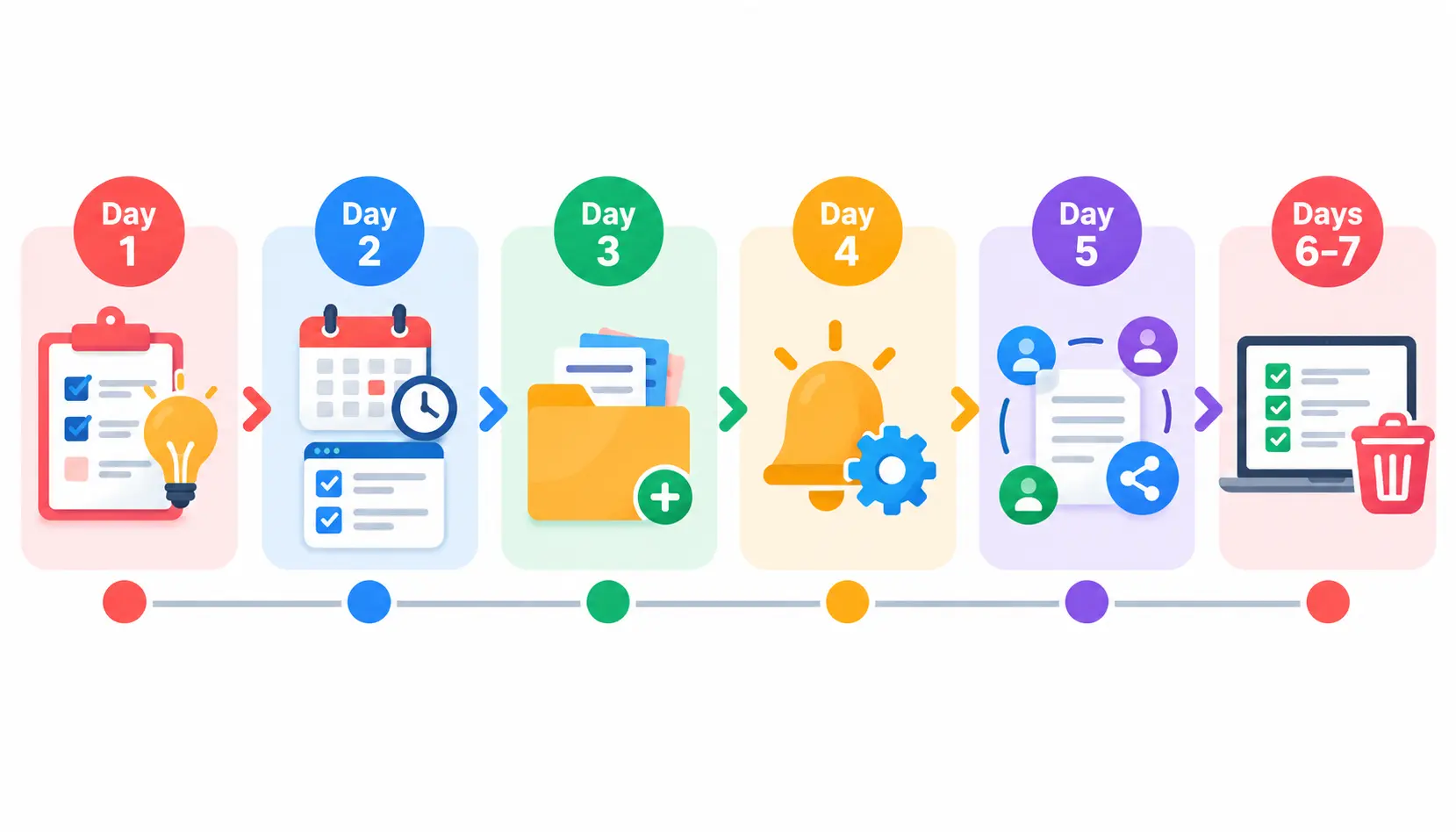
A One-Week Implementation Plan
Do not rebuild your whole system at once. Spread it across a week.
Day 1: Identify recurring productivity problems
List the three things that cost you the most time or stress each week. Be specific.
Day 2: Choose a primary planning tool
Pick one calendar and one task manager. Move every deadline you know about into them.
Day 3: Organize notes and files
Create a simple folder and notebook structure by subject or class. Name files consistently.
Day 4: Configure reminders and deadlines
Set reminders a few days ahead of key dates. Turn off notifications you do not need.
Day 5: Test a collaboration workflow
Try a shared document or board with a classmate or colleague. Fix what feels awkward.
Days 6–7: Review results and remove unnecessary tools
Ask what helped and what you ignored. Delete or stop using anything that overlaps.
Common Mistakes to Avoid When Using Educational Productivity Tools
Using Too Many Apps for the Same Task
Two note apps and three to-do lists mean information gets lost. Choose one home for each type of information.
Relying on Notifications Instead of a Review Routine
Alerts are easy to ignore and easy to forget. Set a regular time, such as Sunday evening, to review your week and plan the next one.
Trusting AI Summaries Without Checking Accuracy
A smooth summary can still be wrong. Compare it with the original notes, slides, or text before you study from it.
Ignoring Data Privacy and Academic Integrity
Uploading private data or breaking assignment rules can cause real problems. Read the policies, and ask when unsure.
Measuring Activity Instead of Meaningful Progress
Completing twenty small tasks feels productive. But if the essay is still unwritten, it was not. Judge your system by outcomes: work submitted, concepts understood, and stress reduced.
Frequently Asked Questions About Productivity Tools in Education
1. What are the essential productivity tools for education?
Essential productivity tools for education are apps that help with planning, note-taking, collaboration, research, focus, and assessment. For most people, the core set is a calendar, a task manager, a notes app, a shared document editor, and a research or revision tool.
2. What are the best productivity apps for students?
There is no single winner. Google Calendar and Todoist suit planning, OneNote or Notion suit notes, Zotero suits research, and Anki or Quizlet suit revision. Choose based on your biggest problem.
3. What are the best productivity tools for teachers?
Teachers often rely on Google Classroom or an LMS for assignments, Google Workspace or Microsoft 365 for documents, Trello or Asana for planning, and Kahoot! for quick assessment. Communication tools like Teams or Zoom support virtual lessons and meetings.
4. Which productivity tools are free for students and teachers?
Many tools have free plans, and some offer education discounts or school-provided licenses. Eligibility and limits vary by product and region, so check each official site and ask your school.
5. How do productivity tools help improve academic performance?
They can help you manage time, find materials faster, and review more consistently. Results still depend on how you use them and on your study habits. A tool supports learning but does not do it for you.
6. Can productivity tools work offline?
Some can. Offline support varies by tool, device, and settings. Test it before you need it, and download important files ahead of time.
7. Are AI productivity tools safe for students to use?
They can be, with care. Follow school rules, verify facts and citations, and avoid sharing personal or confidential data. Check the tool’s privacy terms, especially for younger users.
8. How many productivity tools should a student use?
Start with three to five. Each one should solve a clear problem, such as scheduling, notes, or revision. Add more only when a real gap appears.
Conclusion
The essential productivity tools for education do not need to be complicated or expensive. They need to fit your real problems and work together without overlap.
Start small. Pick one planner, one notes system, and one way to collaborate. Use AI carefully, protect private data, and review your system weekly.
If you try only one thing this week, follow the one-week plan above. A simple, steady workflow beats a perfect one you never use.

Mehreen Mushtaq is a skilled content writer dedicated to creating high-quality, engaging, and SEO-focused blogs. She specializes in strategic keyword usage, search intent, and informative content that connects with readers while helping websites strengthen their visibility and rankings in search results.