A to-do list app should make your day lighter. Too often, it becomes one more thing to manage.
The tricky part is choosing. Every app promises focus, but free plans differ, platforms differ, and some tools quietly lock useful features behind a subscription. This guide of the 7 best to-do list apps of 2026 cuts through that noise.
Todoist is the best all-around pick. TickTick is best if you want timers and habits in one place. Microsoft To Do, Google Tasks, and Apple Reminders are the best free options for people already inside those ecosystems. Things 3 is the best polished choice for Apple fans. Any.do suits people who want daily planning with shared lists.
The right answer depends on your devices, your habits, and how complex your tasks are. Use the table below to shortlist, then read the reviews.
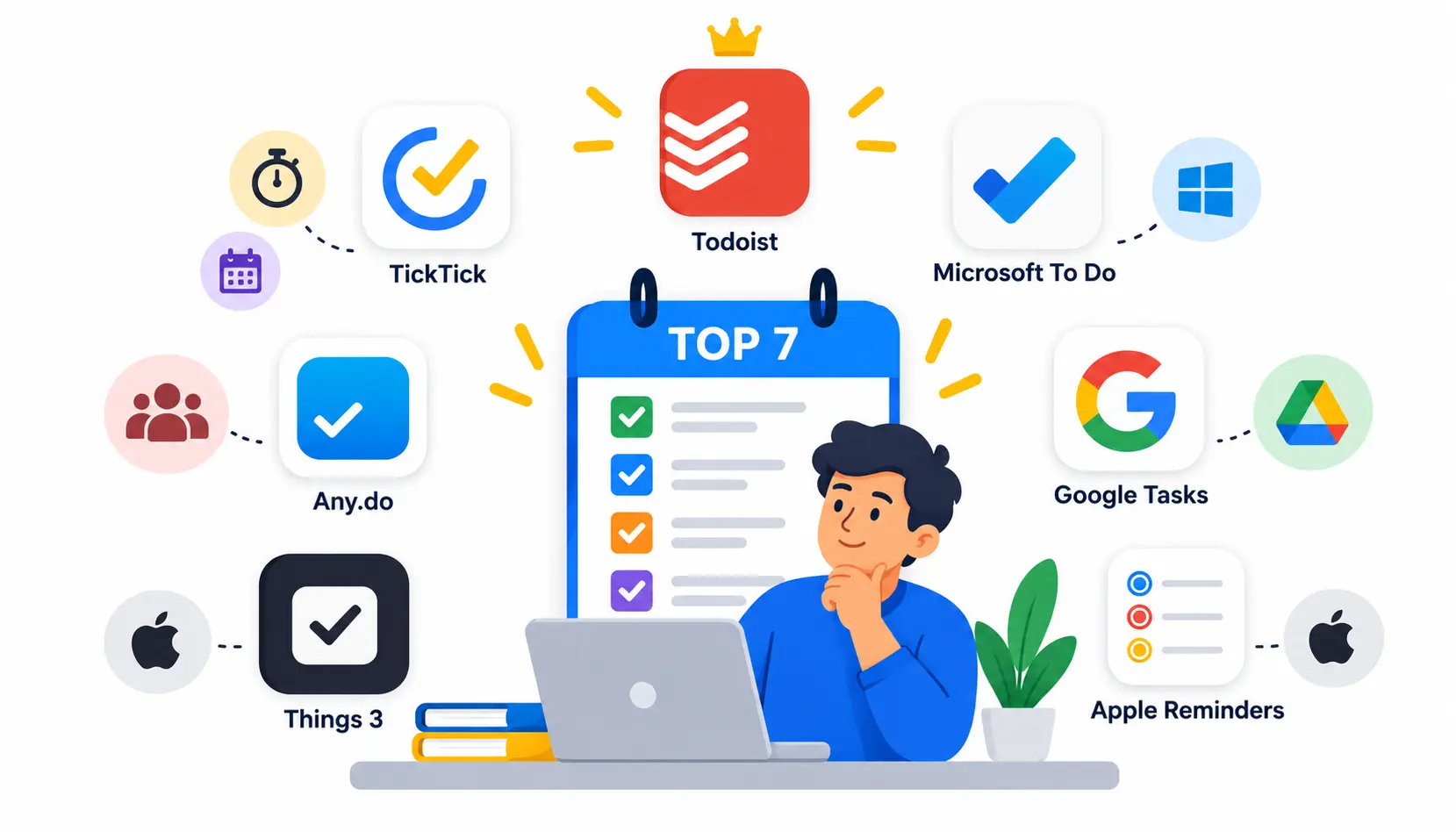
The 7 Best To-Do List Apps of 2026 at a Glance
| App | Best for | Key features | Free plan | Platforms | Paid pricing | Main limitation |
| Todoist | All-around use | Natural-language input, filters, recurring tasks, integrations | Yes, with limits | Web, iOS, Android, Windows, Mac | Subscription | Some advanced features are paid |
| TickTick | Tasks, timers, habits | Pomodoro timer, habit tracker, calendar views | Yes, with limits | Web, iOS, Android, Windows, Mac | Subscription | Dense interface for beginners |
| Microsoft To Do | Microsoft 365 users | My Day, Outlook integration, shared lists | Yes | Web, iOS, Android, Windows, Mac | Free | Light on advanced planning |
| Google Tasks | Gmail and Calendar users | Tasks inside Gmail, Calendar, and Docs | Yes | Web, iOS, Android | Free | Very basic features |
| Any.do | Daily planning, shared lists | Daily planner, reminders, calendar view | Yes, with limits | Web, iOS, Android, Windows, Mac | Subscription | Best features need Premium |
| Things 3 | Apple-focused users | Areas, projects, Today and Evening views | No (trial) | Mac, iPhone, iPad, Apple Watch | One-time purchase per platform | Apple only, no real collaboration |
| Apple Reminders | Simple Apple lists | Siri, location reminders, shared lists | Yes | iPhone, iPad, Mac, Apple Watch, iCloud web | Free | Limited outside Apple devices |
Plans, prices, and platform support change often. Check each app’s official website before you commit. If you need more than a task manager, explore these best productivity tools to compare apps for time management, collaboration, project tracking, and daily workflows.
How We Tested and Ranked These To-Do List Apps
I ranked these apps by how well they handle the things that matter in a normal week. That means capturing tasks fast, getting reminded at the right time, and seeing a realistic plan for today.
A quick note on method. The scoring criteria below are the framework I recommend you use. Where a point comes from hands-on use, it reflects daily workflow. Where it comes from official documentation or public product pages, treat it as desk research and confirm it in the app before you pay.
Task Capture and Ease of Use
The best app is the one you open without thinking. I looked at how many taps it takes to add a task, whether the app understands plain language, and whether it works from the share sheet, widgets, or keyboard shortcuts.
Reminders, Recurring Tasks, and Priorities
A list that never reminds you is just a note. I checked time-based reminders, recurring tasks such as “every second Friday,” and how clearly each app shows priority.
Calendar Integration and Daily Planning
Tasks and calendars belong together. I favored apps that show deadlines next to meetings, or at least let you sync with a calendar you already use.
Cross-Device Sync and Platform Compatibility
If your tasks live on one device, they will fail you on the other. I weighed which operating systems each app supports and how reliably it syncs.
Collaboration, Privacy, and Data Portability
Sharing a grocery list is different from running a team. I looked at sharing options, how easy it is to export your data, and what each company says about privacy in its policy.
Pricing, Free-Plan Limits, and Value for Money
Free is not always free. I looked at what each free plan lets you do, and which features sit behind a paywall.
The 7 Best To-Do List Apps of 2026
1. Todoist: Best All-Around To-Do List App
Overview and ideal user. Todoist is a long-running task manager built for people who want power without clutter. It suits students, freelancers, and busy professionals who juggle many small commitments.
Key features and everyday workflow. Its standout skill is natural-language input. Type “pay rent every month on the 1st” and it creates a recurring task with the right date. You can group tasks into projects, add labels, and build custom filters to see only what matters today.
A simple workflow: capture everything into the Inbox, then sort tasks into projects once a day. Use a filter for “due today” and work from that view.
Free plan vs. paid plan. The free plan covers the basics and is enough for light personal use. Paid tiers add things like more projects, reminders, and extra collaboration capacity. Check Todoist’s pricing page for the current limits.
Pros and cons.
- Pros: fast capture, clean design, strong filters, wide integrations
- Cons: reminders and some filters need a paid plan; no built-in timer or habit tracker
Supported platforms and integrations. It runs on the web, iOS, Android, Windows, and Mac, and it connects with calendars and many other tools.
Who should choose it, and who should skip it. Choose it if you want one reliable list across every device. Skip it if you want habit tracking and a focus timer inside the same app. TickTick is a better fit there.
2. TickTick: Best for Tasks, Timers, and Habit Tracking
TickTick packs more into one app than most rivals. Think of it as a task manager, a calendar, a focus timer, and a habit tracker rolled together.
Task lists, calendar views, and reminders. You can view tasks as a list, a Kanban-style board, or a calendar. Reminders and recurring tasks are well supported.
Pomodoro timer and habit-tracking capabilities. The built-in focus timer uses the Pomodoro Technique, where you work in short, timed bursts with breaks between them. The habit tracker lets you log things like exercise or reading next to your regular tasks.
Free vs. Premium features. The free version is generous. Premium typically unlocks extras such as more calendar views and higher limits on lists and reminders. Confirm current details on TickTick’s site.
Pros, cons, and ideal use cases.
- Pros: lots of features in one app, good free tier, strong cross-platform support
- Cons: the interface can feel busy at first
It works well for students, self-employed workers, and anyone building routines.
How it compares with Todoist. Todoist is cleaner and better at natural-language input. TickTick offers more built-in tools. If you like to tinker and want everything in one place, pick TickTick. If you want simplicity, pick Todoist.
3. Microsoft To Do: Best for Microsoft 365 Users
Microsoft To Do is a free, friendly app that replaced the older Wunderlist after Microsoft acquired it.
My Day and task organization. The “My Day” view is its best idea. Each morning, you pick the tasks you want to tackle today, and the list resets overnight. This keeps your daily plan short and realistic.
Outlook and Microsoft ecosystem integration. You can turn flagged Outlook emails into tasks, which is handy if your work lives in your inbox. It fits neatly into a Microsoft 365 setup.
Sharing and collaboration. You can share lists with others, assign tasks, and keep a family or small group in sync.
Free access and limitations. It is free to use. The trade-off is fewer advanced features, such as deep filtering or built-in habit tracking.
Pros, cons, and ideal user.
- Pros: free, simple, great My Day view, strong Outlook link
- Cons: limited power features for complex projects
It is ideal for office workers on Windows and Outlook.
4. Google Tasks: Best for Gmail and Google Calendar Users
Google Tasks is the lightest tool on this list, and that is its strength.
Creating tasks from the Google ecosystem. You can open a side panel in Gmail, Calendar, and other Google Workspace apps and add tasks without switching tabs. You can also turn an email into a task.
Managing deadlines and subtasks. Tasks can have due dates and subtasks. Dated tasks appear in Google Calendar, so your deadlines sit beside your meetings.
Free access and supported platforms. It is free. You can use it on the web, and there are mobile apps for iOS and Android.
Limitations for advanced collaboration. It has no real project views, labels, or team features. If you need those, look elsewhere.
Who should choose it. Pick it if you already live in Gmail and Calendar and want a simple list that stays out of your way.
5. Any.do: Best for Daily Planning and Shared Lists
Any.do focuses on helping you plan your day, not just store tasks.
Daily planning and reminders. Its daily planner prompts you to review tasks and assign them to today, tomorrow, or later. Reminders keep you on track.
Calendar and shared-list workflows. You can see tasks beside calendar events, and share lists with family or colleagues. That makes it popular for household chores and shopping.
Free and paid features. The free plan covers basic lists. Premium adds features such as extra reminders and expanded collaboration. Check the current plan details before you decide.
Pros, cons, and ideal user.
- Pros: friendly design, good daily planning, easy sharing
- Cons: some of the most useful features need a paid plan
When a family or team may need a different tool. If you need detailed assignments, timelines, or reporting, a project-management tool will serve a team better.
6. Things 3: Best for Apple-Focused Task Management
Things 3, from Cultured Code, is known for its calm, beautiful design.
Interface and task organization. Tasks flow through simple views such as Inbox, Today, and Upcoming. A “This Evening” section separates daytime work from evening tasks.
Projects, deadlines, and planning. You can group work into Areas (such as Home or Work) and Projects, with headings inside each project. It separates “start date” from “deadline,” which helps you avoid seeing tasks before you can act on them.
Apple device compatibility. It runs on Mac, iPhone, iPad, and Apple Watch only.
One-time purchase model and platform restrictions. There is no subscription. You buy the app once per platform, so Mac, iPhone, and iPad are purchased separately. It has no Windows or Android version, and it lacks built-in sharing with other people.
Who should choose it, and who should avoid it. Choose it if you work alone on Apple devices and love polished software. Avoid it if you collaborate often or use non-Apple devices.
7. Apple Reminders: Best for Simple Apple Task Lists
Apple Reminders comes free on iPhone, iPad, and Mac. Many people ignore it, but it has grown into a capable app.
Lists, reminders, and recurring tasks. You can create lists, subtasks, flags, and repeating reminders. Location-based alerts, such as “remind me when I get home,” are a nice touch.
Siri and Apple ecosystem integration. Siri works well for quick capture. Just say what you need, and it lands in your list.
Shared lists and everyday use. You can share lists with family members, which is perfect for groceries and errands.
Free access and limitations. It is free, but it works best inside Apple’s world. You can reach it on the web through iCloud, but it is not a full cross-platform tool.
When the built-in app is enough. If your needs are simple and you use Apple devices, try Reminders first. You may not need to pay for anything.
Which To-Do List App Is Best for Your Needs?
Best Free To-Do List App
Microsoft To Do and Google Tasks are fully free. Apple Reminders is free for Apple users. TickTick and Todoist offer free plans with limits.
Best App for Windows
Microsoft To Do fits Windows naturally. Todoist and TickTick are strong alternatives if you want more control.
Best App for iPhone and Mac
Things 3 is the most polished option. Apple Reminders is the best free choice. Todoist works well if you also use other platforms.
Best App for Android
TickTick and Todoist both work well on Android. Google Tasks is a good free pick if you use Gmail and Calendar.
Best App for Freelancers and Professionals
Todoist is my top pick for people who juggle clients and deadlines. TickTick is a strong second if you like timers and habit tracking.
Best App for Families and Shared Lists
Any.do, Microsoft To Do, and Apple Reminders all handle shared lists well. Choose the one that matches the phones your family already uses.
Best App for Small Teams
Todoist can work for small teams with shared projects. If your team needs timelines or reporting, see the project-management section below.
Best App for AI-Assisted Planning
Several apps now add AI features, and these change quickly. Check each app’s current feature list. Today, natural-language input in Todoist and daily planning prompts in Any.do are the most practical helpers.
These picks can change if your setup changes. For example, a Windows user with an iPhone should favor a cross-platform app over Things 3.
Free vs. Paid To-Do List Apps: What Do You Really Need?
What You Can Usually Do With a Free Plan
Most free plans let you create tasks, set due dates, use recurring tasks, and sync across devices. That is enough for many people. If you want to build a useful workflow without increasing your software budget, explore these free productivity tools for task management, note-taking, time tracking, and project organization.
Features That May Require a Paid Subscription
Common paid extras include more projects, location or extra reminders, advanced filters, file attachments, calendar views, and larger collaboration limits.
When Paying for a Task Manager Is Worth It
Pay when a missing feature costs you time every week. For example, if you rely on reminders for client deadlines, a paid plan that guarantees them can be worth it.
How to Calculate Value Beyond the Subscription Price
Ask three questions:
- How many minutes per week would this feature save me?
- Would I miss a deadline without it?
- Can a free app do the same job?
If the answers favor the paid tool, the cost is easy to justify.
To-Do List Apps vs. Project-Management Software
When a Simple Task List Is Enough
If you manage your own tasks, or share a few lists with family, a to-do app is enough.
When to Consider ClickUp, Asana, Trello, or monday.com
Move to project-management software when several people need to work on the same project. Look for timelines, task dependencies, workload views, and reports. Tools like ClickUp, Asana, Trello, and monday.com are built for that.
How to Recognize When Your Workflow Has Become Too Complex
Watch for these signs:
- You keep adding notes to explain who is doing what
- Tasks depend on other people finishing first
- You need to report progress to a manager or client
If two or more sound familiar, it may be time to upgrade.
How to Choose the Right To-Do List App
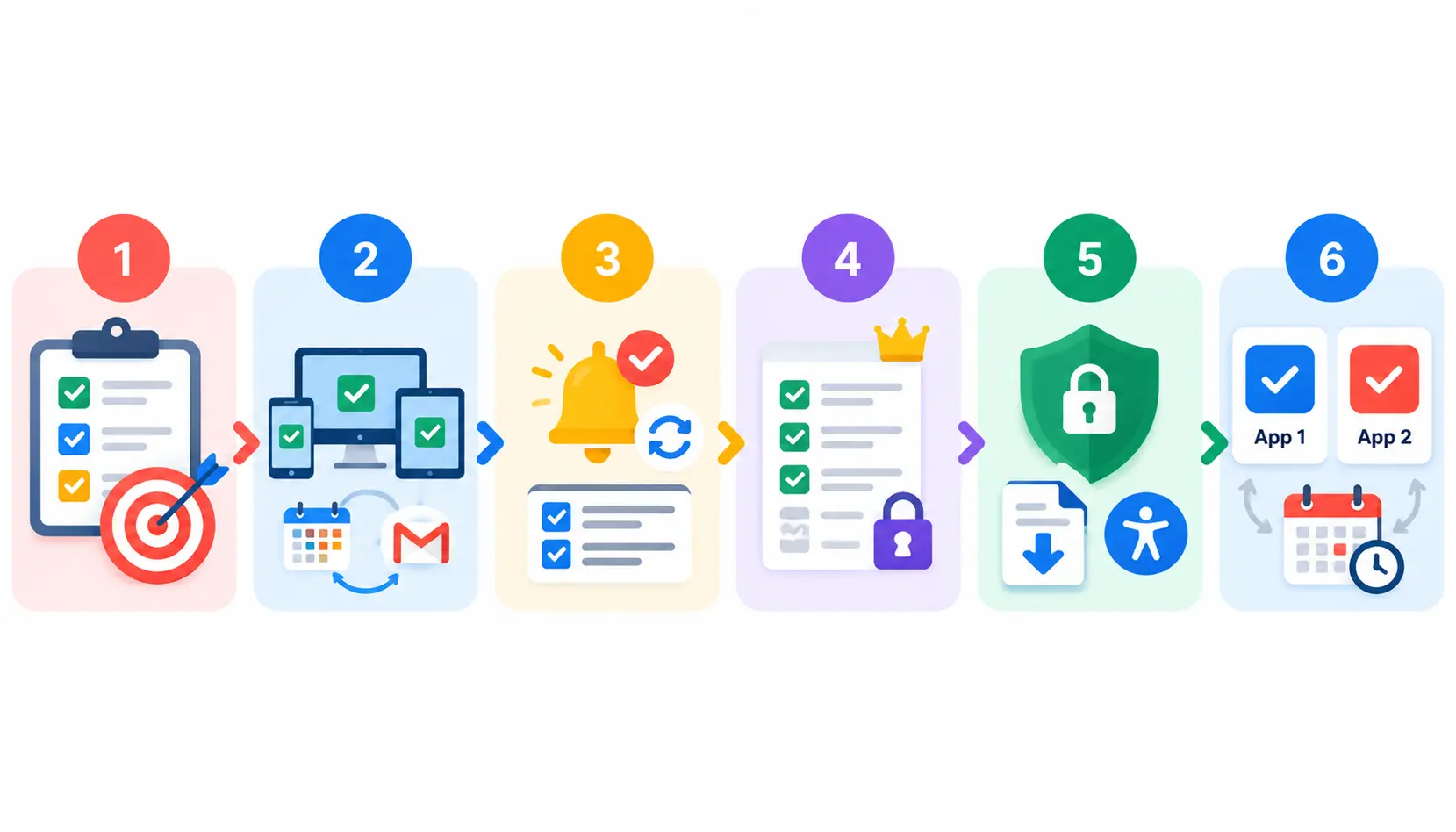
Step 1: Identify What You Need to Organize
List what you track: personal errands, work projects, habits, or shared chores. This tells you how much structure you need.
Step 2: Check Your Devices and Integrations
Make sure the app runs on every device you use daily. Confirm it connects with your calendar or email.
Step 3: Test Reminders and Recurring Tasks
Create a recurring task and a reminder, then see whether they behave as expected. This is the feature that most often disappoints.
Step 4: Compare Free-Plan Restrictions
Read the limits on projects, reminders, and collaborators. A free plan that blocks something you need is not really free for you.
Step 5: Evaluate Privacy and Accessibility
Read the privacy policy and check whether you can export your data. Also look for screen reader support and readable text sizes if accessibility matters to you.
Step 6: Test Two Shortlisted Apps Before Committing
Use two apps for one week each with real tasks. Real use shows you more than any comparison article, including this one.
How to Set Up a To-Do List App for Daily Productivity
A good setup matters more than the app. Many people lean on ideas from Getting Things Done, a well-known method built on capturing everything and reviewing it regularly. Combine your task list with practical time management strategies to prioritize important work, schedule focused sessions, and avoid overloading your day.
Capture Every Task in One Inbox
Send every new task to a single Inbox. Do not sort it yet. The goal is to get it out of your head.
Organize Tasks by Project or Context
Once a day, move tasks from the Inbox into projects (such as “Website redesign”) or contexts (such as “Calls” or “Errands”).
Set Realistic Deadlines and Priorities
Give a due date only when a real deadline exists. Mark just a few tasks as high priority. If everything is urgent, nothing is.
Plan Your Day Around Available Time
Look at your calendar first. If you have three free hours, pick tasks that fit those hours.
Review Completed and Overdue Tasks Weekly
Spend 15 minutes each week clearing overdue items. Reschedule them, delete them, or break them into smaller steps.
Example: from cluttered to manageable. Imagine a list of 40 mixed tasks. Move all of them to the Inbox, then group them into three projects: Work, Home, and Personal. Mark two tasks as priorities for tomorrow. Delete anything you no longer care about. You now have a short daily plan instead of a wall of text.
AI Features in To-Do List Apps: What to Know in 2026
More task apps now offer AI help. The features differ a lot, so verify what each app actually provides before you rely on it.
AI Task Creation and Natural-Language Input
Natural-language input turns a sentence into a task with a date and recurrence. Some apps also use AI to suggest subtasks or break big goals into steps.
AI Planning vs. Automatic Calendar Scheduling
AI planning suggests what to work on. Automatic scheduling places tasks directly on your calendar. They are different features, and not every app offers both.
Privacy Considerations When Connecting AI to Your Tasks
Your task list can hold sensitive details. Before you connect an AI feature, read how the company handles and stores your data, and whether you can opt out.
When AI Adds Value, and When a Simple List Is Better
AI helps most when you have large, messy lists or complicated schedules. For a short grocery list, a plain list is faster and simpler.
Frequently Asked Questions
1. What Is the Best To-Do List App in 2026 ?
Todoist is the best all-around to-do list app for most people because of its fast capture, clean design, and wide platform support. The best choice for you still depends on your devices and needs.
2. What Is the Best Free To-Do List App?
Microsoft To Do is a strong free choice because it costs nothing and works on most platforms. Google Tasks and Apple Reminders are also free and work well inside their own ecosystems.
3. Is Todoist Better Than TickTick?
Neither is better for everyone. Todoist has a cleaner design and strong natural-language input. TickTick bundles a focus timer and habit tracker, so it suits people who want more tools in one app.
4. Is Google Tasks Better Than Microsoft To Do?
It depends on your ecosystem. Google Tasks fits Gmail and Google Calendar users. Microsoft To Do offers more features, like My Day and Outlook integration, so it suits Microsoft 365 users.
5. Which To-Do List Apps Work Across Devices?
Todoist, TickTick, Microsoft To Do, and Any.do work across web, mobile, and desktop. Things 3 and Apple Reminders focus on Apple devices.
6. Are To-Do List Apps Worth Paying For?
They are worth it when a paid feature saves you time or prevents missed deadlines. If a free plan covers your needs, there is no reason to pay.
7. What Is the Difference Between a To-Do List App and Project-Management Software?
A to-do list app tracks individual tasks, mostly for one person. Project-management software helps teams plan work with timelines, dependencies, and reporting.
8. Can AI Automatically Organize My Tasks?
Some apps can suggest priorities, break tasks into steps, or schedule them on your calendar. Features vary by app and change often, so check the current feature list and privacy policy.
Conclusion
The 7 best to-do list apps of 2026 all do the core job well. The real difference is how each one fits your life.
- Todoist: best all-around choice
- TickTick: best for timers and habits
- Microsoft To Do: best for Microsoft 365 users
- Google Tasks: best for Gmail and Calendar fans
- Any.do: best for daily planning and shared lists
- Things 3: best for polished Apple-only use
- Apple Reminders: best simple built-in option
My advice: pick two apps, use each for a week, and keep the one you actually open. The best app is the one you stick with. For community opinions, browse threads on productivity and the app-specific subreddits before you decide.

Mehreen Mushtaq is a skilled content writer dedicated to creating high-quality, engaging, and SEO-focused blogs. She specializes in strategic keyword usage, search intent, and informative content that connects with readers while helping websites strengthen their visibility and rankings in search results.