Most people use Windows the same way for years. They open a browser, a few apps and a folder or two, then wonder why the day feels messy. Meanwhile, the operating system has been quietly adding features that fix exactly that.
The best Windows built-in productivity tools cost nothing extra and need no setup. They help you find files faster, keep copied text from disappearing, arrange windows without dragging them around, and block interruptions while you work.
This guide covers 12 of them. For each one you’ll get a plain explanation, the shortcut or steps to start, and a realistic example of when it helps. Near the end there’s a simple workflow that ties several tools together.
What are Windows built-in productivity tools?
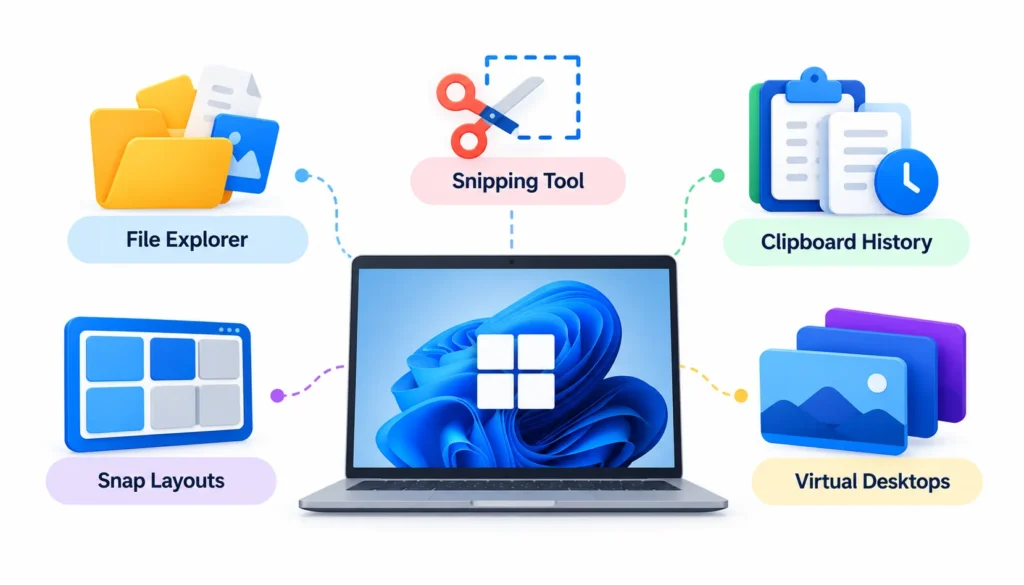
Windows built-in productivity tools are apps and features that come with Windows, or from Microsoft’s own store, and help you manage files, notes, windows, focus and screenshots without paying for extra software. Examples include File Explorer, Snipping Tool, Clipboard History, Snap Layouts and Virtual Desktops.
Not everything on this list is equal, so it helps to sort the tools into three groups:
- Core Windows features, such as Clipboard History, Snap Layouts, Windows Search and Virtual Desktops. These are part of the operating system.
- Microsoft apps, such as OneNote, Sticky Notes and Microsoft To Do. They are often preinstalled, but some PCs need a quick download from the Microsoft Store.
- Optional Microsoft utilities, such as PowerToys. Microsoft publishes it for free, but you have to install it yourself, so it isn’t built in.
A quick note on versions. This guide is written mainly for Windows 11. Microsoft ended mainstream support for Windows 10 in October 2025, and several features below (Snap Layouts, Focus sessions, screen recording in Snipping Tool) are Windows 11 only. A comparison table later in the article shows what you get on each.
The best Windows built-in productivity tools, one by one
You don’t need all 12. Skim the list, pick the two or three that match problems you actually have, and ignore the rest for now.
1. Microsoft Copilot
Copilot is Microsoft’s AI assistant. You type or speak a request, and it answers, drafts, summarizes or explains. It’s useful when you’re staring at a blank page or trying to understand something unfamiliar.
Say you have rough bullet points for a client presentation. You can paste them in and ask for a logical running order, then adjust the result yourself. Treat the output as a first draft, and check any facts or figures before you use them.
Availability depends on your region, Windows version and account. Some features need a Microsoft account or a paid plan, so what you see may differ from what a friend sees.
2. Microsoft OneNote
OneNote is a digital notebook. You create notebooks, split them into sections, and fill the sections with pages that can hold typed text, images, links, files and handwriting.
A student could keep one notebook per semester, one section per course, and one page per lecture. A freelance writer might do the same per client. When everything lives in one searchable place, you stop hunting through scattered documents.
OneNote is free to use with a Microsoft account. Microsoft has been changing how its OneNote apps are packaged, so if the version on your PC looks different from screenshots online, check Microsoft’s Windows support pages for the current version.
3. Sticky Notes
Sticky Notes is for things you’d otherwise scribble on a Post-it: a phone number, a deadline, a half-formed idea. The notes sit on your desktop, so you see them without opening anything.
If you juggle three clients, you could keep one note per client with the next deliverable and due date. It works well for short reminders. It’s a poor fit for anything with many steps or several people involved, and that’s where a task app makes more sense.
Notes can sync through your Microsoft account, so the same reminders can follow you to another device.
4. File Explorer
File Explorer is where your documents, downloads and project folders live. Most people use it daily and still treat it as a plain file list, but a few habits make a big difference.
- Pin your most-used folders to Quick Access so they’re one click away.
- On Windows 11, open tabs (Ctrl + T) instead of stacking up separate windows.
- Use consistent folder names. A pattern like Client > Year > Project saves more time than any feature.
Open it any time with Windows + E. If you use OneDrive, your synced folders appear here too, so files you save at your desk can show up on your laptop.
5. Windows Search
Windows Search finds apps, files, settings and web results from one box. Press Windows + S, start typing, and pick a result.
It’s quicker than clicking through folders. If you saved a report weeks ago and only remember part of the name, typing that fragment usually finds it. It also opens apps: type “snip” and press Enter to launch the Snipping Tool.
Results depend on what Windows has indexed. If a folder you care about isn’t showing up, check the search and indexing settings in Windows Settings and add it.
6. Snipping Tool
Snipping Tool captures a screenshot of a region, a window or the full screen. You can then mark it up with a pen or highlighter before you save or share it.
It’s the fastest way to report a bug or explain a step. A screenshot with a circled error message beats three paragraphs of description. Support staff, teachers and remote teams use this constantly.
- Windows + Shift + S starts a screenshot.
- Windows + Shift + R opens the screen recorder on supported Windows 11 versions.
Newer versions also offer text actions, which can pull readable text out of an image. Features arrive through app updates, so open the app’s menu to see what your copy supports. Microsoft’s own Snipping Tool guide lists the current options.
7. Focus sessions in the Clock app
Focus sessions are timed work blocks in the Clock app on Windows 11. You set a length, and Windows can silence notifications and show a timer. Breaks can be built in.
Take a 1,500-word article. You might give research one session, the outline another, the draft a third and editing a fourth. Short breaks in between keep you from drifting into email halfway through.
You can also link tasks from Microsoft To Do if you use it. For setup details, see Microsoft’s guide to staying on task in Windows. Windows 10 has Focus Assist, which quiets notifications but doesn’t include the timer sessions.
8. Clipboard History
Normally, copying something replaces whatever you copied before. Clipboard History keeps a list of recent items so you can paste any of them later.
To turn it on, press Windows + V and choose to enable it if Windows asks. After that, Windows + V opens the list, and you click an item to paste it. You can pin things you use constantly, like an email signature or a standard reply.
This helps anyone who moves text between files: researchers collecting quotes, support agents reusing answers, developers shuffling snippets. One caution: don’t copy passwords or card numbers while history is on, and be careful with syncing across devices. Anything you copy can sit in the list until you clear it.
9. Snap Layouts
Snap Layouts splits your screen into zones so open windows fit neatly next to each other. It’s the cure for the pile of overlapping windows.
Hover over a window’s maximize button, or press Windows + Z, and pick a layout. Then choose which window goes in which zone. Windows remembers the arrangement as a Snap Group, so you can bring the whole set back later from the taskbar.
A common setup for writers is a browser on the left and a document on the right. If you have a wide monitor, a three-column layout puts notes in the middle. On Windows 10 you can still drag windows to the screen edges to split them in two, but the layout menu is a Windows 11 addition.
10. Virtual Desktops
Virtual Desktops give you several separate desktops on one PC. Each has its own set of open apps, and you flip between them instead of cramming everything onto one screen.
- Windows + Tab opens Task View, where you can create a new desktop.
- Windows + Ctrl + D creates one straight away.
- Windows + Ctrl + Left/Right Arrow switches between them.
A freelancer might keep one desktop for client email and chat, a second for writing and research, and a third for personal browsing. When you finish for the day, you close the work desktops and the clutter goes with them.
11. Voice Typing
Voice Typing turns speech into text in almost any text box. Click where you want the text, press Windows + H, and start talking.
It’s handy for rough first drafts, since most people talk faster than they type. It’s also a real accessibility aid for anyone who finds typing tiring or painful. Say punctuation aloud if you want it, for example “comma” or “new line,” and expect to edit afterward.
Accuracy varies with your microphone, accent, background noise and chosen language. A decent headset helps more than any setting.
12. Microsoft Edge
Edge is the default browser on Windows, and it has a few features aimed at people who research a lot. Vertical tabs move your tab list to the side, which is far easier to read when you have 30 pages open. Tab groups let you colour-code and collapse related pages.
Immersive Reader strips a page down to plain text, which helps with long articles. Edge also offers Copilot features in a sidebar. Some features, such as Collections, have changed over time, so check what your version shows before relying on one.
Windows 10 vs Windows 11: which features do you get?
| Feature | Windows 10 | Windows 11 |
| Clipboard History | Yes | Yes |
| Virtual Desktops | Yes | Yes |
| Voice Typing (Windows + H) | Yes | Yes |
| Snap Layouts menu | No (basic edge snapping only) | Yes |
| Focus sessions in Clock | No (Focus Assist only) | Yes |
| Screen recording in Snipping Tool | No | Yes, on supported versions |
| File Explorer tabs | No | Yes, on supported versions |
This is a general guide. Microsoft rolls features out in stages, so a specific PC may be missing something listed here. If you’re still on Windows 10, upgrading (where your hardware allows it) gets you most of the Windows 11 items.
Windows keyboard shortcuts worth learning first
Shortcuts save a few seconds each time, and those seconds add up. Microsoft keeps a full list on its keyboard shortcuts page. These are the ones that matter most for the tools above.
| Shortcut | What it does |
| Windows + E | Opens File Explorer |
| Windows + S | Opens Windows Search |
| Windows + V | Opens Clipboard History |
| Windows + Shift + S | Starts a screenshot |
| Windows + H | Starts Voice Typing |
| Windows + Z | Opens Snap Layouts (Windows 11) |
| Windows + Tab | Opens Task View |
| Windows + Ctrl + D | Creates a new Virtual Desktop |
| Windows + Ctrl + Left/Right | Switches Virtual Desktops |
| Alt + Tab | Switches between open apps |
| Windows + D | Shows or hides the desktop |
| Windows + L | Locks your PC |
Don’t try to memorize the table in one sitting. Pick two, use them for a week, then add another.
Which tools suit which kind of work
The same toolkit helps different people in different ways. Here’s where each group tends to get the most value.
Students
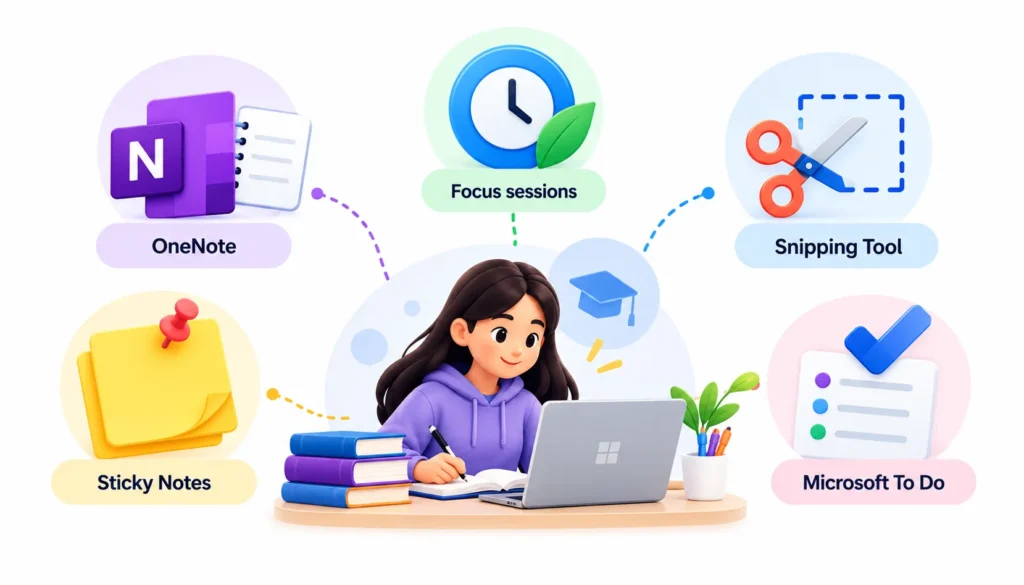
OneNote for class notes, Focus sessions for study blocks, and Snipping Tool for grabbing slides or diagrams. Sticky Notes covers quick reminders like assignment deadlines. If you use Microsoft To Do, keep a list per course. Students can also explore these productivity tips for students to improve study planning, manage assignment deadlines, and build better learning habits.
Content writers
Snap Layouts keep the research browser, notes and draft on screen together. Clipboard History holds links and quotes while you gather them, and Voice Typing helps with rough drafts. Edge’s vertical tabs tame the research pile.
Freelancers
Virtual Desktops let each client or project have its own space. Pair that with a tidy File Explorer structure and Windows Search, and finding last month’s invoice or brief takes seconds.
Remote workers
Snipping Tool and its recorder replace long explanations in chat. Snap Layouts help during calls, with the meeting on one side and notes on the other. Focus sessions protect the blocks of the day when you need to concentrate.
Small business owners
File Explorer and Windows Search handle the document flood. OneNote can hold standard procedures and supplier details, and Clipboard History speeds up repetitive entry like addresses and product descriptions.
Built-in tools vs third-party apps
Built-in tools are free, already installed and consistent with the rest of Windows. Third-party apps usually offer more depth and customization, but they cost money, need setup, and add another thing to maintain.
| Factor | Built-in tools | Third-party apps |
| Cost | Included with Windows or free from Microsoft | Free tiers and paid plans |
| Setup | Little or none | Install, sign up, learn |
| Depth | Solid for everyday tasks | Often much deeper |
| Privacy | Handled by Microsoft’s settings | Depends on each vendor |
| Best for | Daily basics | Specialized workflows |
A sensible rule: start with what Windows gives you, and add an outside app only when you hit a specific wall. Clipboard History is fine for most people, but if you need searchable snippets with tags, a dedicated clipboard manager earns its place. Sticky Notes works for reminders, but a team tracking dozens of tasks needs real project software.
Microsoft’s free PowerToys sits in between. It adds tools like custom window layouts and a quick launcher, which is worth a look if the built-in options feel limited. For more advanced workplace requirements, explore these tools that increase employee productivity to discover software for task management, time tracking, collaboration, and workflow optimization.
How to build a simple workflow from these tools
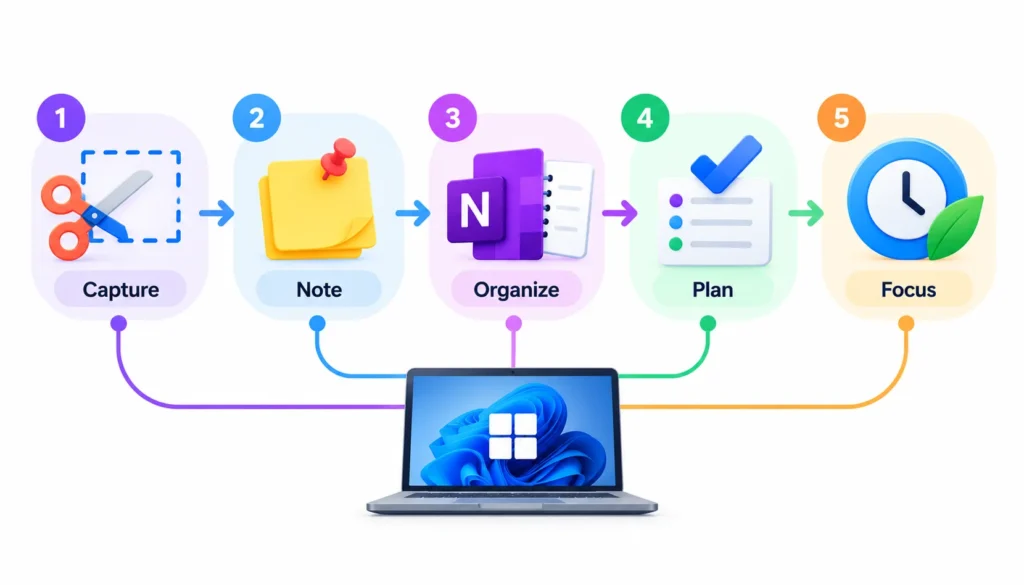
The tools work better together. Here’s one setup you can put together in an afternoon.
- Tidy your files. Create a folder per project in File Explorer and pin the ones you use daily to Quick Access.
- Pick one place for tasks. Use Microsoft To Do if you have it, or Sticky Notes if you only need a few reminders.
- Collect research in OneNote. One notebook per project keeps notes, links and screenshots together.
- Arrange your screen. Press Windows + Z and snap your browser, notes and main document into a layout.
- Turn on Clipboard History. Press Windows + V once, and use it whenever you’re moving text around.
- Block out focus time. Start a Focus session in the Clock app and work through one task at a time.
To make your work sessions more effective, explore these practical time management strategies for prioritizing tasks, managing schedules, and maintaining focus throughout the day.
Add a Virtual Desktop for each major project if you switch contexts a lot. If any step feels like a chore after a week, drop it. A workflow you actually follow beats a clever one you abandon.
Are Windows built-in productivity tools enough?
For most everyday work, yes. You can organize files, take notes, multitask, capture your screen and limit distractions without installing anything.
They do have limits:
- Sticky Notes and To Do won’t replace project management software for a team.
- File Explorer isn’t a document management system with version control and approvals.
- Clipboard History has no tagging or long-term storage.
- Focus sessions can quiet notifications, but they can’t stop you from opening a distracting site yourself.
If you hit one of these limits, that’s the time to look at an outside tool. Until then, you’re probably better off learning the features you already have. People on communities like Windows11 regularly trade tips about hidden settings, though check anything you read there against Microsoft’s own documentation, since advice ages quickly as Windows updates.
Frequently asked questions
What are the best built-in productivity tools for Windows 11?
The most useful ones for most people are File Explorer, Windows Search, Snipping Tool, Clipboard History, Snap Layouts, Virtual Desktops, Focus sessions and Voice Typing. OneNote and Sticky Notes add note-taking.
Does Windows have a built-in task manager?
Windows has Task Manager, but it monitors running programs and system performance rather than your to-do list. Open it with Ctrl + Shift + Esc. For personal tasks, use Microsoft To Do or Sticky Notes.
What is the best free productivity tool for Windows?
There’s no single winner. File Explorer and Windows Search help with files, OneNote with notes, Clipboard History with copying, and Focus sessions with distractions. Choose based on your biggest time sink.
How can I increase productivity on my Windows PC?
Organize your folders, learn a few shortcuts, use Snap Layouts for multitasking, turn on Clipboard History, and schedule Focus sessions. Small habits applied daily matter more than a long list of apps.
Does Windows 11 have a built-in note-taking app?
Sticky Notes handles quick notes. OneNote handles structured notebooks. Depending on your PC, one may need a download from the Microsoft Store.
How do I use Snap Layouts in Windows 11?
Press Windows + Z or hover over a window’s maximize button. Choose a layout, then pick which window goes in each zone.
What is Clipboard History in Windows?
It’s a feature that saves several recently copied items so you can paste any of them later. Press Windows + V to open it and turn it on if prompted.
How do I start a Focus session?
Open the Clock app on Windows 11, choose Focus sessions, set a length and any breaks, and press start. Windows can also reduce notifications during the session.
Does Windows have a built-in screen recorder?
Yes. On supported Windows 11 versions, Snipping Tool can record a part of your screen. Xbox Game Bar can also record app windows, which you open with Windows + G.
How do I manage multiple desktops in Windows?
Press Windows + Tab to open Task View and add a desktop. Switch with Windows + Ctrl + Left/Right Arrow.
Is Microsoft OneNote free?
Yes, OneNote is free to use with a Microsoft account. Some storage and extra features may require a Microsoft 365 subscription.
Can I be productive on Windows without downloading apps?
Yes. Clipboard History, Snap Layouts, Virtual Desktops, Windows Search and basic screenshots are all part of Windows itself. A few Microsoft apps may need a quick install from the Microsoft Store.
Conclusion
You probably already own most of what you need to work better. The best Windows built-in productivity tools are the ones that remove a specific annoyance: lost files, overwritten copies, messy windows, constant pings.
Start small. Turn on Clipboard History today, try Windows + Z tomorrow, and set up one Focus session this week. Once those feel normal, add Virtual Desktops or OneNote.
When something does fall short, you’ll know exactly what to look for in an outside app, because you’ll have hit the wall yourself.

Mehreen Mushtaq is a skilled content writer dedicated to creating high-quality, engaging, and SEO-focused blogs. She specializes in strategic keyword usage, search intent, and informative content that connects with readers while helping websites strengthen their visibility and rankings in search results.