
Most teams don’t have a meeting problem. They have a follow-up problem. Someone takes rough notes, someone else forgets an action item, and a week later nobody agrees on what was decided.
Intelligent productivity with Microsoft Teams Premium is Microsoft’s answer to that gap. It adds AI-powered recaps, notes, task suggestions, timeline markers, and live translated captions to standard Teams meetings.
This guide explains what those features do, how to use them, what they cost to run, and where they fall short. Feature names, prices, and licensing rules change often, so I point you to Microsoft’s official pages for anything you should verify before you buy.
What Is Intelligent Productivity with Microsoft Teams Premium?
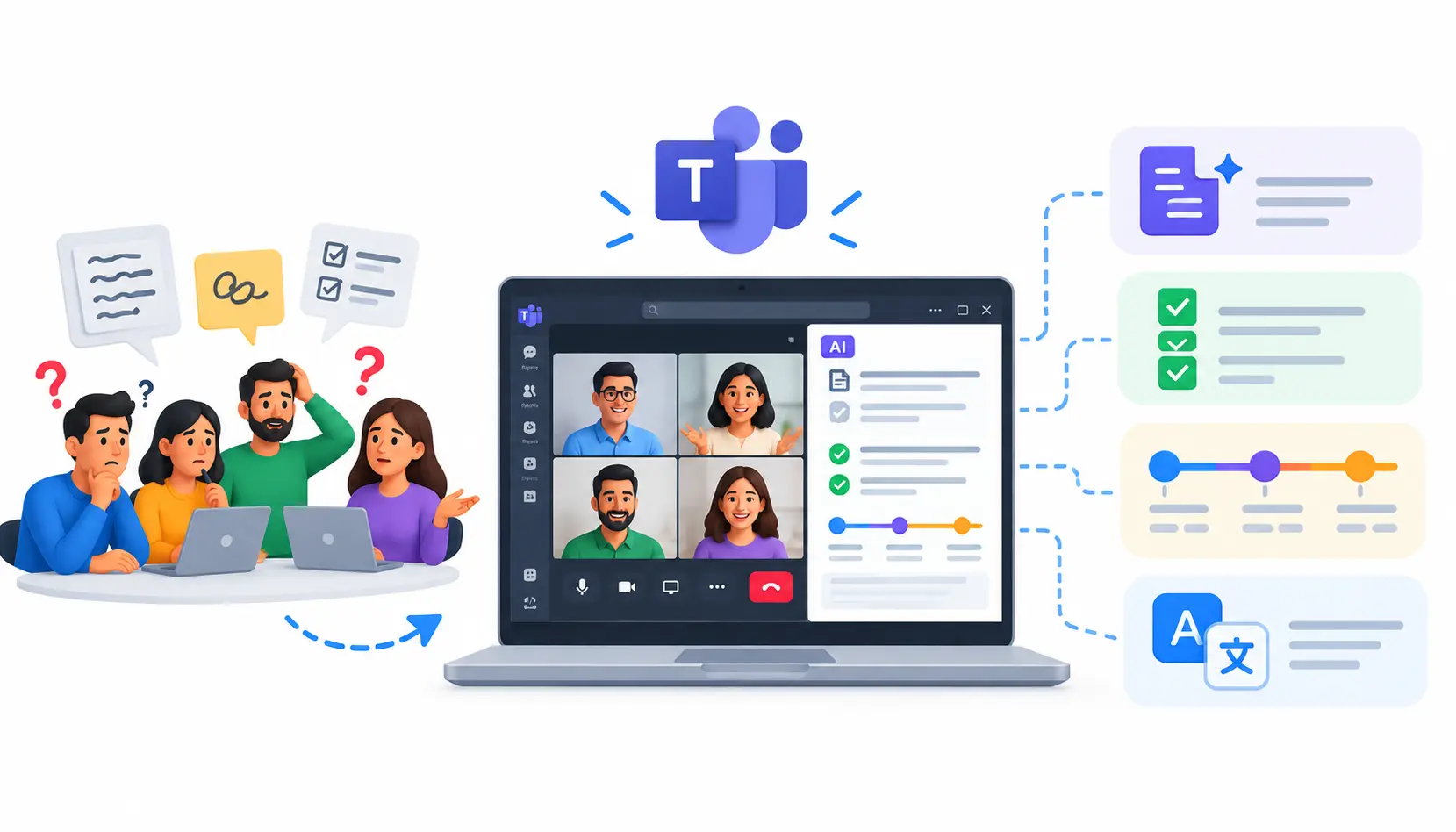
Intelligent productivity with Microsoft Teams Premium is a set of AI-assisted meeting features that help people capture, review, and act on meeting content faster. It sits on top of regular Microsoft Teams as a paid add-on license. Its core tools include intelligent meeting recap, AI-generated notes and tasks, timeline markers, chapters, and live translated captions.
What Microsoft Teams Premium Adds to Standard Teams
Standard Teams already handles chat, calls, and video meetings. Teams Premium adds a layer of extra meeting capabilities, mostly around AI, meeting security, and meeting branding.
How AI-Powered Meetings Help Users Work More Efficiently
The idea is simple. The meeting is recorded or transcribed, and the AI organizes what was said into something you can scan in minutes instead of replaying for an hour.
That means less time writing minutes and more time doing the work the meeting was meant to start.
Who Benefits Most From Intelligent Productivity Features?
In my experience, these groups get the most value:
- Project managers who run recurring status meetings
- Sales and account teams who need clean client call records
- Remote and hybrid teams spread across time zones
- Leaders who join many meetings and need quick catch-ups
- Organizations with multilingual staff
If your team has few meetings or rarely records them, the benefit will be smaller.
How Intelligent Productivity Differs From General AI Assistance
Teams Premium is focused on meetings. It does not draft your emails, build slide decks, or search across your files.
Broader AI help across Word, Excel, Outlook, and Teams is the job of Microsoft 365 Copilot. We compare the two later in this guide.
Key Intelligent Productivity Features in Microsoft Teams Premium
Feature names and availability shift as Microsoft updates the product. For every feature below, check four things before you roll it out: what it does, who benefits, what prerequisites apply, and what you should verify.
Intelligent Meeting Recap
Intelligent recap gathers the key parts of a recorded, transcribed meeting into one place. You typically see a summary, notes, tasks, and ways to jump to key moments.
Verify: the meeting was recorded or transcribed, and your license includes recap.
AI-Generated Meeting Notes
AI notes turn the conversation into a short, structured summary organized around topics. They help people who missed the meeting and people who attended but don’t want to rewatch it.
Verify: notes depend on a transcript, so poor audio or missing transcription will limit the output.
AI-Generated Tasks and Follow-Up Suggestions
The AI listens for commitments such as “I’ll send the draft by Friday” and suggests them as tasks. This is useful, but it is a suggestion, not a final assignment.
Verify: every task, owner, and due date before anyone relies on it.
Personalized Timeline Markers
These markers highlight moments that matter to you, such as when your name was mentioned or when you joined or left. They help you skip to the parts of a recording that affect you.
Verify: the marker types available in your tenant and recording type.
Speaker Timeline Markers and Transcript Insights
Speaker markers show who was talking and when. Combined with the transcript, they let you find one person’s input without scrubbing through the whole recording.
Verify: speaker attribution is only as good as the transcript. Check names on important points.
Automatically Generated Chapters and Topics
Chapters split a long recording into labeled sections. Think of them as a table of contents for a meeting.
Verify: chapters are most useful in long, structured meetings like trainings or reviews.
Live Translated Captions
Live translated captions show what people say in another language in real time. They help international teams join the same meeting without waiting for a human interpreter.
Verify: supported languages change over time. Check Microsoft’s current language list before promising this to a global team.
Supported Translated Transcripts and Multilingual Meeting Features
Some multilingual capabilities apply to captions, and others apply to transcripts. They are not always the same, so confirm which languages each one supports.
Verify: test a short meeting in your target languages first.
How Does Intelligent Meeting Recap Work?
Intelligent meeting recap works by analyzing a meeting’s recording and transcript and presenting a summary, notes, tasks, and navigation aids in the meeting’s recap tab. You don’t build it manually. Teams assemble it after the meeting ends.
How Teams Creates a Meeting Recap
The process starts with recording and transcription. Once the meeting ends and the content is processed, Teams generates the recap and makes it available to eligible participants.
Processing can take a little while, so don’t panic if nothing appears right away.
What Information Appears in the Recap
Depending on your license and meeting setup, a recap can include:
- The recording and transcript
- An AI-generated summary or notes
- Suggested tasks
- Timeline markers and chapters
- Shared files and meeting chat
How to Find Important Moments in a Recording
Start with chapters if they exist. Then use speaker markers to find a specific person, or personalized markers to find your own mentions.
Search the transcript for a keyword when you need an exact moment, such as a budget number or a deadline.
How to Review AI-Generated Notes and Tasks
Read the notes against what you remember. Fix anything that looks off, and confirm each task with the person named.
A two-minute check now saves a misunderstanding later.
What Happens When You Miss a Meeting?
If the meeting was recorded and transcribed and you are eligible, you can open the recap and catch up from the summary, then jump into only the segments you need.
This is one of the clearest wins in practice. A 60-minute meeting can become a 10-minute read.
Limitations of AI-Generated Meeting Summaries
AI summaries can miss context, misattribute a comment, or misunderstand jargon and accents. Sarcasm and side conversations are hard for any system.
Treat the recap as a strong first draft, not an official record.
How to Use Intelligent Productivity Features in Teams
Here is the workflow I recommend to teams starting out.
Step 1: Confirm Your License and Feature Availability
Check whether your account has Teams Premium, or another license that includes the feature you want. Your admin can confirm this in the Microsoft 365 admin center.
Also confirm that the feature is available for your meeting type.
Step 2: Check Recording and Transcription Settings
Intelligent recap relies on recording or transcription. Make sure meeting policies allow them, and that the organizer turns them on.
Step 3: Open the Meeting Recap
After the meeting, open the meeting from your Teams calendar or chat and look for the Recap tab. This is where the summary, notes, and tasks appear.
Step 4: Review Notes, Tasks, and Timeline Markers
Scan the summary first. Then check the task list and use the markers to confirm anything unclear.
Step 5: Verify Important Decisions and Assignments
For decisions, budgets, deadlines, and client commitments, check the transcript or recording. Do not rely on the AI summary alone.
Step 6: Follow Up and Share Meeting Outcomes
Send a short follow-up in chat or email with the confirmed decisions and owners. Share it with the people who need it, and respect your organization’s sharing rules.
What to Do If Intelligent Recap Is Missing
Don’t assume there is one cause. Work through these checks:
- License: does the user have an eligible license?
- Meeting type: is the feature supported for this kind of meeting?
- Recording or transcription: was it turned on?
- Permissions: is the user allowed to view the content?
- Admin policies: has an administrator restricted the feature?
If all of these look fine, use Microsoft’s current troubleshooting documentation, since requirements change between releases.
How Teams Premium Improves Workplace Productivity
The benefits show up in small, repeated savings. Here is where I see them most.
Reduce Manual Meeting Note-Taking
When the AI drafts notes, a person can focus on the discussion instead of typing. That tends to improve the quality of the conversation too.
Make Follow-Up Tasks Easier to Identify
Suggested tasks surface commitments that might otherwise stay buried in a transcript. You still need to confirm them, but you start with a list instead of a blank page.
Help Employees Catch Up on Missed Meetings
People in other time zones or on leave can read a summary and jump to the sections they need. This reduces the “can you recap that for me?” messages.
Navigate Long Meetings and Recordings Faster
Chapters and markers turn a long video into something searchable. That matters for trainings, workshops, and all-hands sessions.
Support Multilingual and Distributed Teams
Live translated captions lower the language barrier in real time. They won’t replace a professional interpreter for sensitive legal or medical discussions. For teams that need more than meeting features, cloud-based productivity and collaboration tools can help connect communication, file sharing, and project workflows across remote and hybrid workplaces.
Improve Consistency Across Recurring Meetings
When every weekly meeting produces a similar recap, it becomes easier to compare progress week over week. Consistency is underrated.
How to Measure the Productivity Benefits
Don’t assume a gain. Measure it. Useful metrics include:
- Time spent preparing meeting summaries
- Follow-up task completion rates
- Time spent reviewing recordings
- User adoption of the recap features
Results depend on your workflow, so capture a baseline before the pilot and compare after. Beyond meeting recaps, exploring tools that help increase employee productivity can help organizations identify solutions for task management, communication, time tracking, and workflow automation.
Practical Use Cases for Intelligent Productivity in Teams Premium
Project Management and Weekly Status Meetings
A project manager can use the recap to confirm blockers, owners, and due dates. The summary becomes the starting point for the weekly status email.
Sales Calls and Client Meetings
Sales teams can review what the client asked for and which next steps were promised. Always check the exact wording before sending a proposal based on it.
Remote and Hybrid Team Collaboration
When half the team is remote, a shared recap keeps everyone on the same page. People who join late can catch up without interrupting.
Multilingual Meetings With International Teams
Live translated captions help participants follow along in their preferred language. Pair them with a short written summary to reduce misunderstandings.
Training Sessions and Knowledge Sharing
Chapters make recorded training easier to revisit. New hires can jump straight to the section they need.
Leadership Meetings and Decision Reviews
Leaders can use the recap to confirm decisions and assignments. For high-stakes decisions, the official minutes should still come from a person.
Example: From Meeting to Verified Follow-Up
Imagine a six-person product team holds a 45-minute launch review. The organizer starts the recording and transcription.
After the meeting, the team lead opens the recap and reads the summary. She notices the AI suggested three tasks, but one assigns a deadline to the wrong person.
She checks the transcript, fixes the owner, and posts the three confirmed tasks in the team channel. Two people who missed the meeting read the summary and watch only the 8-minute pricing chapter.
Nobody wrote minutes from scratch, and the final record was still checked by a human.
Microsoft Teams Premium vs. Microsoft 365 Copilot
Teams Premium focuses on enhancing Teams meetings, while Microsoft 365 Copilot provides AI assistance across Microsoft 365 apps. They overlap in some meeting features, so check which license your users actually need.
What Teams Premium Is Designed to Do
It improves the meeting experience with AI recap, translation, and extra meeting controls. It is a lower-scope add-on aimed at meeting-heavy users.
What Microsoft 365 Copilot Adds
Copilot extends AI to Word, Excel, PowerPoint, Outlook, and Teams, including summarizing and answering questions about meetings, documents, and email. It is broader and typically a bigger investment.
Which Meeting Features Overlap?
Some recap and meeting-summary capabilities are available through either license. The exact split has changed over time, so confirm it in current documentation.
How Licensing Affects Intelligent Recap
Whether a user sees the full recap, AI notes, or AI tasks depends on the license assigned to that person and on the meeting setup. Don’t assume everyone in a meeting sees the same thing.
Which Option Fits Different Business Needs?
| Area | Teams Premium | Microsoft 365 Copilot |
| Primary purpose | Better, more secure Teams meetings | AI assistance across Microsoft 365 |
| Meeting recap | Yes, with eligible license | Yes, with eligible license |
| AI across other apps | No | Yes |
| Licensing | Add-on to a qualifying Microsoft 365 or Teams license | Add-on to a qualifying Microsoft 365 license |
| Best for | Meeting-heavy teams, webinars, translation needs | Knowledge workers who want AI everywhere |
This table is a starting point. Verify each row against Microsoft’s current official licensing documentation, because details change. If you’re comparing options beyond meeting-specific AI, explore these cloud-based productivity apps to evaluate collaboration features, task management, integrations, and pricing for your team’s broader workflow.
Microsoft Teams Premium Pricing and Licensing Requirements
How Teams Premium Licensing Works
Teams Premium is licensed per user as an add-on. Users need a qualifying underlying Microsoft 365 or Teams license first.
Is Teams Premium Included With Microsoft 365?
No, not by default. It is a separate paid add-on, though Microsoft has adjusted bundles and offers over time, so check your agreement.
Teams Premium vs. Teams Enterprise
Teams Enterprise refers to the standard Teams capabilities within enterprise Microsoft 365 plans. Teams Premium adds extra features on top of those.
When Microsoft 365 Copilot May Be a Better Fit
If your users need AI help beyond meetings, such as drafting documents or summarizing email, Copilot may deliver more value. If meetings are your main pain point, Teams Premium may be enough.
How to Check Current Pricing and Eligibility
I don’t list a price here on purpose. Prices vary by region, currency, billing period, and taxes, and they can change.
Check the official Teams Premium page on the day you buy, and confirm the required underlying license with your Microsoft partner or admin.
What Administrators Need to Know Before Purchasing
- Which users truly need Premium features
- Whether recording and transcription policies are enabled
- How retention and compliance policies apply
- How licenses are assigned and removed
Privacy, Security, and Data Handling for Intelligent Meetings
What Meeting Content Is Used to Generate Recaps?
Recaps rely on meeting content such as the recording, transcript, and related meeting data. The exact inputs depend on the feature.
Where Transcripts, Notes, and Recordings Are Stored
Storage locations differ by feature and meeting configuration. Recordings and transcripts are commonly tied to the organizer’s or a shared location in Microsoft 365, but confirm this for your tenant in Microsoft’s documentation.
How Permissions and Retention Policies Affect Access
Who can view a recap depends on meeting permissions and your organization’s policies. Retention rules can also affect how long content remains available.
How Organizations Can Protect Sensitive Meetings
Use sensitivity labels, restrict who can record, and limit access to recordings where needed. Decide upfront which meetings should not be recorded at all.
Why Users Should Verify AI-Generated Content
AI output can be wrong. For anything legal, financial, or HR-related, a human must confirm the content.
Best Practices for Responsible Use of Meeting AI
- Tell participants when a meeting is recorded or transcribed
- Follow local consent and privacy rules
- Review AI output before sharing it widely
- Keep sensitive discussions out of recorded meetings when possible
For the details, read Microsoft’s data, privacy, and security documentation for Teams on Microsoft Learn.
How to Roll Out Intelligent Productivity Features Across an Organization
Assess Current Meeting and Collaboration Challenges
Start with the real problem. Are notes inconsistent? Are follow-ups slipping? Do people miss meetings across time zones?
Identify Users Who Need Premium Capabilities
Don’t license everyone. Begin with the heaviest meeting users and the roles that benefit most.
Confirm Licensing and Administrator Policies
Verify licenses, recording policies, and compliance settings before the pilot begins.
Pilot the Features With a Small Team
Pick one team with recurring meetings. Run the pilot for a few weeks and gather real feedback.
Train Users to Review and Verify AI Outputs
Teach people to treat AI notes as drafts. A short checklist for verifying owners, dates, and decisions goes a long way.
Measure Adoption and Productivity Outcomes
Track the metrics you set earlier. Compare them against your baseline.
Refine the Rollout Based on Feedback
Adjust policies, training, and license assignments before expanding. Skip the big-bang rollout.
Common Problems and Limitations to Understand
Intelligent Recap Is Not Available
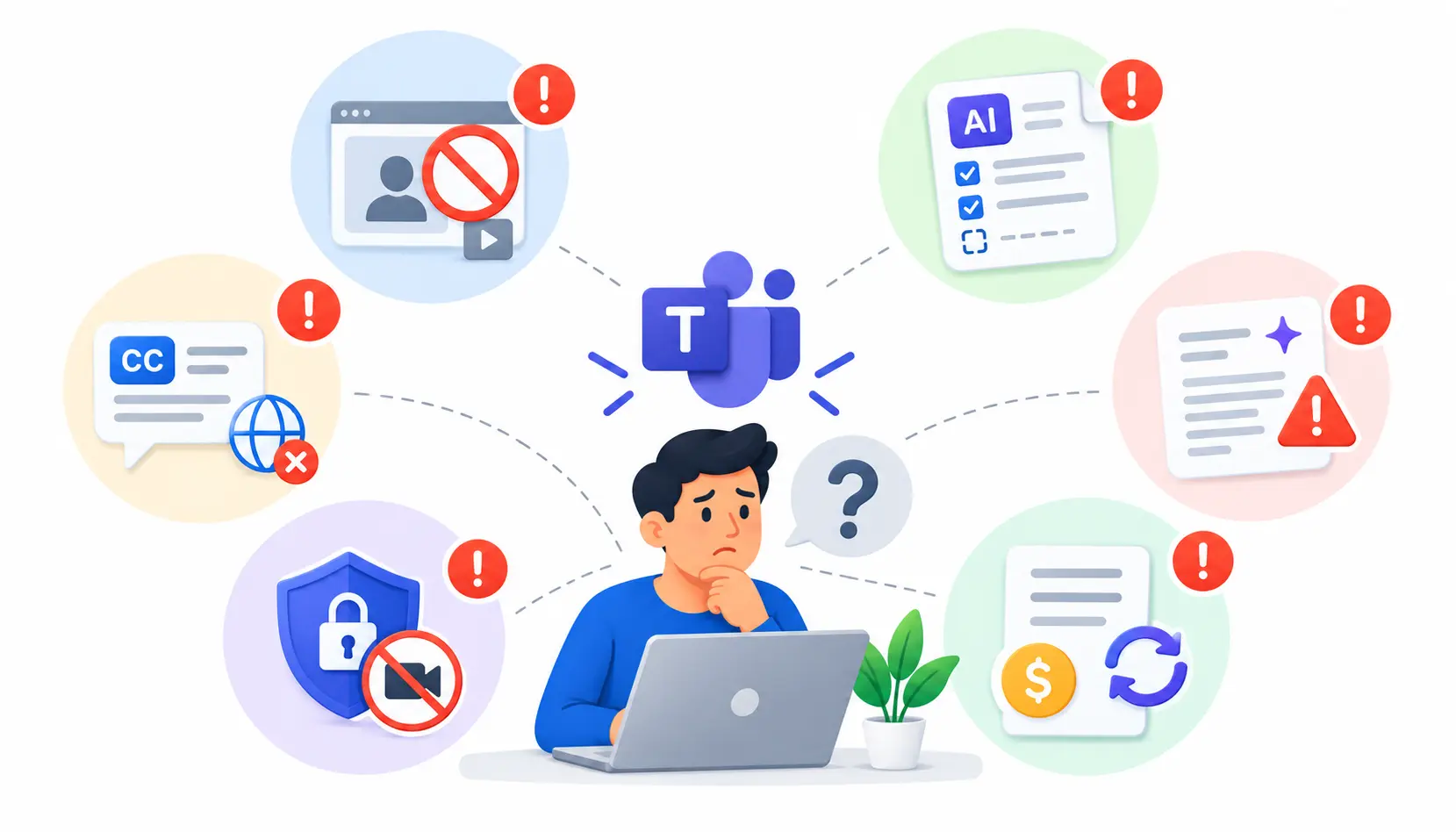
The usual suspects are licensing, meeting type, missing transcription, or admin policy. Check them in that order.
AI Notes or Tasks Are Missing
These features may require specific licenses or settings. They may also fail when the transcript is incomplete.
Captions or Transcripts Are Not Supported
Not every language or meeting type is supported. Check Microsoft’s current language and feature lists.
AI Summaries Contain Inaccuracies
This happens. Correct the record, and teach your team to cross-check with the transcript.
Privacy Policies Restrict Recording or Transcription
Some organizations block recording for legitimate reasons. In those cases, recap features that depend on it will be limited.
Licensing Changes Affect Feature Availability
Microsoft revises licensing and feature packaging periodically. Revisit your setup after major announcements.
For real-world experiences and workarounds, community discussions such as the MicrosoftTeams subreddit can be helpful. Treat them as anecdotes, and confirm anything important against Microsoft’s documentation. For general background on the platform itself, see the Microsoft Teams article.
Frequently Asked Questions About Intelligent Productivity With Teams Premium
1. What Is Intelligent Productivity in Microsoft Teams Premium?
It is a group of AI-powered meeting features, including recaps, notes, tasks, timeline markers, chapters, and live translated captions. They help you capture and act on meeting content faster.
2. Does Teams Premium Automatically Generate Meeting Notes?
It can generate AI notes for eligible meetings that are recorded or transcribed, depending on your license and settings. Always review them before sharing.
3. Can Teams Premium Summarize Meetings You Missed?
Yes, for eligible meetings with recording or transcription enabled. Open the meeting’s recap to read the summary and jump to key moments.
4. How Do You Enable Intelligent Meeting Recap?
Confirm you have an eligible license, make sure recording and transcription are allowed, and have the organizer turn them on. Then open the Recap tab after the meeting.
5. Does Teams Premium Translate Live Captions?
Yes, it includes live translated captions for supported languages. Check Microsoft’s current language list.
6. Is Teams Premium Included With Microsoft 365?
Generally no. It is a separate add-on that requires a qualifying underlying license.
7. What Is the Difference Between Teams Premium and Copilot?
Teams Premium improves Team meetings. Copilot adds AI help across Microsoft 365 apps, including meetings.
8. Where Are Intelligent Recap Notes Stored?
It depends on the feature and meeting setup. Check Microsoft’s documentation for your tenant, since storage locations differ.
9. Is Microsoft Teams Premium Worth the Cost?
It can be, if your team holds many meetings and struggles with notes and follow-up. Pilot it with a small group, measure the time saved, and decide from the data.
Conclusion
Intelligent productivity with Microsoft Teams Premium is worth a close look if meetings eat your week and follow-up keeps slipping. The recap, notes, tasks, and translation tools can save real time when they fit how your team works.
They are not magic. You still need the right license, the right settings, and a habit of checking AI output before acting on it.
My advice is to start small. Pilot with one team, measure the results, compare Teams Premium with Copilot, and confirm current pricing on Microsoft’s official page before you commit.

Mehreen Mushtaq is a skilled content writer dedicated to creating high-quality, engaging, and SEO-focused blogs. She specializes in strategic keyword usage, search intent, and informative content that connects with readers while helping websites strengthen their visibility and rankings in search results.